


TL;DR
The WordPress wp_insert_post() function allows developers to create or update posts, pages and custom post type entries programmatically. It accepts an array of post data, returns the new post ID on success, and can return a WP_Error object when error handling is enabled. Always test custom code in a staging environment and create a full backup before using it on a live website.
TABLE OF CONTENTS
Overview
Developers using Domains.co.za WordPress Hosting can use the built-in WordPress wp_insert_post() function to automatically create content instead of adding each post manually through the WordPress Dashboard.
The function can be useful for custom plugins, integrations, imports, form submissions, migrations and other workflows where WordPress content needs to be created through PHP code. It can create standard posts, pages and registered custom post types, and it can also add metadata, categories, tags and taxonomy terms as part of the process.
Because wp_insert_post() writes directly to the WordPress database through the WordPress API, incorrect or repeatedly executed code can create duplicate or unintended content. Before using the function, create a full website and database backup and use a staging environment wherever possible.
IMPORTANT:
This guide is intended for developers and advanced WordPress users. Do not edit WordPress core files such as wp-includes/post.php. Use a custom plugin, child theme or reputable code snippet tool instead. If you are unsure about adding custom PHP code to your website, consult your website developer before proceeding.
What Is the wp_insert_post Function?
wp_insert_post() is a built-in function that inserts a new post into the WordPress database or updates an existing post when an existing post ID is supplied.
Its current function signature is:
wp_insert_post( $postarr, $wp_error = false, $fire_after_hooks = true );WordPress returns the post ID when the operation succeeds. If $wp_error is set to true, the function can return a WP_Error object when an error occurs.
When Should You Use wp_insert_post?
You can use wp_insert_post() when WordPress content needs to be created or updated automatically.
Common examples include:
- Importing content from another system.
- Creating posts from form submissions.
- Creating content through an API integration.
- Building custom plugins or internal tools.
- Creating registered custom post type entries.
- Migrating content into WordPress.
- Automating repetitive content-management tasks.
If you are inserting large volumes of content, include appropriate validation, duplicate checks and performance planning rather than running the function repeatedly without controls.
Before You Begin
Before adding code that uses wp_insert_post(), ensure you have:
- WordPress administrator access where required.
- A recent full backup of the website and database.
- A staging environment where possible for safe testing.
- Access to a custom plugin, child theme or reputable code snippet tool.
- Basic PHP knowledge.
- The correct author IDs, category IDs, taxonomy names and meta keys.
- A clear understanding of when and how the function will run.
If you need to access your WordPress files through your Domains.co.za hosting account:
1. Login to the Domains.co.za Customer Portal.
2. Open the Manage Services dropdown menu.
3. Select Web Hosting or WordPress Hosting.
4. Click Manage next to the relevant domain.
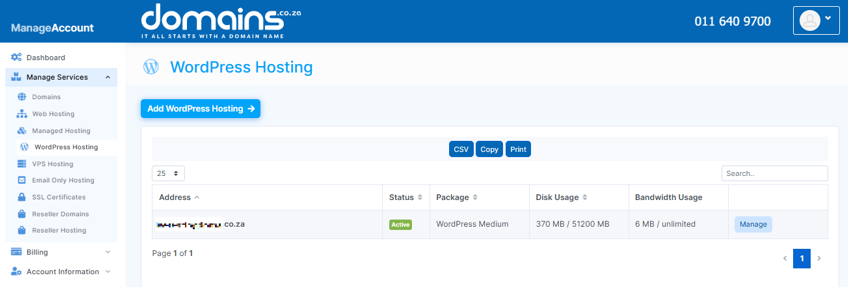
5. Click Login next to Control Panel to access cPanel.
6. Open File Manager if you need access to your WordPress files.
7. Navigate to the relevant WordPress installation directory.
The cPanel steps are relevant only for accessing website files. Do not add wp_insert_post() directly to WordPress core files.
What Do the wp_insert_post Parameters Mean?
The function accepts three main parameters:
What Does $postarr Do?
$postarr is the array containing the information WordPress should use when updating or creating the post.
It can include the post title, content, status, author, post type, date, categories, tags, metadata and other supported values.
What Does $wp_error Do?
$wp_error determines whether WordPress should return a WP_Error object when the function fails.
For development and troubleshooting, setting this value to true makes errors easier to identify and handle.
What Does $fire_after_hooks Do?
$fire_after_hooks determines whether WordPress runs the after-insert hooks once the post has been inserted.
It defaults to true and should normally remain enabled unless a developer has a specific reason to prevent those hooks from running.
What Are the Common wp_insert_post Fields?
Common values that can be included in $postarr include:
| Field | Purpose |
| post_title | Sets the post title. |
| post_content | Sets the main post content. |
| post_excerpt | Sets the post excerpt. |
| post_status | Sets the status, such as draft, publish or future. |
| post_author | Specifies the WordPress user ID of the author. |
| post_type | Defines whether the entry is a post, page or registered custom post type. |
| post_date | Sets the publication date and time. |
| post_name | Sets the post slug. |
| post_category | Assigns category IDs. |
| tags_input | Assigns tags. |
| tax_input | Assigns taxonomy terms. |
| meta_input | Adds post metadata or custom fields. |
| comment_status | Controls whether comments are open or closed. |
| ping_status | Controls pingbacks and trackbacks. |
| page_template | Assigns a page template where applicable. |
WordPress documents category, tag, taxonomy and page-template handling as supported parts of wp_insert_post().
How Do You Insert a New WordPress Post?
A basic example can create a new post as a draft and return an error if the insertion fails.
$post_data = array(

'post_title'   => 'My First Programmatic Post',

    'post_content' => 'This post was created using wp_insert_post.',

    'post_status'  => 'draft',

    'post_author'  => 1,

    'post_type'    => 'post',

);

$post_id = wp_insert_post( $post_data, true );

if ( is_wp_error( $post_id ) ) {

    error_log( $post_id->get_error_message() );

}
In this example, the content is created as a draft rather than being published automatically.
Replace the post_author value with a valid WordPress user ID for your website. Using $wp_error = true makes it possible to check the return value with is_wp_error().
How Do You Insert a Post with Metadata?
You can use meta_input to add custom field metadata when inserting or updating a post.
$post_data = array(

    'post_title'   => 'Post with Metadata',

    'post_content' => 'This post includes custom metadata.',

    'post_status'  => 'draft',

    'post_type'    => 'post',

    'meta_input'   => array(

        'reading_time' => '5 minutes',

        'source'       => 'imported',

    ),

);

$post_id = wp_insert_post( $post_data, true );
Always validate and sanitise imported or user-submitted values before storing them in the WordPress database.
How Do You Assign Categories & Tags?
You can assign categories using post_category and tags using tags_input.
For example:
$post_data = array(

    'post_title'    => 'Categorised Post',

    'post_status'   => 'draft',

    'post_category' => array( 4, 8 ),

    'tags_input'    => array( 'WordPress', 'Development' ),

);
post_category strictly expects category IDs. WordPress also supports tag names, slugs, or a comma-separated string through tags_input.
How Do You Insert a Custom Post Type?
Set post_type to the slug of the registered custom post type. For example:
$post_data = array(

    'post_title'  => 'New Service',

    'post_status' => 'draft',

    'post_type'   => 'service',

);

$post_id = wp_insert_post( $post_data, true );
The custom post type must already be registered in WordPress before you attempt to insert content for it.
How Do You Assign Custom Taxonomies?
You can supply custom taxonomy terms through tax_input when inserting a post. For example:
$post_data = array(

    'post_title' => 'New Resource',

    'post_type'  => 'resource',

    'tax_input'  => array(

        'resource_category' => array( 'Guides' ),

    ),

);
NOTE:
Tax_input depends on the current user’s capability to work with the taxonomy. If the user lacks permissions, tax_input will be ignored, and a developer may need to use wp_set_object_terms() after the post has been inserted.
How Do You Schedule a Post with wp_insert_post?
Set post_status to future and provide a publication timestamp in post_date.
$post_data = array(

    'post_title'  => 'Scheduled Post',

    'post_status' => 'future',

    'post_date'   => '2026-09-15 09:00:00',

    'post_type'   => 'post',

);

$post_id = wp_insert_post( $post_data, true );
WordPress requires a valid future publication date formatted as YYYY-MM-DD HH:MM:SS when post_status is set to future.
How Do You Update an Existing Post?
Including an existing post ID in $postarr causes wp_insert_post() to update that post instead of creating a new one.
For example:
$post_data = array(

    'ID'         => 123,

    'post_title' => 'Updated Post Title',

);

$result = wp_insert_post( $post_data, true );
When updating, only the fields in $post_data are modified. If you specifically intend to update existing content, wp_update_post() can make the code’s purpose clearer.
Why Might wp_insert_post Not Work?
wp_insert_post() may fail or behave unexpectedly when the post data, permissions, timing or surrounding code are incorrect.
Common causes include:
- An invalid author ID.
- An unregistered/misspelled post type.
- An incorrect taxonomy name.
- Insufficient user capabilities.
- Code running before WordPress is fully loaded.
- The same insertion code running repeatedly (infinite/recursive loops).
- An error being returned but not checked.
- Invalid or incomplete post data.
If you are troubleshooting custom code, Domains.co.za also provides guidance on enabling WordPress Debug Mode and configuring WordPress error logs. Domains.co.za recommends using private logging carefully and creating a backup before editing configuration files.
What Are Common wp_insert_post Mistakes?
The most common errors involve running the code at the wrong time or inserting unchecked data.
Avoid:
- Running an insertion function on every page load without controls.
- Creating duplicate posts because no existence check is performed.
- Using invalid author or category IDs.
- Using incorrect taxonomy names.
- Publishing content automatically before testing.
- Editing WordPress core files directly.
- Ignoring the returned value or WP_Error.
- Storing unvalidated or unsanitised imported data.
- Failing to escape data when displaying it later.
- Confusing new-post logic with update logic.
Additional Information
- Always create a recent website and database backup before testing custom WordPress code on an existing website.
- Use a staging environment wherever possible so that failed code does not affect a live website or customer-facing content.
- Do not add custom code directly to WordPress core files, as updates can overwrite changes and incorrect edits may break the website.
- Use a custom plugin, child theme or reputable code snippet tool so that custom functionality is separated from WordPress core.
- Set $wp_error to true when developing or troubleshooting so that failures can be handled using is_wp_error().
- Validate and sanitise imported, API-supplied or user-submitted data before passing it to wp_insert_post().
- Add duplicate checks when the function may run more than once, particularly during imports, scheduled jobs or API requests.
- Use draft in test examples rather than publishing automatically until the insertion logic has been verified.
- Check that custom post types and taxonomies have been registered before attempting to assign content to them.
- For large imports or automated content generation, plan for validation, duplicate prevention and server resource usage rather than processing large volumes without controls.
- If code causes a WordPress error, use Debug Mode or error logs to identify the source rather than repeatedly modifying a live website.
- Consult your website developer if you are unsure how custom code may affect an existing or ecommerce website.
Login to Domains.co.za Account
1. Go to the Domains.co.za website Account Login page.

2. Enter your Email and Password and click the Sign In button.
3. You will see the Domains.co.za Dashboard, displaying the Manage Account menu on the left and your Account Information, Account Overview and Open Support Tickets on the right.


