


TL;DR: Create 301 redirect permanently by sending visitors and search engines from an old URL to a new URL. In WordPress, you can create a 301 redirect using a redirect plugin, supported SEO plugin, .htaccess where the server supports it, or PHP for more advanced use cases.
Introduction
When a WordPress page, post or domain changes its address, visitors may still try to open the old URL. Without a redirect, they can reach a 404 error instead of the content they expected.
A 301 redirect solves this issue by permanently forwarding the old URL to the most appropriate new destination. It is commonly used after changing page slugs, restructuring URLs, moving a website to another domain, consolidating content or correcting broken links.
Customers using WordPress Hosting can create WordPress redirects at application or server level, depending on the website setup and the method being used.
A 301 redirect tells browsers and search engines that a resource has permanently moved. This helps users reach the correct content and allows search engines to transfer relevant signals to the replacement URL, although a redirect should not be treated as a guarantee that every SEO signal will be preserved in every situation.
Before creating redirects, make a list of the old URLs and their correct new destinations. Redirect each URL to the closest relevant replacement instead of automatically sending removed pages to the homepage.
IMPORTANT:
Redirects can affect website access, SEO, analytics, forms and ecommerce journeys. Create a recent backup before editing server files and test every redirect after adding it. For migrations, complex redirect rules or changes to an established URL structure, consider consulting your website developer before proceeding.
TABLE OF CONTENTS
What Is a 301 Redirect?
A 301 redirect is an HTTP response that indicates a URL has moved permanently to a different location.
When a visitor requests the old URL, the server or WordPress redirects them to the new destination. Search engines can also use the redirect to understand that the new URL has replaced the old one.
What Is the Difference Between 301, 302, 307 & 308 Redirects?
The redirect type should match whether the change is permanent or temporary.
- 301 indicates a permanent redirect.
- 302 indicates a temporary redirect.
- 307 is a temporary redirect that preserves the original request method.
- 308 is a permanent redirect that preserves the original request method.
- Meta refresh redirects are handled within the page itself and are generally not preferred for important permanent URL changes.
For permanent WordPress URL changes, a 301 redirect is usually the appropriate choice.
When Should You Use a 301 Redirect in WordPress?
Use a 301 redirect when an old URL has permanently been replaced by another relevant URL.
When You Change a Page or Post URL
If you change a page or post slug, redirect the old URL to the new one so existing links continue to work.
When You Change Your URL Structure
Changes to permalink or directory structures can leave existing URLs unavailable. Redirects can map the old addresses to their correct new locations.
When You Move to a New Domain
A domain migration should normally map old URLs to the equivalent pages on the new domain rather than sending every URL to the new homepage.
When You Move From HTTP to HTTPS
Once SSL has been configured correctly, HTTP requests should redirect to the corresponding HTTPS version of the website.
When You Delete or Merge Content
If removed content has a suitable replacement, redirect the old URL to the most relevant live page.
When You Fix Broken Links
A redirect can assist users and search engines to reach the correct destination when an old URL still receives traffic or backlinks.
How to Create a 301 Redirect Using a WordPress Plugin
A dedicated redirect plugin is usually the simplest option for WordPress users who don’t wish to edit server files.
1. Login to the Domains.co.za Customer Portal.
2. Open the Manage Services dropdown menu.
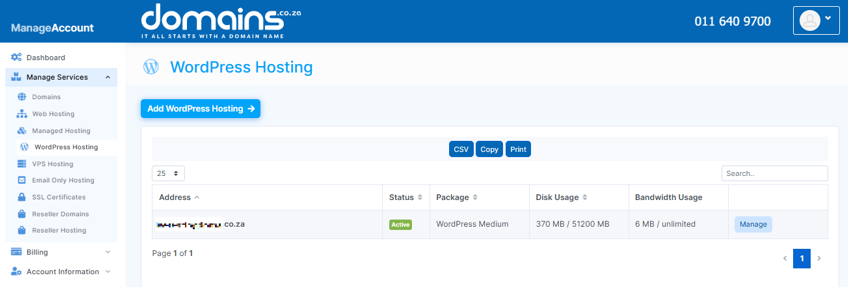
3. Select Web Hosting or WordPress Hosting.
4. Click Manage next to the relevant domain.
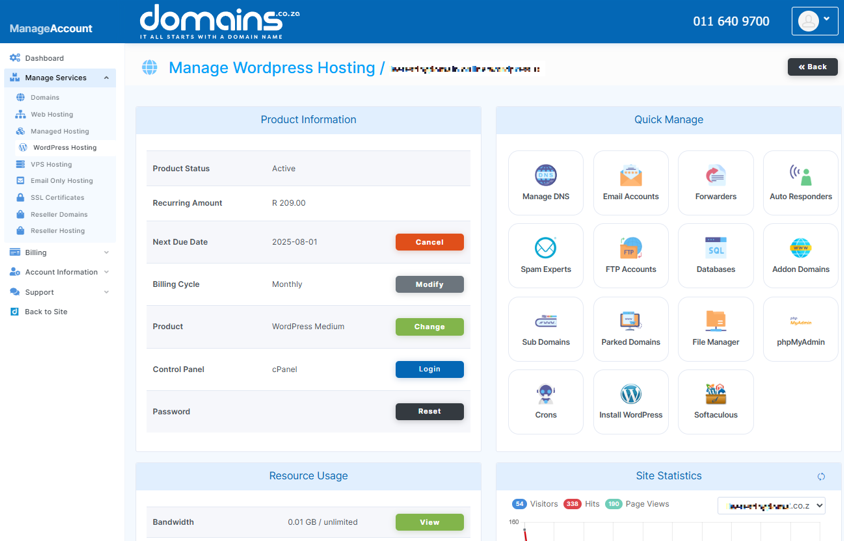
5. Click Login next to Control Panel to access cPanel.
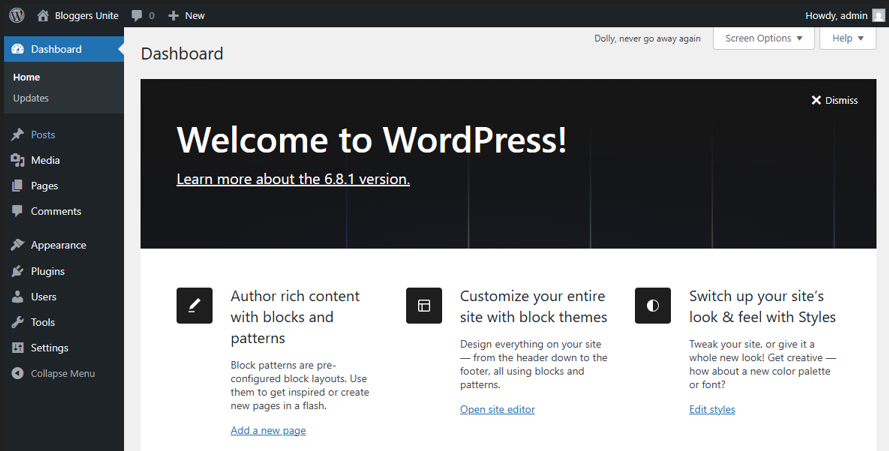
6. Go to WordPress Manager by Softaculous and select Login to access the WordPress Admin Dashboard.
7. Open Plugins > Add New Plugin.
8. Search for a reputable redirect plugin.
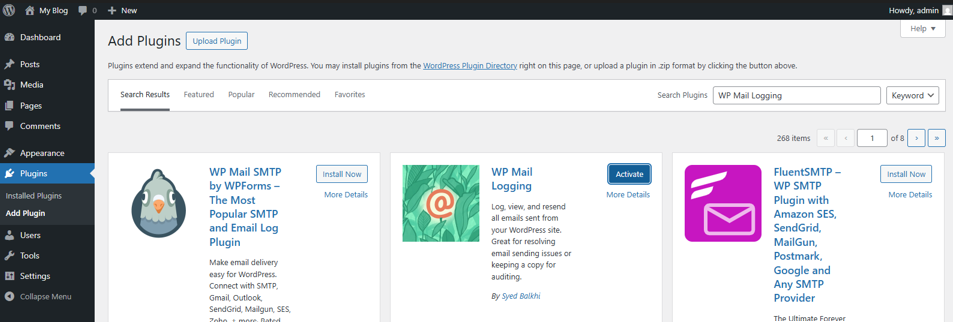
9. Review its current compatibility and support information before installation.
10. Install and activate the plugin.
11. Open the plugin’s redirect management screen.
12. Enter the old URL or source path that should be redirected.
13. Enter the new destination URL.
14. Select 301 Permanent Redirect where the plugin provides a redirect-type option.
15. Save or activate the redirect.
16. Open the old URL and confirm that it reaches the intended destination.
Redirection is one example of a WordPress plugin designed for managing redirects. Check its current compatibility and features before publication or installation rather than relying on older feature information.
How to Create a 301 Redirect Using an SEO Plugin
Some WordPress SEO plugins include redirect-management functionality.
1. Login to the WordPress Admin Dashboard.
2. Open the settings for your installed SEO plugin.
3. Check whether the installed version includes a redirect manager.
4. Enable the redirect module if the plugin requires it.
5. Add the old source URL.
6. Add the new destination URL.
7. Select 301 as the redirect type.
8. Enable or activate the redirect.
10. Test the old URL to confirm that it redirects correctly.
Plugins such as Rank Math and Yoast SEO may provide redirect-related functionality, depending on the current product and version. Confirm current feature availability before relying on a specific plugin for redirects.
How to Create a 301 Redirect in .htaccess
Editing .htaccess is an advanced method and should only be used where your hosting environment supports .htaccess rules.
Back up the file before editing it, because an incorrect rule can cause website errors.
1. Login to the Domains.co.za Customer Portal.
2. Open the Manage Services dropdown menu.

3. Select Web Hosting or WordPress Hosting.
4. Click Manage next to the relevant domain.
5. Click Login next to Control Panel to access cPanel.
6. Open File Manager.
7. Navigate to the WordPress root directory.
8. Enable Show Hidden Files if .htaccess is not visible.
9. Download or copy the existing .htaccess file as a backup.
10. Open .htaccess for editing.
11. Add the required redirect rule.
12. Save the file.
13. Test the old URL immediately.
14. Restore the backup if the website stops working correctly.
A basic single-URL redirect can look like this:
Redirect 301 /old-page/ https://www.example.co.za/new-page/Replace /old-page/ and the destination URL with the actual URLs for your website.
The WordPress root directory is often public_html, but this can vary depending on how the hosting account and domain have been configured.
How Do You Redirect Multiple URLs in .htaccess?
You can add separate redirect rules for multiple old URLs, but each redirect should be planned and tested individually.
EXAMPLE:
Redirect 301 /old-service/ https://www.example.co.za/services/
Redirect 301 /old-contact/ https://www.example.co.za/contact/
Avoid creating unnecessary redirect chains where one URL redirects to another URL that then redirects again.
Where possible, redirect the original URL directly to the end destination.
How Do You Redirect an Entire Domain?
A domain-wide redirect should generally send each old URL to its matching URL on the new domain.
EXAMPLE:
oldsite.co.za/services/ → newsite.co.za/services/
This is preferable to redirecting every page to the new homepage, because it preserves the user’s intended destination.
Domain migrations can involve DNS, SSL, application configuration and complex redirect rules. Contact Domains.co.za Support for hosting-related assistance or consult your developer when planning a full website migration.
How to Create a 301 Redirect with PHP
A PHP redirect is an advanced option and is not normally the first choice for general WordPress redirect management.
A basic example is:
header( 'HTTP/1.1 301 Moved Permanently' );
header( 'Location: https://www.example.co.za/new-page/' );
exit;
The redirect headers must be sent before output is returned to the browser.
PHP redirects may be appropriate in specific scripts or development scenarios, but WordPress or server-level redirect management is generally easier to maintain for normal URL changes.
Testing is especially important when redirecting checkout pages, forms, login pages or large groups of URLs.
Why Is My 301 Redirect Not Working?
A redirect can fail because of an incorrect source URL, disabled plugin, caching, invalid server rules or a conflict with another redirect.
Common problems include:
The Redirect Goes to the Wrong Page
Check both the source and target URLs and ensure the old address has been mapped to the intended replacement.
The Redirect Creates a Loop
A redirect loop occurs when URLs repeatedly redirect back to each other. Review overlapping rules and ensure the destination does not redirect back to the source.
There Is a Redirect Chain
A redirect chain occurs when one URL redirects through one or more intermediate addresses before reaching the final page.
Update the original rule so it points directly to the end destination where possible.
The Old Redirect Is Still Showing
Website, server, proxy or browser caching can make older redirect behaviour seem to remain active. Clear the relevant caches before adding duplicate rules.
.htaccess Changes Break the Website
Restore the backed-up .htaccess file immediately and review the syntax before trying again.
The Destination Returns a 404 Error
A redirect should point to a valid destination. Check that the target page exists and uses the correct URL.
Additional Information
- A 301 redirect indicates that an old URL has permanently moved to a new location.
- Redirects help visitors avoid broken links and reach the most relevant available content.
- Search engines can use 301 redirects to understand URL changes, but no redirect guarantees that every ranking signal will always be preserved.
- Redirecting removed content to an unrelated homepage is generally less useful than redirecting it to the closest relevant replacement.
- A dedicated WordPress redirect plugin is usually easier for non-technical users to manage than server configuration files.
- Some SEO plugins include redirect-management tools, but availability can vary by plugin and version.
- .htaccess redirects only apply where the server environment supports .htaccess, so do not assume the same method works on every hosting platform.
- Back up .htaccess before editing it, because incorrect syntax can cause website errors.
- PHP redirects are better suited to specific development scenarios than routine website-wide redirect management.
- Update internal links after creating redirects so visitors and crawlers use the final URLs directly.
- Large migrations should use a redirect map that pairs each old URL with its intended new destination.
- Contact Domains.co.za Support for hosting-related redirect or migration issues, or consult your website developer for complex WordPress, application or URL-structure changes.
Login to Domains.co.za Account
1. Go to the Domains.co.za website Account Login page.

2. Enter your Email and Password and click the Sign In button.
3. You will see the Domains.co.za Dashboard, displaying the Manage Account menu on the left and your Account Information, Account Overview and Open Support Tickets on the right.


