


TL;DR
A WordPress Child Theme allows you to customise an existing Parent Theme without editing the Parent Theme’s files directly. Create a Child Theme folder with a valid style.css file, connect it to the Parent Theme using the Template field, activate it in WordPress, and then add only the CSS, PHP functions or template overrides you need.
TABLE OF CONTENTS
Overview
With WordPress Hosting, you can access your WordPress files through cPanel and create a Child Theme while keeping your customisations separate from the original Parent Theme.
A WordPress Child Theme extends an installed Parent Theme and inherits its design and functionality while allowing selected customisations to remain separate. This means changes stored in the Child Theme are not overwritten when the Parent Theme is updated.
This guide explains how to create and activate a WordPress Child Theme using cPanel File Manager, when to use functions.php, how to customise the Child Theme and how to troubleshoot common problems.
What Is a WordPress Child Theme?
A WordPress Child Theme is a theme that extends an installed Parent Theme while providing a separate location for your customisations. It relies on the Parent Theme for its underlying design and functionality while allowing you to override or extend selected parts of the theme.
What Is a Parent Theme?
A Parent Theme is the complete underlying WordPress theme containing the files and functionality required for the theme to work.
The Parent Theme must remain installed when you use a Child Theme, because the Child Theme continues to rely on it for functionality and design that has not been overridden.
How Does a Child Theme Work?
A Child Theme uses its own files where relevant while continuing to use the Parent Theme for the remaining design and functionality.
For example, you can place selected template overrides or custom styles in the Child Theme without modifying the corresponding Parent Theme files. This keeps your customisations separate and makes Parent Theme updates safer to manage.
Do You Need a WordPress Child Theme?
Not every WordPress customisation requires a Child Theme. A Child Theme is most useful when you need to make ongoing theme-level changes that should remain separate when the Parent Theme is updated.
A Child Theme may be appropriate when you need to:
- Add theme-specific PHP changes.
- Override theme templates.
- Add significant theme-level CSS.
- Create custom theme layouts that need to survive updates.
- Maintain ongoing developer customisations.
You might not need a Child Theme when changing a logo, updating menus, using supported theme settings, making basic changes through the Site Editor or Global Styles, or adding small CSS changes through an interface provided by the theme.
Functionality that should continue working after you change themes should generally be added through a plugin rather than a Child Theme.
What Do You Need Before Creating a WordPress Child Theme?
Before creating a Child Theme, ensure you have the necessary access, files and safeguards in place.
You should have:
- WordPress Administrator access.
- Access to the Domains.co.za Customer Portal.
- The Parent Theme already installed.
- A recent full website backup.
- A staging environment where possible.
- Basic familiarity with WordPress files and directories.
- The exact directory name of the Parent Theme.
- SFTP or FTP details if you plan to use either of these methods instead of File Manager.
Testing on a staging website is strongly recommended before modifying PHP or template files on a live website.
How to Create a WordPress Child Theme in cPanel
You can manually create a WordPress Child Theme through cPanel File Manager by creating a Child Theme directory and adding a correctly configured style.css file.
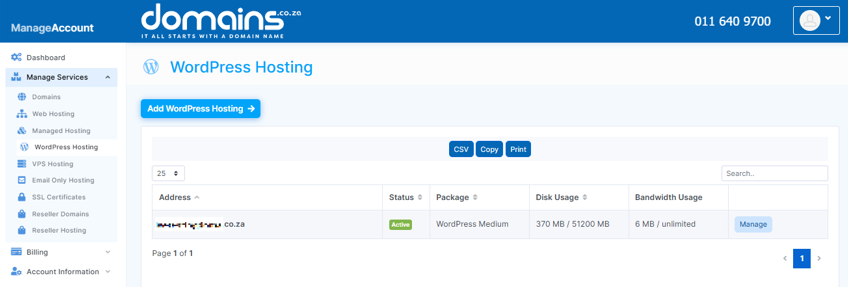
1. Login to the Domains.co.za Customer Portal.
2. Open the Manage Services dropdown menu.
3. Select Web Hosting or WordPress Hosting.
4. Click Manage next to the relevant domain.
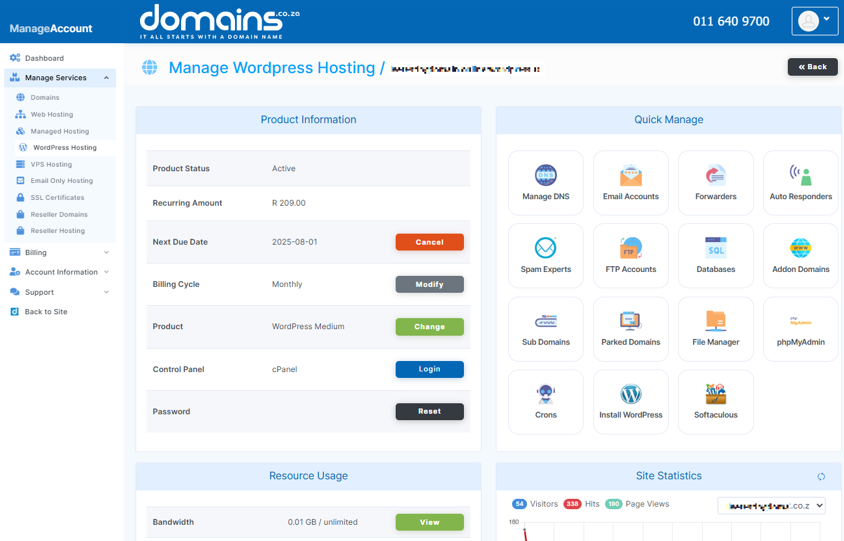
5. Click Login next to Control Panel to access cPanel.
6. Open File Manager from the Files section.
7. Open the public_html directory for your WordPress website.
8. Navigate to wp-content/themes/.
9. Confirm the exact directory name of the Parent Theme you wish to use.
10. Create a new directory for the Child Theme.
11. Give the directory a recognisable name such as twentytwentyfive-child.
12. Open the new Child Theme directory.
13. Create a new file named style.css.
14. Open style.css in the File Manager editor.
15. Add the required Child Theme header information.
16. Replace parent-theme-folder in the Template field with the exact directory name of your Parent Theme.
17. Save the changes to style.css.
18. Login to your WordPress Dashboard.
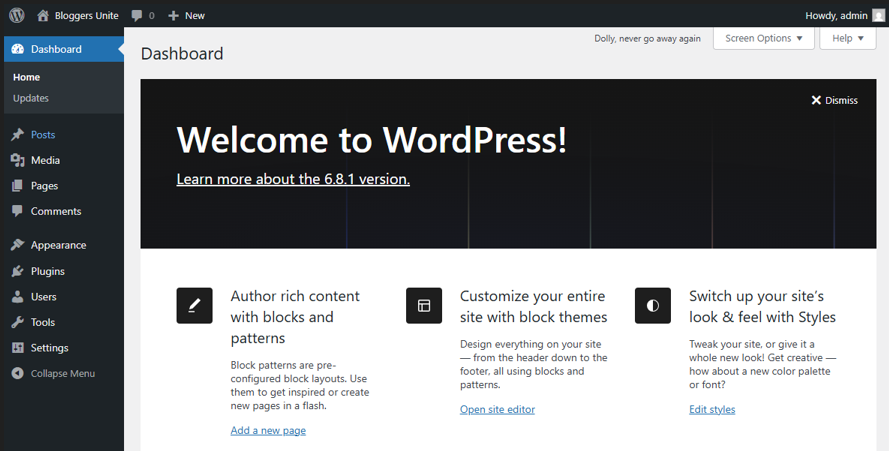
19. Go to Appearance → Themes.
20. Confirm that WordPress recognises the new Child Theme.
21. Click Activate to make the Child Theme active.
22. Open your website and test its main pages and functionality.
23. Add your required CSS, PHP functions or template overrides to the Child Theme.
If WordPress is installed in a subdirectory or the domain uses a different document root, the WordPress files may not be located directly inside public_html.
A useful naming convention is to add -child to the Parent Theme’s directory name. However, the Child Theme folder name itself does not establish the relationship with the Parent Theme; the Template field in style.css does.
A basic style.css header can look like this:
Theme Name: My WordPress Child Theme
Description: Child theme for the parent theme.
Template: parent-theme-folder
Version: 1.0.0
The Theme Name identifies the Child Theme, while Template must exactly match the Parent Theme’s directory name. The description and version are useful metadata, but they do not create the Parent Theme relationship.
Does a WordPress Child Theme Need a functions.php File?
No. A functions.php file is optional in a WordPress Child Theme and should only be added when you need PHP functionality, WordPress hooks or specific asset-loading logic. The brief specifically identifies style.css as the file required for a Child Theme to exist.
If you need functions.php:
- Open the Child Theme directory in File Manager.
- Create a new file named functions.php.
- Add only the PHP functionality required by the Child Theme.
- Save the file.
- Test the website to confirm that the new code works correctly.
Do not copy the entire Parent Theme’s functions.php into the Child Theme. WordPress loads both files when a Child Theme has its own functions.php, and duplicated functions can cause fatal errors.
How Should a Child Theme Load Its Styles?
There is no single stylesheet-loading method that works correctly with every WordPress Parent Theme. You should check the Parent Theme’s documentation before adding stylesheet-loading code to the Child Theme.
Some Parent Themes load both stylesheets automatically, while others handle Parent and Child Theme styles differently. Block Themes may also rely heavily on theme.json rather than traditional stylesheet behaviour.
For this reason, do not automatically add a generic parent stylesheet enqueue function without first checking how the Parent Theme handles its styles.
What Should You Test After Activating a Child Theme?
Test the main areas of your website after activating the Child Theme to ensure the Parent Theme’s design and functionality continue to work correctly.
Check the following:
- Homepage.
- Header and navigation.
- Footer.
- Blog posts.
- Important website pages.
- Contact and other forms.
- Mobile layout.
- WooCommerce pages, if applicable.
- Tracking scripts and other integrations where relevant.
Significant Child Theme changes should preferably be tested on a staging website before you activate them on a production website.
How Do You Customise a WordPress Child Theme?
You can customise a Child Theme by adding CSS, theme-related PHP functionality or template overrides. The appropriate method depends on the type of change you wish to make.
How Do You Add Custom CSS?
Add appropriate theme-level CSS to the Child Theme’s stylesheet when you need to change the appearance of the website.
Keep CSS overrides focused and avoid unnecessary rules. If the theme already provides an appropriate interface for a small CSS change, you may not need to add it to the Child Theme.
How Do You Add PHP Functions?
Add PHP to the Child Theme’s functions.php file when you need theme-specific functionality.
Use unique function names and test PHP changes on a staging website before applying them to production. Functionality that should continue working after switching themes should generally be added through a plugin instead.
How Do You Override Parent Theme Templates?
A Child Theme can override supported Parent Theme templates by providing corresponding template files in the Child Theme.
Only copy a Parent Theme template into the Child Theme when you actually need to modify it. Keeping overrides to a minimum makes the Child Theme easier to maintain as the Parent Theme evolves.
Are Child Themes Different for Block Themes?
Yes. Child Theme customisation can differ between Classic Themes and Block Themes because they may use different files and systems for templates and styling.
Classic Themes commonly use PHP template files such as:
header.php
footer.php
single.php.
Block Themes can instead use:
- HTML templates.
- Template parts.
- Patterns.
- theme.json.
- Global Styles.
When working with a Block Theme, check how that specific theme handles templates, styles and theme.json before creating overrides.
Can You Create a WordPress Child Theme Without Doing It Manually?
Yes. A Child Theme doesn’t always have to be created manually through File Manager.
Depending on your theme and technical experience, you may be able to use:
- A Child Theme supplied by the theme developer.
- A trusted Child Theme generator.
- A WordPress Child Theme creation plugin.
- WP-CLI for command-line development.
Developers using WP-CLI can scaffold a Child Theme based on an existing Parent Theme with a command such as:
wp scaffold child-theme my-child-theme –parent_theme=parent-theme
WP-CLI is an alternative for developers and is not required for the cPanel method described in this guide.
Why Is My WordPress Child Theme Not Working?
A Child Theme may not work correctly if WordPress cannot identify its Parent Theme, its styles are not loading correctly, or an error has been introduced through custom PHP or template files.
Why Is the Parent Theme Showing as Missing?
Check that the Template value in style.css exactly matches the Parent Theme’s directory name. Also confirm that the Parent Theme remains installed and that the Child Theme files are stored in the correct WordPress themes directory.
Why Are My Child Theme Styles Not Loading?
Check how the Parent Theme loads stylesheets, clear relevant caches and review your CSS specificity. If you are using a Block Theme, also check whether the theme relies on theme.json for its styling.
Why Did My PHP Change Cause a Critical Error?
A PHP syntax or code error can cause WordPress to display a critical error. Restore the previous working file, check the PHP syntax, use WordPress Debug Mode and review the relevant error logs to identify the problem.
Why Did My Child Theme Changes Disappear?
Check whether the missing changes were accidentally made directly to the Parent Theme. Changes made to Parent Theme files can be overwritten when the Parent Theme is updated.
Why Did a Template Override Break After a Parent Theme Update?
A copied Child Theme template does not automatically receive structural changes made to the corresponding Parent Theme template. Review your template overrides after significant Parent Theme updates and update them where necessary.
Additional Information
- Keep the Parent Theme installed and updated because the Child Theme depends on it for its underlying design and functionality.
- Back up your WordPress website before editing PHP files, templates or other important Child Theme files.
- Test significant changes on a staging website before applying them to your live WordPress website.
- Never copy the entire Parent Theme’s functions.php file into the Child Theme, because duplicated functions can cause errors.
- Keep template overrides to the minimum required so that the Child Theme remains easier to maintain.
- Review Child Theme template overrides after significant Parent Theme updates because copied templates do not automatically inherit later structural changes.
- Consider using version control such as Git for larger WordPress development projects where multiple files and customisations need to be tracked.
- Place functionality that should remain active after changing themes into a suitable plugin rather than tying it to the Child Theme.
- Document custom PHP, CSS and template changes so that they can be understood and maintained later.
- Remove obsolete Child Theme code as the website evolves to reduce unnecessary complexity.
Login to Domains.co.za Account
1. Go to the Domains.co.za website Account Login page.

2. Enter your Email and Password and click the Sign In button.
3. You will see the Domains.co.za Dashboard, displaying the Manage Account menu on the left and your Account Information, Account Overview and Open Support Tickets on the right.

FAQS
Do I Need a Child Theme for Every WordPress Customisation?
No. Small changes made through supported theme settings, the Site Editor, Global Styles or an appropriate CSS interface may not require a Child Theme.
Can I Create a Child Theme for Any WordPress Theme?
Most properly built WordPress themes can support a Child Theme, but the implementation can vary between themes, particularly between Classic Themes and Block Themes.
What Happens If I Delete the Parent Theme?
The Child Theme depends on its Parent Theme, so removing the Parent Theme can make the Child Theme unusable. Keep the Parent Theme installed while its Child Theme is active.
Can I Update the Parent Theme After Creating a Child Theme?
Yes. Keeping customisations separate during Parent Theme updates is one of the main reasons for using a Child Theme. You should still test significant updates and review any template overrides afterwards.
Will a WordPress Child Theme Slow Down My Website?
A Child Theme does not inherently make WordPress slow. Performance depends on the CSS, PHP, scripts, assets and custom code added through the Child Theme.
Should I Put All Custom Functions in functions.php?
No. Theme-specific functions may belong in the Child Theme’s functions.php, but functionality that should continue working after changing themes is generally better placed in a plugin.


