


TL;DR: A WordPress taxonomy is a system used for grouping related content. WordPress includes built-in taxonomies such as categories and tags. You can create custom taxonomies when your website needs a more specific way to organise posts or custom post types.
TABLE OF CONTENTS
Overview
As a WordPress website grows, organising content becomes increasingly important. Categories and tags provide a simple way to group related posts, but websites with more specialised content may need additional ways to organise information.
WordPress taxonomies provide this structure, and WordPress provides several taxonomies by default, with categories and tags being the most familiar. For example, a recipe website could organise recipes by Cuisine, Meal Type and Dietary Preference, while a real estate website could use Property Type and Location.
Developers can also create custom taxonomies for websites that require a more specialised content structure.
WordPress Hosting can use WordPress taxonomies to organise website content into logical groups that make information easier to manage and navigate.
Before creating a custom taxonomy, plan how it will be used, which content it will apply to, and whether it needs a hierarchy. Avoid creating multiple taxonomies that perform essentially the same function, as this can make the website unnecessarily difficult to manage.
IMPORTANT:
Create a full website and database backup before adding custom taxonomy functionality or changing an established content structure. Test custom code on a staging website where possible and consult your website developer if changes could affect existing URLs, templates, or website functionality.
What Is a WordPress Taxonomy?
A WordPress taxonomy is a system for grouping related content according to shared characteristics.
The easiest way to understand a taxonomy is to consider it as a classification system. WordPress categories and tags are examples of taxonomies.
A taxonomy is the grouping system, while a term is an individual item within that system. For example, if Cuisine is a taxonomy, Italian, Indian, and Thai could be terms within it.
Why Are WordPress Taxonomies Useful?
Taxonomies make content easier to organise, navigate, filter and manage.
A clear taxonomy structure can also create archive pages and relevant internal relationships between similar content. This can help visitors and search engines understand how different parts of a website relate to each other.
However, creating additional taxonomies does not automatically improve search-engine rankings. The structure should be for genuine organisational or navigational purposes.
What Are the Default WordPress Taxonomies?
WordPress includes several taxonomies by default, although their visibility and usefulness can depend on your website and theme.
Categories are hierarchical groupings commonly used to organise WordPress posts into broad topics.
They can have a parent-child structure, for example, a website could have a parent category called Technology with child categories such as Hosting, Domains and WordPress.
All posts require a category. If you don’t assign one manually, WordPress will use the configured default, usually Uncategorised.
Tags are non-hierarchical labels (keywords) that describe more specific characteristics of a post.
Unlike categories, tags do not have parent-child relationships and are optional. A post can have multiple tags, but adding large numbers of unnecessary tags can make the content structure difficult to manage.
Post formats classify posts by the type of content they contain, such as a gallery, quote, video, or audio post.
Their availability and presentation depend on whether a theme supports them, so you shouldn’t assume they are useful on every WordPress website.
Link categories relate to WordPress’s legacy link-management functionality and are much less commonly used on modern websites.
What Is the Difference Between WordPress Categories & Tags?
WordPress Categories are broad, structured groupings, while tags are optional labels used to describe more specific characteristics.
| Categories | Tags |
| Provide broad content groupings. | Describe more specific content details. |
| Can use parent-child relationships. | Do not use a hierarchy. |
| Posts require a category. | Tags are optional. |
| Usually form part of the main content structure. | Usually provide additional classification. |
For example, a food blog may use Recipes as a category and Vegetarian, Quick Meal and Gluten-Free as tags.
When Should You Create a Custom WordPress Taxonomy?
Create a custom taxonomy when categories and tags do not provide a clear enough structure for the type of content your website manages.
Examples include:
- A recipe website could use Cuisine, Dietary Preference and Meal Type.
- A property website could use Property Type, Location and Price Range.
- A portfolio could use Project Type, Industry and Service.
- An events website could use Event Type, Venue and Speaker.
- A course website could use Skill Level, Topic and Format.
- A business directory could use Region, Service Category and Business Type.
What Should You Plan Before Creating a Custom Taxonomy?
Plan the taxonomy’s purpose, name, terms, and relationship to your existing content before creating it.
Decide:
- What the taxonomy will represent.
- Which post type or custom post type will use it.
- What its name and URL slug should be.
- Which terms will be created within it.
- Whether it should be hierarchical (categories) or non-hierarchical (tags).
- Whether visitors need a public taxonomy archive.
- How it fits alongside your existing categories and tags.
Avoid creating several overlapping taxonomies that classify the same content in slightly different ways.
How to Create a Custom WordPress Taxonomy with a Plugin
Using a plugin is generally the easier approach for users who do not want to register a taxonomy with PHP code.
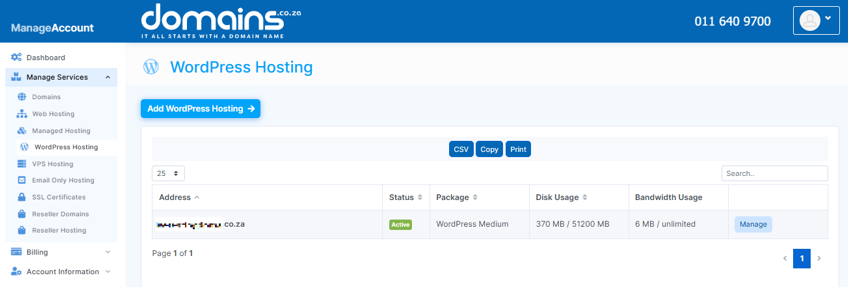
1. Login to the Domains.co.za Customer Portal.
2. Open the Manage Services dropdown menu.
3. Select Web Hosting or WordPress Hosting.
4. Click Manage next to the relevant domain.
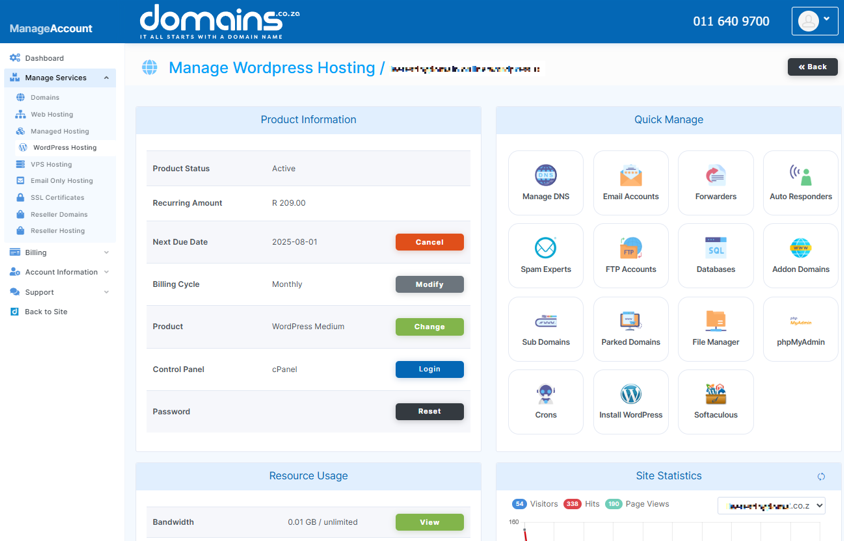
5. Click Login next to Control Panel to access cPanel.
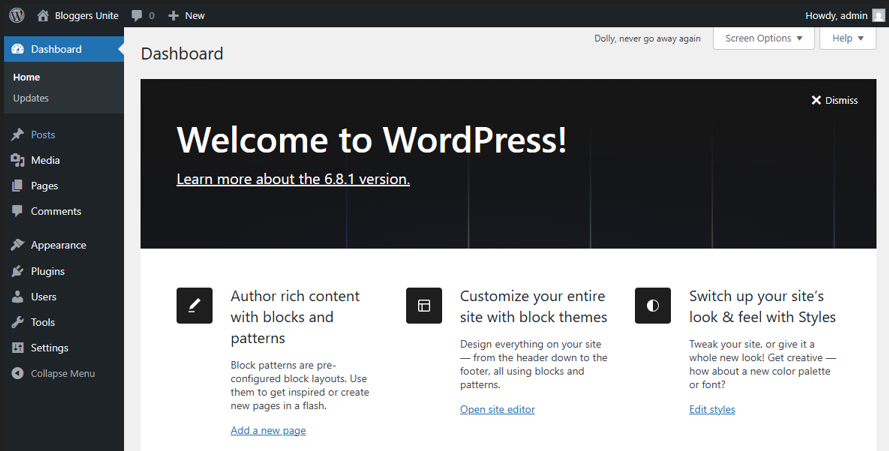
6. Click WordPress Manager by Softaculous and select Login to access the WordPress Admin Dashboard.
7. Open Plugins > Add New Plugin.
8. Search for a suitable plugin that supports custom taxonomies.
9. Review the plugin’s current compatibility and support information before installing it.
10. Install and activate the selected plugin.
11. Open the plugin’s taxonomy settings from the WordPress Dashboard.
12. Enter a slug for the new taxonomy using only lowercase characters and hyphens where required.
13. Enter the singular and plural labels.
14. Select the post type or custom post type that should use the taxonomy.
15. Choose whether it should be hierarchical or non-hierarchical.
16. Save the new taxonomy.
17. Open the relevant content editor and confirm that the taxonomy is available.
18. Add a test term and assign it to test content before using the taxonomy across your site.
Custom Post Type UI is a widely used plugin for custom post types and taxonomies. Verify its compatibility and functionality before publishing or installing it.
How to Create a Custom WordPress Taxonomy with Code
Developers can create a custom taxonomy programmatically using the WordPress register_taxonomy() function.
Custom functionality should preferably be added through a site-specific plugin or another appropriate development method. If theme-based code is required, use a child theme rather than modifying the parent theme directly, as parent-theme changes may be overwritten during updates.
The following example registers a hierarchical Cuisine taxonomy for WordPress posts:
function domains_register_cuisine_taxonomy() {

    $args = array(

        'labels' => array(

            'name'          => 'Cuisines',

            'singular_name' => 'Cuisine',

        ),

        'public'       => true,

        'hierarchical' => true,

        'show_in_rest' => true,

        'rewrite'      => array(

            'slug' => 'cuisine',

        ),

    );

    register_taxonomy( 'cuisine', array( 'post' ), $args );

}

add_action( 'init', 'domains_register_cuisine_taxonomy' );
In this example:
- cuisine is the taxonomy’s registered name.
- post means the taxonomy is attached to standard WordPress posts.
- hierarchical => true makes it behave similarly to categories.
- show_in_rest => true makes the taxonomy available through the REST API and supports its use in the Block Editor.
- rewrite defines the taxonomy’s URL slug.
Test custom PHP code in a staging environment before adding it to a live website.
Why Is show_in_rest Important for a Custom Taxonomy?
Setting show_in_rest => true makes the custom taxonomy available through the WordPress REST API and is important when you want to work with the taxonomy in the Block Editor.
If a custom taxonomy has been registered but does not appear where expected in the Block Editor, check whether this argument has been configured appropriately.
Do You Need to Refresh Permalinks After Creating a Taxonomy?
You may need to refresh WordPress rewrite rules after adding a new taxonomy or changing its slug.
After the taxonomy has been registered, open Settings > Permalinks in WP Admin and save the existing permalink settings to refresh the rewrite rules.
Do not select a different permalink structure simply to refresh the rules. Changing an established website’s permalink structure can alter existing post and page URLs and result in broken links or 404 errors.
Additional Information
- A WordPress taxonomy is the classification system, while a term is an individual label within that taxonomy.
- Categories and tags are the commonly used built-in WordPress taxonomies.
- Categories are hierarchical and provide broad content groupings, while tags are non-hierarchical and optional.
- Custom taxonomies are useful when the default categories and tags cannot adequately represent the website’s content structure.
- Plan custom taxonomies carefully before creating them to avoid overlapping classifications and unnecessary complexity.
- A custom taxonomy must be associated with at least one relevant WordPress object type, such as posts or a custom post type.
- Developers can register custom taxonomies using register_taxonomy(), while non-developers can use an appropriate plugin.
- Use show_in_rest => true where Block Editor and REST API support are required.
- Avoid adding permanent site functionality directly to a parent theme because it can be lost when the theme is updated.
- Changing taxonomy slugs can affect public URLs, so consider URL structure before publishing large amounts of content.
- Custom taxonomies can improve content organisation and navigation, but they do not automatically improve search-engine rankings.
- Create a full backup and use a staging environment where possible before making significant changes to an established content structure.
- Contact Domains.co.za Support if you experience a hosting-related issue or consult your website developer if the taxonomy affects custom templates, website code, URLs or application functionality.
Login to Domains.co.za Account
1. Go to the Domains.co.za website Account Login page.

2. Enter your Email and Password and click the Sign In button.
3. You will see the Domains.co.za Dashboard, displaying the Manage Account menu on the left and your Account Information, Account Overview and Open Support Tickets on the right.

FAQS
What Is a WordPress Taxonomy?
A WordPress taxonomy groups related content by shared characteristics. Categories and tags are two familiar examples of WordPress taxonomies.
What Is the Difference Between a Taxonomy and a Term?
A taxonomy is the grouping system, while a term is an individual label within that system. For example, Cuisine could be a taxonomy, and Italian could be one of its terms.
What Is the Difference Between Categories and Tags?
Categories are broad, hierarchical groupings, while tags are optional, non-hierarchical labels. Categories generally define the main content structure, while tags describe more specific characteristics.
Do I Need a Plugin to Create a Custom Taxonomy?
No. Developers can create custom taxonomies using register_taxonomy(). A suitable plugin can offer a more accessible option for users who don’t wish to write PHP code.
Can I Use a Custom Taxonomy with a Custom Post Type?
Yes. A custom taxonomy can be associated with a custom post type when it is registered. For example, a property post type could use taxonomies such as Location and Property Type.
Why Is My Custom Taxonomy Archive Showing a 404 Error?
WordPress rewrite rules may need to be refreshed after a taxonomy or its slug is added or changed. Save the existing settings under Settings > Permalinks to refresh the rules without selecting a different permalink structure.


