







With web hosting from Domains.co.za, you can easily manage TXT records through your cPanel interface, ensuring your domain remains secure, verifiable, and compliant with various third-party services.
TXT records are text record DNS entries that store text-based data used for various verification and security purposes. These are commonly used to verify domain ownership (e.g., for Google or Microsoft services), set up SPF (Sender Policy Framework) records for email authentication, and implement DMARC or DKIM policies to help prevent email spoofing.
TABLE OF CONTENTS
How to Add or Remove TXT Records in cPanel
This article assumes that you have already logged into your Domains.co.za Account and have accessed the cPanel Dashboard – refer below for steps on how to do this.

3. In the cPanel Dashboard, scroll to Domains and click Zone Editor.

5. Find your domain name and click Manage.
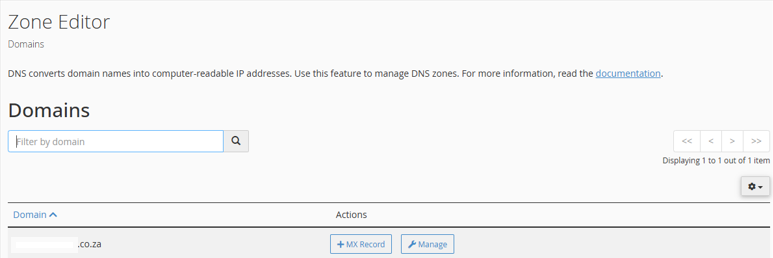
How to Add a TXT Record:
6. Click + Add Record and select Add TXT Record.
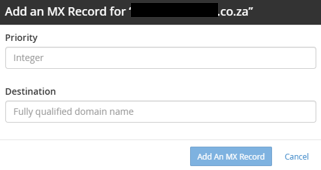
7. In the Name field, enter your domain or subdomain (e.g., @ for root, or mail for mail.domain.com).
8. In the Record field, paste the text value you were given (e.g., a verification string or SPF/DMARC record).
9. Click Save Record.
How to Remove a TXT Record
- Locate the record you want to remove under Type labelled TXT.
- Click Delete next to the record.
- Confirm the deletion when prompted.
Additional Information
What are TXT Records?
- TXT records allow domain administrators to enter human-readable or machine-readable text into the Domain Name System (DNS). These records serve various purposes and can be used to provide data about the domain to external services and systems.
- Common uses of TXT records include domain verification for services such as Google and Microsoft, setting up Sender Policy Framework (SPF) records to help validate email senders, and implementing DMARC and DKIM protocols to enhance email security and prevent spoofing.
- After updating TXT records, remember that DNS propagation can take anywhere from a few minutes to several hours. This delay means changes won’t be immediately visible worldwide, so some patience is required.
- Since TXT records are publicly visible through DNS lookups, it’s important to avoid publishing sensitive information in them. Anything entered is accessible by anyone with the right tools.
- To check that your TXT records are active and correct, you can use online services like MXToolbox or command-line tools such as dig or nslookup. These confirm that your DNS changes have propagated and are functioning as intended.
- Finally, regularly review your TXT records and remove any outdated or unused entries. Keeping your DNS records clean helps maintain security and prevents conflicts or confusion in domain settings.
Login to Domains.co.za Account
1. Go to the Domains.co.za Login website page.

2. Enter your Email and Password and click the “Sign In” button.
3. You will see the Domains.co.za Dashboard, displaying the Manage Account menu on the left and your Account Information, Account Overview and Open Support Tickets on the right.

Login to cPanel from your Domains.co.za Dashboard
4. Click on Manage Services to view the sub-dropdown menu and select the hosting package for the domain you want to work with – in our example we are using Web Hosting.

5. Click the Manage button to the right of the domain name you want to access.
6. The display will now show Product Information, Quick Manage, Resource Usage and Site Statistics for that domain name.

7. Under Product Information, scroll down to Control Panel, which will display cPanel to the right, and click on the Login button.
8. The cPanel Dashboard will now be displayed.


