


This guide explains how to access Softaculous through your Domains.co.za hosting account using cPanel.
Softaculous is a powerful auto-installer available within cPanel that allows users to install popular web applications quickly and easily. It simplifies the process of deploying software such as WordPress, Joomla, Drupal, Magento, and many other content management systems without requiring advanced technical knowledge.
Using Softaculous can save time when setting up websites, blogs, ecommerce stores, forums, and development environments. The installer also includes features for backups, staging, updates, cloning, and script management.
TABLE OF CONTENTS
What Is Softaculous?
Softaculous is integrated directly into cPanel and provides one-click installations for hundreds of web applications. Once accessed, users can browse scripts by category, manage installations, perform backups, and keep applications updated.
Some of the most commonly used applications available through Softaculous include:
- WordPress.
- Joomla.
- Drupal.
- PrestaShop.
- OpenCart.
- phpBB.
How to Access Softaculous in cPanel
1. Login to the Domains.co.za Customer Portal using your account credentials.
2. Open the Manage Services dropdown menu from the main dashboard navigation.
3. Select Web Hosting from the available service options.
4. Locate the hosting package linked to your domain name and click Manage.
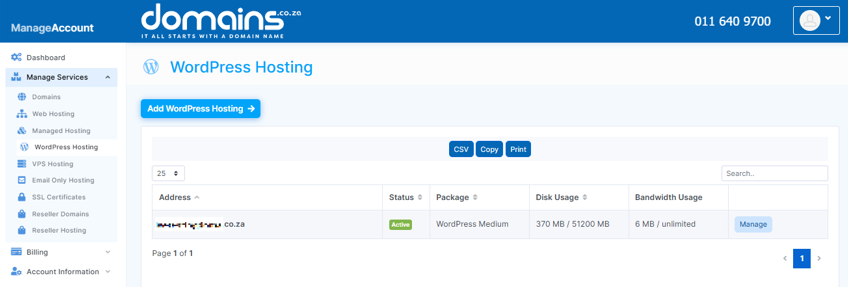
5. Click Login next to Control Panel to access cPanel.

6. Scroll down to the Software section within cPanel.
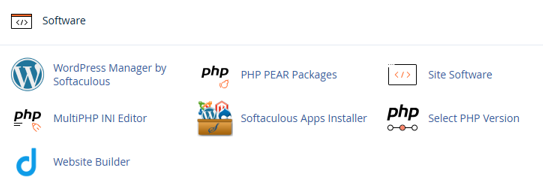
7. Click Softaculous Apps Installer to open the Softaculous dashboard.
8. Browse the available applications or use the search feature to locate a specific script.
Additional Information
- Softaculous supports hundreds of applications across blogging, forums, education, and development categories.
- One-click installations reduce the need for manual database creation and file uploads.
- Softaculous can automatically update applications to improve security and compatibility.
- Website staging features allow users to test changes before publishing them live.
- Backup and restore options are available directly within the Softaculous interface.
- Some applications may require specific PHP versions or server settings for optimal performance.
- Softaculous installations can be cloned to create development or testing environments.
- Keeping installed applications regularly updated is essential for maintaining website security.
Login to Domains.co.za Account
1. Go to the Domains.co.za website Account Login page.

2. Enter your Email and Password and click the Sign In button.
3. You will see the Domains.co.za Dashboard, displaying the Manage Account menu on the left and your Account Information, Account Overview and Open Support Tickets on the right.


