


This guide explains how to enable and access WordPress email logs using plugins, and how to verify delivery at server level via cPanel. Email functionality is a vital component of any WordPress website. Whether you are running contact forms, WooCommerce notifications, membership registrations, password resets, or automated system alerts, reliable email delivery ensures smooth communication between your website and its users.
By default, WordPress uses PHP’s mail() function to send emails. However, it does not log outgoing messages. This means that if an email fails to send, or if a client claims they never received a message, there is no built-in way to verify what happened.
Accessing email logs allows you to:
- Confirm whether an email was sent successfully.
- Identify SMTP authentication errors.
- Detect delivery delays or rejections.
- Monitor sending patterns and frequency.
- Troubleshoot spam or blacklisting issues.
TABLE OF CONTENTS
How to Access WordPress Email Logs
Because WordPress does not store email logs by default, you must first install a logging plugin.
1. Login to your Domains.co.za Account.
2. From the dashboard, open the Manage Services drop-down menu and choose your hosting plan.

3. On the next page, click Manage next to your domain.
4. Under Product Information, click Login, next to Control Panel to access cPanel.
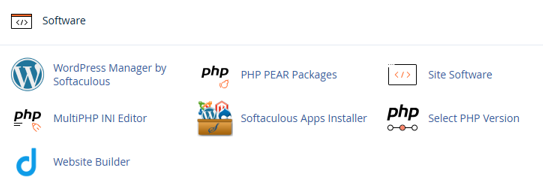
5. In cPanel, choose WordPress Manager by Softaculous on the left of the screen.
6. In the left-hand menu, click Plugins.
7. Select Add New.
8. In the search bar (top right), type: WP Mail Logging.
9. Locate the plugin in the search results.
10. Click Install Now.
11. Once installed, click Activate.
Alternatively, you can use an SMTP plugin that includes logging functionality.
Access the Email Logs
12. From the WordPress Manager, click Login to access your dashboard.
13. In the WordPress dashboard menu, navigate to WP Mail Logging. If you cannot see it, open the Plugins menu.
14. You will see a list of sent emails including:
- Date and time sent.
- Recipient email address.
- Subject line.
- Delivery status.
Click on any individual entry to view detailed headers and error responses.
Check Email Delivery in cPanel
If your WordPress site sends mail via your hosting server, you can verify delivery through cPanel.
1. In cPanel, scroll to the Email section.
2. Click Track Delivery.
3. Enter the recipient’s email address in the search field.
4. Click Run Report.
5. Review the status and SMTP response.
You will see whether the message was:
- Delivered.
- Deferred.
- Failed.
- In progress.
Additional Information
- Modern mail servers implement the mechanisms for rate limiting and spam detection. If your website sends a high volume of emails in a short period (for example, from spam or automated WooCommerce notifications), the server may temporarily block or defer outgoing mail.
- Common temporary errors include:
- 421 Service not available
- 451 Temporary local problem
- These are known as soft failures and usually resolve automatically after retrying attempts.
- For improved deliverability, we strongly recommend:
- Using authenticated SMTP.
- Configuring SPF records.
- Enabling DKIM in cPanel.
- Avoiding the default PHP mail() function.
- If you are unsure how to configure SMTP, Domains.co.za Support can assist.
Login to Domains.co.za Account
1. Go to the Domains.co.za website Account Login page.

2. Enter your Email and Password and click the Sign In button.
3. You will see the Domains.co.za Dashboard, displaying the Manage Account menu on the left and your Account Information, Account Overview and Open Support Tickets on the right.


