


This guide explains what phpMyAdmin is, how it works, and how to access phpMyAdmin through your Domains.co.za hosting account.
phpMyAdmin is a web-based database management tool commonly included with cPanel web hosting. It allows users to manage MySQL and MariaDB databases through a graphical interface rather than using command-line tools.
phpMyAdmin is widely used for website administration tasks such as importing databases, exporting backups, editing tables, running SQL queries, and troubleshooting database-related issues
Databases store important website information such as:
- User accounts.
- Website content.
- Product information.
- Settings and configurations.
- Blog posts and comments.
phpMyAdmin provides an easier way to interact with these databases without requiring advanced programming knowledge.
TABLE OF CONTENTS
How to Access phpMyAdmin in cPanel
1. Login to the Domains.co.za Customer Portal using your account credentials.
2. Open the Manage Services dropdown menu from the main dashboard navigation.
3. Select Web Hosting from the available service options.
4. Locate the hosting package linked to your domain name, then click Manage.
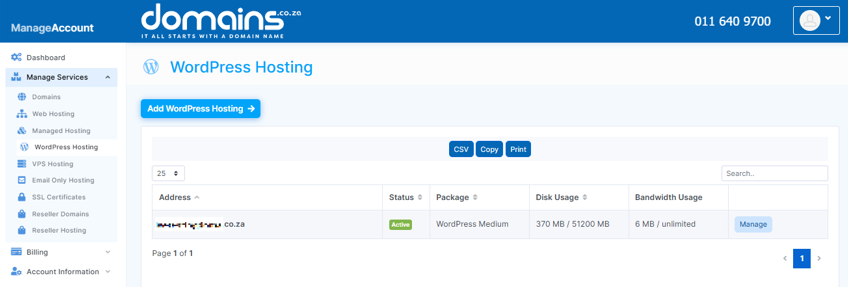
5. Click Login next to Control Panel to access cPanel.

6. Scroll to the Databases section within cPanel.

7. Click phpMyAdmin to open the database management interface.
8. Select the database you wish to manage from the left-hand panel.
Additional Information
- phpMyAdmin supports both MySQL and MariaDB database management.
- Users can import and export database backups directly through the interface.
- SQL queries can be executed manually for advanced database administration.
- Database tables can be repaired or optimised within phpMyAdmin.
- Deleting or modifying database entries incorrectly may break website functionality.
- Large database imports may require increased PHP upload limits.
- phpMyAdmin is commonly used with WordPress and other CMS platforms.
- Regular database backups are strongly recommended before making major changes.
Login to Domains.co.za Account
1. Go to the Domains.co.za website Account Login page.

2. Enter your Email and Password and click the Sign In button.
3. You will see the Domains.co.za Dashboard, displaying the Manage Account menu on the left and your Account Information, Account Overview and Open Support Tickets on the right.


