


This Knowledgebase article will show you how to install Textpattern from Softaculous. Textpattern is a versatile platform for creating and managing websites of all types and sizes. Whether you’re a blogger, designer, developer, or business owner, Textpattern provides the tools and features needed to build professional blogs.
In this tutorial, we will guide you through the process of installing Textpattern via Softaculous using the cPanel Dashboard, available to users on one of Domains.co.za’s Web Hosting plans.
TABLE OF CONTENTS
Install Textpattern from Softaculous
This article assumes that you have access to your cPanel Dashboard by logging in through your Domains.co.za Account or the cPanel website.
1. Textpattern can be found under the dropdown list for Blogs, so expand this menu and select it from the list.

2. Once you click Textpattern – you will be taken to the Overview page where you can view more information about the software features.
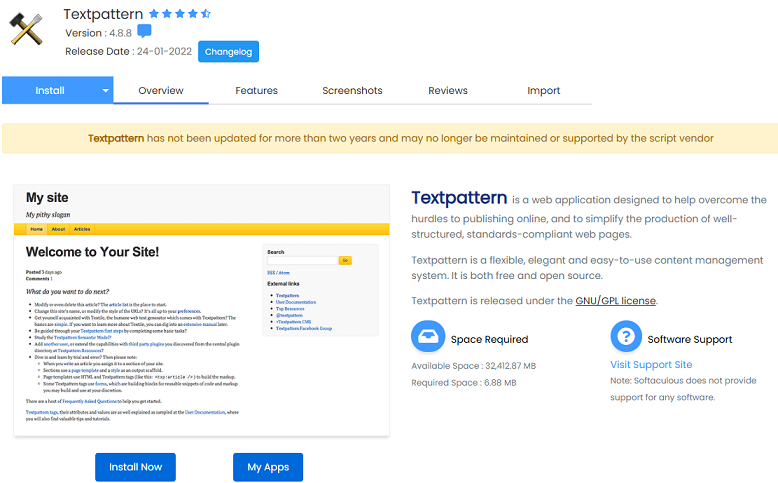
For Textpattern Quick Install
3. Click the Quick Install from the Install tab. The next two boxes required are your selected Domain and the Directory. The directory is relative to your domain and should not exist.
EXAMPLE:
– To install at http://mydomain/dir/ just type dir.
– To install only in http://mydomain/ leave this empty.

4. Fill in your Admin Account details and click Install.
For Textpattern Custom Install
5. The Custom Install process is similar, simply select the option from the Install tab. Under Software Setup choose your Protocol, Domain, and Directory, which should be empty. If you have multiple domains on one account, you can select where to install.
NOTE:
As previously mentioned, the directory is relative to your domain and should not exist. e.g. To install at http://mydomain/dir/ just type dir. To install only in http://mydomain/ leave this empty.
6. Under Site Settings, enter a Site Name and Site Description. Next, fill in your Admin Account details, Real Name and Admin Email boxes, and select the language. These can be changed later from the admin panel of the software.
After Quick and Custom Installations
7. After clicking Install in both processes, the software will be installed, and you can view your new site by clicking the Installation link.
That’s it, Textpattern is now uploaded and ready for use. You’ve reached the end of the tutorial, and you now know how to install Textpattern from Softaculous.
Additional Information
Key Features Of Textpattern
Textpattern is a sophisticated and adaptable content management system (CMS) offering numerous advantages for various website needs. Here are some key features:
- Scalability – Textpattern can scale to meet your needs, whether you have a small personal blog or a large business website. It handles large amounts of content and high traffic levels without compromising stability or performance.
- Blogging – Textpattern is ideal for creating and managing blogs. Its capabilities include categories, tags, commenting systems, and RSS feeds, allowing you to efficiently create and organise blog content.
- Content Management – With robust content management features, Textpattern is perfect for creating portfolios, small business websites, or personal sites. It makes it easy to create and organise pages, articles, images, and other content types.
- Customisation – Textpattern allows for extensive customisation. Choose from a variety of themes and templates, adjust layouts, and add plugins and extensions to enhance functionality, ensuring your website meets your specific needs.
- User-Friendly Interface – The platform’s user-friendly interface simplifies website creation and management for both novice and experienced users. Its WYSIWYG editor and intuitive admin interface streamline the content creation process.
- SEO-Friendly – Textpattern is designed with search engine optimisation (SEO) in mind. Features like XML sitemap generation, customisable meta tags, and clean URL structures help improve your website’s visibility in search engine results.
- Community Support – Textpattern has a supportive user and developer community that shares resources like themes, plugins, and tutorials, and contributes to its development. You can engage with other users, ask questions, and seek assistance.
- Performance and Security – The platform is lightweight and optimised for performance, ensuring fast loading times and efficient resource usage. It also includes built-in security measures to protect your website from common threats and vulnerabilities.
Login to Domains.co.za Account
1. Go to the Domains.co.za website Account Login page.

2. Enter your Email and Password and click the Sign In button.
3. You will see the Domains.co.za Dashboard, displaying the Manage Account menu on the left and your Account Information, Account Overview and Open Support Tickets on the right.

Login to cPanel from your Domains.co.za Dashboard
4. Click on Manage Services to view the sub-dropdown menu and select the hosting package for the domain you want to work with – in our example we are using Web Hosting.

5. Click the Manage button to the right of the domain name you want to access.
6. The display will now show Product Information, Quick Manage, Resource Usage and Site Statistics for that domain name.

7. Under Product Information, scroll down to Control Panel, which will display cPanel to the right, and click on the Login button.
8. The cPanel Dashboard will now be displayed.


