







The Link in Bio add-on from Domains.co.za gives you a simple, one-page website where you can centralise all your important links under one branded Domain Name.
This guide explains how to purchase the Link in Bio add-on from within your Domains.co.za account.
NOTE:
The Link in Bio tool is only available as an add-on for customers who have an active Domain Name registered with Domains.co.za. If you do not have a Domain Name yet, you will need to register one before enabling Link in Bio.
TABLE OF CONTENTS
How to Register a Domain Name & Add the Link in Bio Add-On
Follow the steps below to register a Domain Name and enable Link in Bio during checkout.
1. Visit Domains.co.za.
2. Enter the Domain Name you wish to register in the search bar.
3. Click the Search icon.
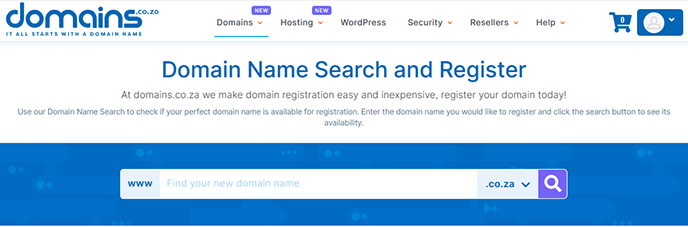
4. If the Domain Name is available, click Add to Cart.
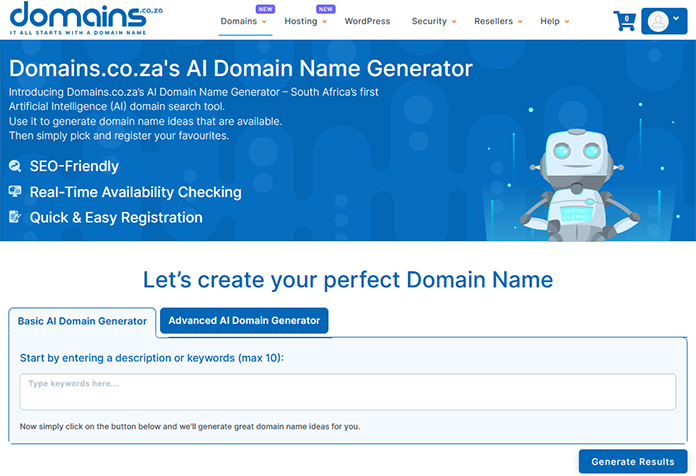
5. If it is unavailable, you can use the built-in AI Domain Name Generator to find creative, relevant alternatives.
Configure Your Domain
6. Click Configure.
7. A list of other available Domain Names and TLDs will be displayed for your consideration.
8. Toggle Link in Bio to add the tool to your purchase.
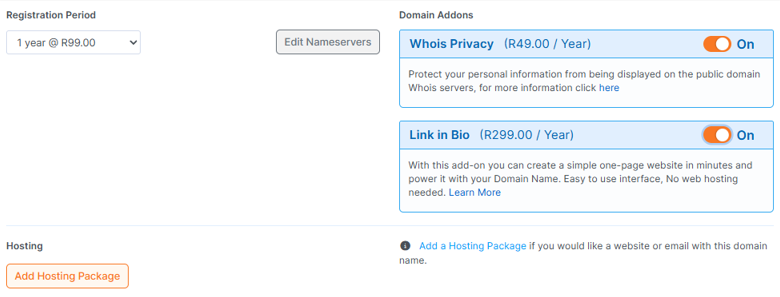
9. If you want to keep your registration information private, enable Whois Privacy.
10. Click Proceed to Cart.
Review Your Order
11. Review your Order Summary.
12. Any qualifying promotions will appear automatically.
13. You may choose to register your Domain Name for more than one year by adjusting the billing cycle.
14. When ready, click Checkout.
Login or Create a New Account
16. If you already have a Domains.co.za account, login.
17. If you’re a new customer, click Create a New Account and complete the required details.
18. Click Register to proceed.
Complete Payment
19. Select your preferred payment gateway.
20. Tick the box indicating that you have read and agree to the Terms of Service.
21. You will be redirected to the secure payment page to finalise your transaction.
Once payment has been completed, your Domain Name and Link in Bio add-on will be activated.

That’s It! Your Link in Bio is now ready for setup and customisation. You can log in to your Domains.co.za account to choose a template, update your branding, and publish your Link in Bio page within minutes.
Additional Information
- Domains.co.za’s Link in Bio tool provides a one-page website that centralises multiple links under a single, memorable domain name.
- Because the Link in Bio page is activated on your own domain, you can choose a custom URL that strengthens and reflects your brand.
- A Link in Bio page helps attract customers by offering one easy-to-share link where all your products, services, and offers are displayed in one convenient location.
- Setting up the Link in Bio page is quick. Register a domain, add the Link in Bio tool, complete payment, choose from three templates, and customise your page.
- The page can be personalised with your preferred colours, fonts, and visual elements such as a profile picture or logo, helping you maintain brand consistency.
- Link in Bio is designed to work seamlessly across all major platforms, including Instagram, TikTok, YouTube, WhatsApp, Facebook, and any service that allows a bio link.
Login to Domains.co.za Account
1. Go to the Domains.co.za website Account Login page.

2. Enter your Email and Password and click the Sign In button.
3. You will see the Domains.co.za Dashboard, displaying the Manage Account menu on the left and your Account Information, Account Overview and Open Support Tickets on the right.


