


The Domains.co.za Link in Bio page allows you to build a beautiful, customisable, one-page website in minutes, without hosting or coding. It’s ideal for influencers, small businesses, and anyone wanting a single smart link that centralises their most important content.
If you’re a content creator, a seamstress running a Cut, Make, and Trim service, a solopreneur, or a growing SMME, Link in Bio offers you a fast, affordable way to show your audience who you are, what you offer, and where to find you.
In this guide, we show you how to log in, choose a template, customise your page, add links, update colours, set up SEO, and publish instantly.
TABLE OF CONTENTS
How to Create Your Link in Bio Page
1. Login to your Domains.co.za Client Area.
2. On the Client Dashboard, click the Manage Services dropdown.
3. Select Link in Bio.

4. Click Build Page to open your Link in Bio add-on.
Building Your Page
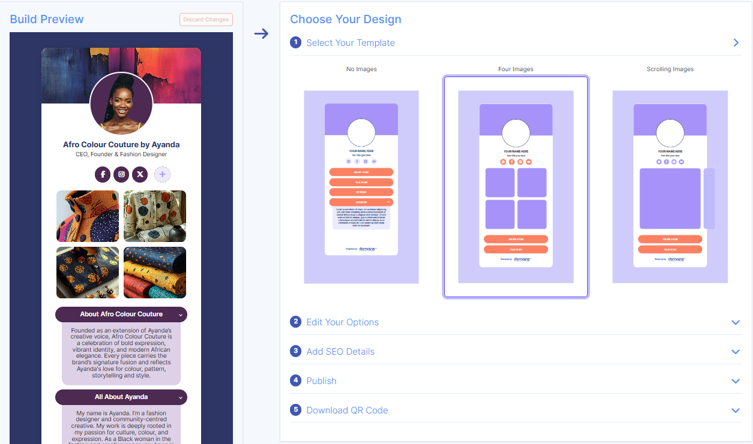
5. Click Select Your Template.
6. Choose one of three templates. In the tutorial example, we use the Four Images template.
Hover to Edit Elements
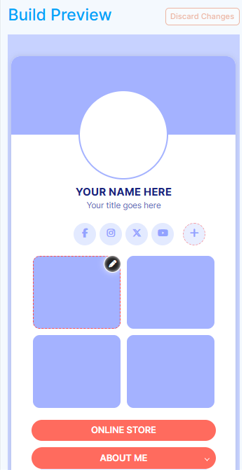
7. When you hover over the Build preview, each editable block will display a Pencil icon.
8. Click the icon to open element settings.
Update Background Colours & Layout
9. In the right-panel properties, update:
10. Outer Background Colour
11. Background Colour
12. Add a Header logo or image
13. Click Update to save each change.
Editing Individual Elements
Profile Image
14. Upload a profile image.
15 Adjust Background and Border Colours using the colour picker or HEX input.

Name, Title & Text Blocks
16. Edit the text block to include:
17. Your Name and Title, or
18. Business Name and Byline
19. Add, customise, or delete links to Instagram, TikTok, Facebook, WhatsApp, YouTube, LinkedIn, etc.
Card Image
20. Add an image by dragging it into the card element box.
21. Set the Background Colour to match your brand.
Button Elements
Buttons labelled Online Stores and About Me can be edited or deleted.
22. Background Colour
23. Button Font Colour
24. Link type (Standard Link or Expandable Info)
25. Change Button Element to:
26. Use your business description
Create Additional Buttons
27. Add new buttons via + Add New Button or + Add Contact Details.
28. For the owner bio section, label the button: About {Name} – Owner
29. Sample biography.
Adding SEO Details
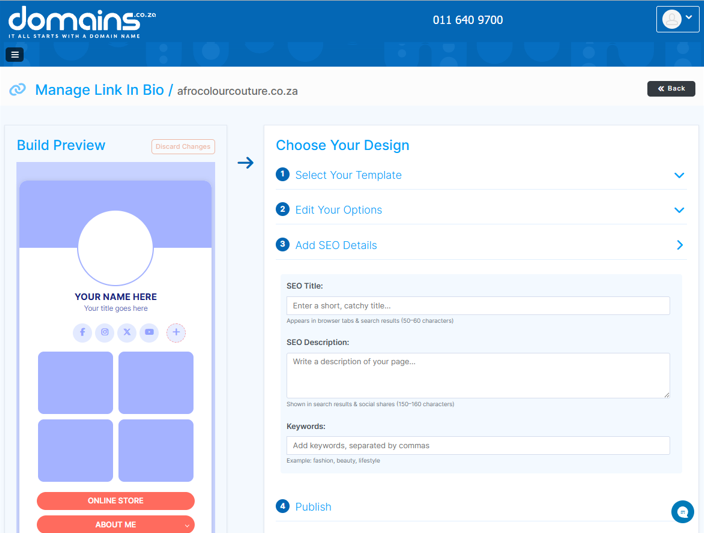
SEO is essential for visibility on Google.
Add:
- SEO Title.
- SEO Description.
- Keywords.
IMPORTANT:
Add your focus keyword into both the Title and Description. Do not add extra keywords, as this reduces SEO performance.
Publishing Your Link in Bio Page
30. Click Publish.
31. In the popup, click Yes, publish!
Your Link in Bio page will go live instantly, and your shareable domain link will be displayed.
Review & Republish
32. Click the published link to preview it.
33. If you want to make changes:
34. Return to Manage Link in Bio.
35. Apply edits.
36. Click Publish again.
Additional Information
- The Domains.co.za Link in Bio tool provides a one-page website that centralises multiple links under a single, memorable domain name.
- Because the Link in Bio page is activated on your own domain, you can choose a custom URL that strengthens and reflects your brand identity.
- A Link in Bio page helps attract customers by offering one easy-to-share link, where all your products, services, and offers are displayed in one convenient location.
- To use Link in Bio, you must have an active domain registered with Domains.co.za, which allows you to create a branded and memorable URL.
- Setting up the Link in Bio page is quick. Register a domain, add the Link in Bio tool, complete payment, choose from three templates, and customise your page.
- The page can be personalised with your preferred colours, fonts, and visual elements such as a profile picture or logo, helping you maintain brand consistency.
- Link in Bio is designed to work seamlessly across all major platforms, including Instagram, TikTok, YouTube, WhatsApp, Facebook, and any service that allows a bio link.


