


This guide explains how to identify and resolve SSL name mismatch errors using cPanel. An SSL certificate helps protect the connection between your website and its visitors by encrypting data transmitted over the Internet. When an SSL certificate is correctly installed and configured, visitors will see a secure HTTPS connection and a padlock icon in their web browser.
An SSL certificate name mismatch occurs when the domain name entered into the browser does not match the domain name listed on the SSL certificate. This can occur if the certificate was issued for a different domain, the website is accessed using an alternative hostname that is not included in the certificate, or DNS records point to the wrong server.
Most modern browsers display a warning when a certificate name mismatch is detected because the website’s identity cannot be verified. This may discourage visitors from accessing your website and could affect customer trust.
IMPORTANT:
Before making changes, ensure that your domain points to the correct hosting account and that a valid SSL certificate has been installed for the domain you are accessing.
TABLE OF CONTENTS
Before You Begin
Before troubleshooting an SSL certificate name mismatch, ensure that:
- You have access to the Domains.co.za Customer Portal.
- Your domain points to your Domains.co.za hosting account.
- AutoSSL or another SSL certificate has been installed.
- Recent DNS changes have fully propagated.
How to Fix an SSL Certificate Name Mismatch
Step 1: Access cPanel
1. Login to your Domains.co.za Customer Portal using your username and password.
2. Open the Manage Services drop-down menu.
3. Select Web Hosting.
4. Click Manage next to the hosting package associated with your domain.
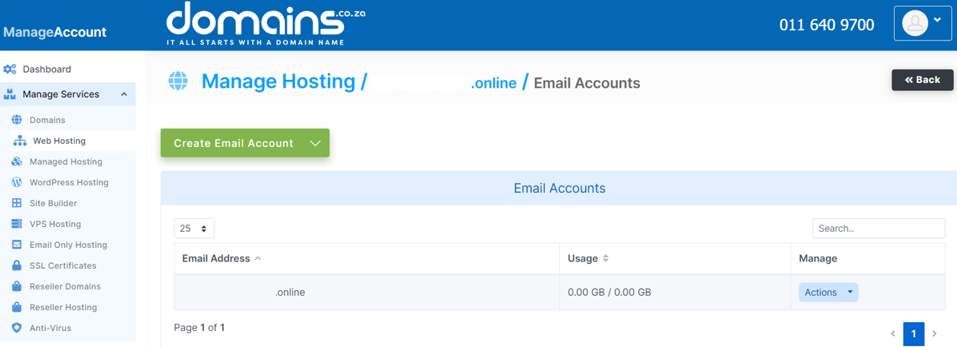
5. Click Login next to Control Panel to access cPanel.

Step 2: Check the Installed Certificate
1. Open Security.
2. Click SSL/TLS Certificates.

3. Select Certificates if required.
4. Review the certificate assigned to your domain.
Confirm that the certificate includes the exact domain name visitors are using.
Step 3: Verify Your Domain Name
Check whether visitors are accessing your website using:
- domain.co.za
- www.domain.co.za
If your certificate only covers one version, configure your website to redirect visitors to the protected hostname or install a certificate that includes both.
Step 4: Run AutoSSL
If AutoSSL is available:
1. Return to cPanel under Security.
2. Open SSL/TLS Certificates.
3. Select Status.
4. Select your domain.
5. Click Run AutoSSL.
Allow several minutes for the certificate to be reissued if necessary.
Step 5: Test the Website
Open: https://yourdomain.co.za
Verify that:
- The browser displays a padlock icon.
- No certificate warning appears.
- The correct domain name appears on the certificate.
Troubleshooting
- The Certificate Covers the Wrong Domain: Install or reissue an SSL certificate for the correct domain name.
- Only the www Version Works: Configure redirects so visitors always use the hostname included in the certificate or obtain a certificate that covers both versions.
- The Certificate Is Correct but the Warning Remains: Clear your browser cache and allow DNS changes to propagate before testing again.
- AutoSSL Does Not Issue a Certificate: Verify that the domain resolves correctly and meets AutoSSL validation requirements.
Additional Information
- SSL certificate name mismatch warnings occur when the certificate does not match the domain being accessed.
- Both the root domain and www version should be included on the certificate where possible.
- Incorrect DNS records can cause browsers to receive a certificate from another server.
- AutoSSL can automatically issue replacement certificates for eligible domains.
- Browser security warnings may discourage visitors from using your website.
- Testing your website after DNS or SSL changes helps identify configuration problems early.
- If the issue continues after verifying your DNS and SSL configuration, contact the Domains.co.za Support team.
Login to Domains.co.za Account
1. Go to the Domains.co.za website Account Login page.

2. Enter your Email and Password and click the Sign In button.
3. You will see the Domains.co.za Dashboard, displaying the Manage Account menu on the left and your Account Information, Account Overview and Open Support Tickets on the right.


