


This guide explains the most common causes of the WordPress 500 Internal Server Error and provides practical steps to help restore your website.
A WordPress website can stop working unexpectedly for a variety of reasons. One of the most common and frustrating issues website owners encounter is the WordPress 500 Internal Server Error. Unlike other website errors that clearly identify the problem, a 500 error is a generic server-side error that provides very little information about what went wrong.
Whether you run a business website, online shop, blog, portfolio, or membership site, a 500 Internal Server Error can prevent visitors from accessing your content, submitting enquiries, making purchases, or interacting with your website. While a short outage is usually not a major concern, repeated or prolonged downtime can negatively affect customer confidence, lead generation, and online sales.
Fortunately, the error is often caused by common issues such as plugin conflicts, theme problems, corrupted configuration files, low PHP memory limits, or temporary server issues. By following a structured troubleshooting process, you can often identify and resolve the problem without needing extensive technical knowledge.
TABLE OF CONTENTS
What Is the WordPress 500 Internal Server Error?
A 500 Internal Server Error means that the web server encountered a problem while processing a request but could not provide a more specific error message.
In simple terms, the server knows something has gone wrong, but it cannot clearly identify the exact cause to the website visitor.
Because it is a server-side error, the problem is often related to website files, plugins, themes, server resources, PHP settings, or configuration issues.
What the Error May Look Like
Depending on your browser, hosting environment, or website configuration, the error may appear as:
- 500 Internal Server Error.
- HTTP Error 500.
- Error 500.
- Internal Server Error.
- “This page isn’t working”.
- “The website cannot process this request”.
- A blank white screen.
- An unavailable webpage message.
Although the wording may vary, the troubleshooting process is generally similar.
Before You Begin
Before making changes to your website, ensure you have:
- Access to your WordPress Dashboard, if available.
- Access to your Domains.co.za hosting account.
- Access to cPanel.
- Access to File Manager or FTP/SFTP.
- A recent website backup.
- Access to server error logs, where available.
- An understanding of any recent changes made to the website.
Creating a backup before troubleshooting is strongly recommended.
Common Causes of the WordPress 500 Error
Plugin issues are one of the most common causes of 500 errors.
Problems may occur when:
- A plugin update introduces a bug.
- Two plugins conflict with each other.
- A plugin is incompatible with your WordPress version.
- A WordPress plugin requires more server resources than are available.
- Theme Conflicts: Outdated, corrupted, or incompatible themes can prevent WordPress from loading correctly and may trigger server errors.
- Corrupted .htaccess File: On Apache-based hosting environments, the .htaccess file controls important website functions such as redirects, security rules, and permalink settings. If the file is corrupted, WordPress may generate a 500 error.
- Low PHP Memory Limit: WordPress relies on PHP to process website requests. If a plugin, theme, or website process requires more memory than the server allows, WordPress may generate a 500 Internal Server Error.
- Server Configuration or Temporary Hosting Issues: In some cases, the problem may be related to:
- Temporary server issues.
- Resource limitations.
- Configuration errors.
- Hosting environment changes.
How To Fix The WordPress 500 Internal Server Error
Step 1: Refresh the Page & Check Whether the Error Is Temporary
- Occasionally, a server may experience a temporary issue that resolves itself within a few minutes.
- Refresh the page and revisit the website after a short period.
- If the error still appears, proceed with the remaining troubleshooting steps.
Step 2: Open the Site in a Private Browser Window
- Open your website in an Incognito or Private Browsing window.
- This helps determine whether the issue is caused by cached browser data rather than an active website problem.
- If the website loads correctly in a private window, clearing your browser cache may resolve the issue.
Step 3: Clear Your Browser Cache
- Browsers often store copies of website files to improve loading speeds.
- Clear your browser cache and reload the website to ensure you are viewing the most recent version of the page.
Step 4: Clear Your WordPress or Server Cache
- If you use a caching plugin or hosting-level caching system, clear all website cache data.
- Outdated cache files can sometimes continue displaying errors even after the underlying issue has been resolved.
Step 5: Check Your Server Error Logs
Server error logs often provide valuable information about the source of the problem.
Access Error Logs in cPanel
1. Login to the Domains.co.za Customer Portal using your account credentials.
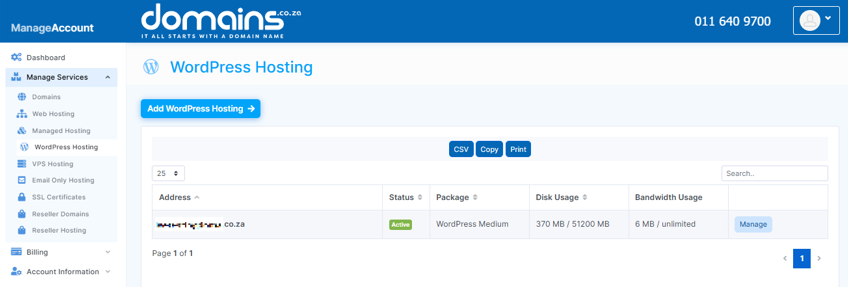
2. Navigate to Manage Services from the dropdown menu.
3. Select your WordPress Hosting package and click Manage.
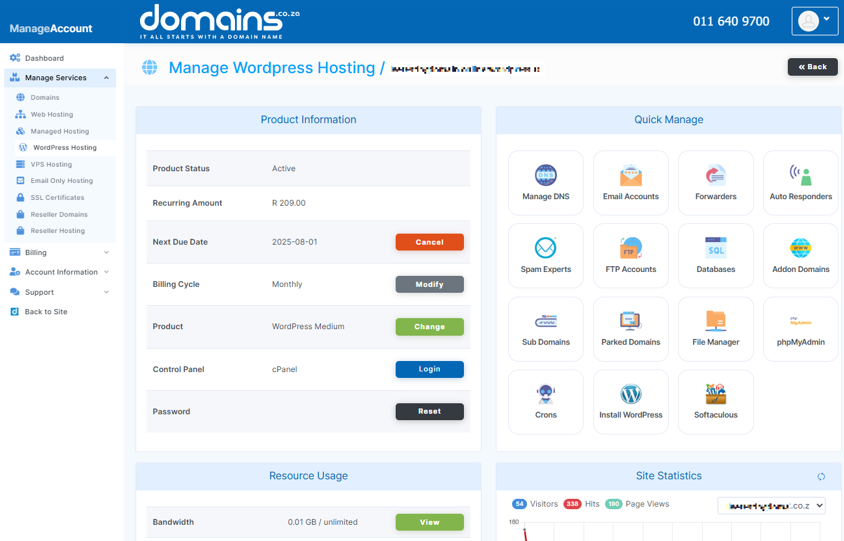
4. Click Login to cPanel to access your hosting control panel.
5. Navigate to Metrics.
6. Open Errors or any available error log viewer.
7. Review recent entries for PHP errors, plugin issues, theme problems, file permission errors, or memory limit warnings.
The log entries may help identify the exact component causing the issue.
Step 6: Check & Regenerate the .htaccess File
A corrupted .htaccess file is a common cause of WordPress server errors.
How to Rename the .htaccess File
1. Login to cPanel to access your hosting control panel.
2. Open File Manager.
3. Navigate to the website root directory, usually public_html.
4. Locate the .htaccess file.
5. Rename the file to something like .htaccess-old.
6. Test the website again.
If the website loads correctly, the original file may have been corrupted.
How to Regenerate .htaccess in WordPress
If you can access the WordPress Dashboard:
1. Navigate to Settings > Permalinks.
2. Click Save Changes without making any modifications.
3. WordPress will automatically generate a new .htaccess file.
Step 7: Deactivate Plugins & Test the Site
Plugin conflicts frequently cause 500 errors.
If You Can Access the WordPress Dashboard
1. Navigate to Plugins > Installed Plugins.
2. Select all active plugins.
3. Choose Deactivate from the bulk actions menu.
4. Test the website.
5. Reactivate plugins one at a time until the issue reappears.
The last plugin activated before the error returns is often the source of the problem.
If You Cannot Access the WordPress Dashboard
1. Login to cPanel to access your hosting control panel.
2. Open File Manager.
3. Navigate to public_html/wp-content/.
4. Rename the plugins folder to plugins-disabled.
5. Test the website.
This temporarily disables all plugins.
Step 8: Switch to a Default WordPress Theme
Themes can also trigger server-side errors.
1. Navigate to Appearance > Themes.
2. Activate a default WordPress theme such as Twenty Twenty-Five.
3. Test the website again.
NOTE:
If you cannot access the dashboard, consider contacting your developer or Domains.co.za Support for assistance with safely switching themes through file or database access.
Step 9: Increase the PHP Memory Limit
Low PHP memory limits can contribute to 500 errors.
Increase PHP Memory in Your Hosting Control Panel
1. Login to cPanel to access your hosting control panel.
2. Locate any available PHP settings or MultiPHP configuration tools.
3. Review the configured memory limit.
4. Increase the limit if your hosting package supports this option.
Increase PHP Memory in wp-config.php
- Advanced users may increase the memory limit within the wp-config.php file.
- Always create a backup before editing this file.
- A common approach is to add a WordPress memory limit directive within the configuration file.
Ask Your Hosting Provider for Help
- If you are unsure whether memory limitations are causing the issue, contact Domains.co.za Support for guidance.
Step 10: Test Your Website Before Marking the Issue as Fixed
Once the website is loading again, test key areas carefully.
Check:
- The homepage.
- Service pages.
- Product pages.
- Contact forms.
- Checkout processes.
- User login areas.
- Mobile layouts.
- Search functionality.
This helps ensure that the underlying issue has been fully resolved.
When to Contact Your Hosting Provider
Contact Domains.co.za Support or your developer if:
- The error keeps returning.
- You cannot access the WordPress Dashboard.
- Error logs do not clearly identify the issue.
- You suspect malware or unauthorised access.
- Resource limits are repeatedly being reached.
- Server-level issues are suspected.
- The website remains inaccessible after troubleshooting.
Professional assistance can often identify complex issues more quickly.
Additional Information
- A 500 Internal Server Error is a server-side issue and often does not reveal the exact cause immediately.
- Creating a backup before editing website files is strongly recommended.
- Plugin conflicts remain one of the most common causes of WordPress server errors.
- Corrupted .htaccess files are particularly common on Apache-based hosting environments.
- PHP memory limitations can contribute to website instability, especially on larger or resource-intensive websites.
- Clearing the browser and website cache should always be one of the first troubleshooting steps.
- Error logs often provide the fastest route to identifying the source of the problem.
- Repeated 500 errors may indicate a deeper issue that requires professional investigation.
- Regular updates, backups, and monitoring can help reduce the likelihood of future errors.
You’re All Set
The WordPress 500 Internal Server Error can be frustrating because it rarely identifies the exact cause. However, by following a structured troubleshooting process, you can often resolve the issue by checking the cache, reviewing logs, regenerating the .htaccess file, testing plugins and themes, and reviewing PHP resource limits.
Regular maintenance, reliable hosting, ongoing monitoring, and verified backups can help minimise future disruptions and keep your WordPress website running smoothly.
Login to Domains.co.za Account
1. Go to the Domains.co.za website Account Login page.

2. Enter your Email and Password and click the Sign In button.
3. You will see the Domains.co.za Dashboard, displaying the Manage Account menu on the left and your Account Information, Account Overview and Open Support Tickets on the right.


