


This guide explains the most common WordPress errors to checks and troubleshooting steps. It is designed to help Domains.co.za customers safely identify possible causes and decide whether the issue can be resolved through WordPress, cPanel, or with assistance from support.
A slow or unstable WordPress website can impact your visitors’ experience, search rankings, conversions, and overall business performance. Common WordPress performance issues are usually caused by large images, outdated plugins, heavy themes, excessive scripts, database problems, caching issues, or limited hosting resources.
In some cases, websites may also display errors such as a 500 Internal Server Error, a blank white screen, memory limit errors, or database connection issues. These problems can make a website difficult to use or prevent visitors from accessing it altogether.
TABLE OF CONTENTS
How To Fix Common WordPress Errors
Before making any changes to your WordPress website, it is important to take a few precautions:
- Back up your WordPress website and database before troubleshooting.
- Update WordPress core, installed plugins, and themes where safe to do so.
- Test major changes on a staging site if one is available.
- Avoid editing files, databases, or permissions unless you understand the process.
- Keep a record of changes made during troubleshooting.
- Contact Domains.co.za support if you are unsure about advanced troubleshooting steps.
Some actions, such as clearing cache, are generally low risk. However, changes to file permissions, PHP settings, databases, or configuration files can affect how your website functions if done incorrectly.
Step 1: Test Your Website Speed
The first step is identifying where the slowdown is occurring. This helps determine whether the issue relates to images, plugins, scripts, database performance, or hosting resources.
The “Performance Score” is based on a simulated test, not a live visitor. This is why results may not be the same, but when testing the same website, the tests are carried out on servers outside South Africa, so that must also be considered.
You can test your website using tools such as:
- Google PageSpeed Insights.
- GTmetrix.
- Pingdom Website Speed Test.
When reviewing results, look for:
- Slow overall load times.
- Large image files.
- Excessive page requests.
- Huge page sizes.
- Slow server response times.
- High Time to First Byte (TTFB).
These tools can help narrow down the most likely causes of poor performance.
Step 2: Check for Common Symptoms
Common WordPress performance issues include:
- Pages taking longer than three seconds to load.
- Images loading slowly.
- A lagging WordPress dashboard.
- Website timeout errors.
- 500 Internal Server Errors.
- A blank white screen.
- “Error Establishing a Database Connection” messages.
- Forms, checkout pages, or builders freezing.
- High CPU, memory, or disk usage on your hosting account.
Identifying the symptoms can help determine which troubleshooting step to focus on first.
Step 3: Check Recently Added or Updated Plugins
Plugins are one of the most common causes of WordPress speed and stability problems. A poorly coded, outdated, or conflicting plugin can significantly slow down a website.
How to Check Plugins
1. Login to the Domains.co.za Customer Portal using your account credentials.
2. Navigate to Manage Services from the dropdown menu.
3. Select your WordPress Hosting package and click Manage.
4. Click Login to cPanel to access your hosting control panel.
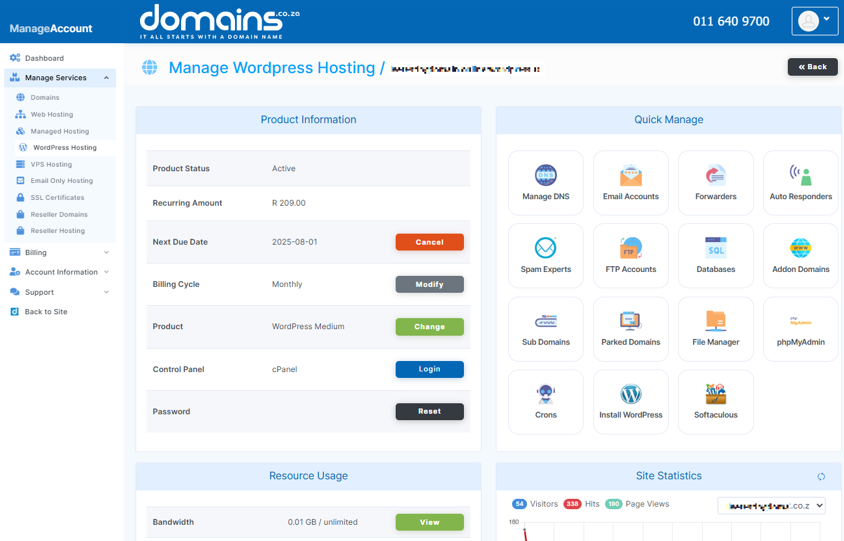
5. In cPanel, locate and open the WordPress Manager.

6. In the WordPress dashboard, navigate to Plugins and select Installed Plugins.
7. Check whether the issue started after installing or updating a plugin.
8. Temporarily deactivate the most recently updated plugin.
9. Test your website again to see if performance improves.
10. If the issue continues, repeat the process one plugin at a time.
11. Remove plugins that are no longer required or maintained.
Avoid deactivating all plugins at once unless necessary, especially on live websites using ecommerce, forms, bookings, or security plugins.
Step 4: Test Your WordPress Theme
Some themes contain heavy scripts, outdated code, or poorly optimised design elements that affect website speed and stability.
Recommended Checks
1. Access your WordPress admin dashboard.
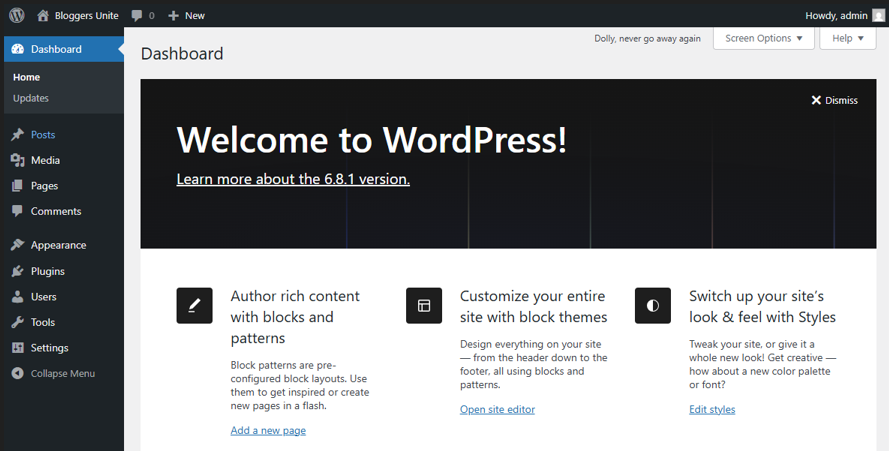
2. Navigate to Appearance and select Themes.
3. Check whether the issue started after changing or updating your theme.
4. Temporarily activate a default WordPress theme if safe to do so.
5. Test your website again.
If the issue disappears after switching themes, the original theme may be causing the problem. Consider updating or deleting the theme, contacting the theme developer, or switching to a lightweight alternative.
If your website is business-critical, test theme changes on a staging site first.
Step 5: Optimise Large Images
Large images are one of the most common causes of slow-loading WordPress websites.
Recommended Optimisation Steps
- Compress images before uploading them to WordPress.
- Resize images to match the required display dimensions.
- Use JPEG files for photographs.
- Use PNG files only when transparency is required.
- Use WebP image formats where supported.
- Enable lazy loading for below-the-fold images.
- Avoid uploading unnecessarily large banner images.
Optimised images help reduce bandwidth usage, improve load times, and enhance visitor experience.
Step 6: Clear Website Cache
Caching helps improve website speed by storing temporary versions of website files. However, outdated or corrupted cache files can sometimes cause performance or display problems.
Recommended Steps
- Clear your web browser cache.
- Clear cache within your WordPress caching plugin.
- Clear server-side cache if available through your hosting environment.
- Open the website in a private or incognito browser window and retest it.
- Clear cache after updating plugins, themes, CSS, or page content.
This helps ensure you are viewing the latest version of the website.
Step 7: Clean Up the WordPress Database
Over time, WordPress databases accumulate unnecessary data that can affect performance.
Common causes of database bloat include:
- Old post revisions.
- Spam comments.
- Expired transients.
- Deleted plugin data.
- Old drafts.
- Unused WooCommerce information.
Recommended Steps
1. Login to the Domains.co.za Customer Portal using your account credentials.
2. Navigate to Manage Services from the dropdown menu.
3. Select your WordPress Hosting package and click Manage.
4. Click Login to cPanel to access your hosting control panel.
5. In cPanel, locate and open WordPress Manager.
6. Back up your WordPress database before making changes.
7. Remove spam comments and unnecessary drafts from WordPress.
8. Use a trusted database optimisation plugin to clean old revisions and transient data.
9. Avoid manually editing database tables unless experienced.
10. Contact support or a developer if database errors continue.
Step 8: Check File Permissions & the .htaccess File
Incorrect file permissions or a corrupted .htaccess file can cause performance issues, broken links, or server errors.
Common WordPress Permission Settings
- Folders are commonly set to 755.
- Files are commonly set to 644.
The .htaccess file controls important WordPress server rules and permalink functionality.
IMPORTANT:
Only change file permissions or rename the .htaccess file if you understand the process. Incorrect changes can break your website or create security risks.
Basic Checks
- Login to cPanel.
- Open File Manager within cPanel.
- Locate your WordPress installation directory.
- Review file permissions carefully before making changes.
- Locate the .htaccess file in the public_html directory.
- If advised by support or a developer, temporarily rename the .htaccess file to test whether it is corrupted.
If you are unsure, contact Domains.co.za support before making advanced changes.
Step 9: Check Your Hosting Resources
If your WordPress website remains slow after checking plugins, themes, images, cache, and database performance, your hosting resources may be under strain.
What to Check
- CPU usage.
- Memory or RAM usage.
- Disk space availability.
- PHP version compatibility.
- Error logs.
- Traffic spikes.
- Background processes.
- Resource-heavy plugins or WooCommerce activity.
How to Check Hosting Resources
- Login to cPanel.
- Review available resource usage tools and error logs within cPanel.
- Check whether your website regularly reaches CPU, memory, or storage limits.
- Confirm that your website is using a supported PHP version.
If your website has grown significantly, receives high traffic volumes, or relies on resource-intensive plugins, it may require a hosting environment with additional resources or WordPress-specific optimisation.
When to Contact Domains.co.za Support
You should contact Domains.co.za support if:
- You cannot access wp-admin.
- Your website shows repeated 500 errors.
- You see database connection errors.
- Your website continues timing out.
- You are uncomfortable editing files or permissions.
- You suspect a hosting resource issue.
- Plugin, theme, image, and cache troubleshooting do not resolve the issue.
Support can help investigate server-side issues, resource limitations, and hosting-related performance concerns.
Additional Information
- Keep WordPress core, plugins, and themes regularly updated to improve security and performance.
- Remove unused plugins and themes to reduce unnecessary resource usage.
- Use lightweight themes and trusted plugins wherever possible.
- Regularly back up your website before updates or major changes.
- Optimise images before uploading them to WordPress.
- Monitor website performance regularly using online speed testing tools.
- Use caching carefully and clear cached files after major updates.
- Check your hosting resource usage if your website traffic increases.
- Consider upgrading your hosting plan if your website outgrows shared hosting resources.
- Secure your website with SSL Certificates to protect visitor data and improve trust.
Still having trouble with your WordPress website? Domains.co.za offers WordPress Hosting designed to help South African websites run securely and reliably, with local support available when you need assistance.
Login to Domains.co.za Account
1. Go to the Domains.co.za website Account Login page.

2. Enter your Email and Password and click the Sign In button.
3. You will see the Domains.co.za Dashboard, displaying the Manage Account menu on the left and your Account Information, Account Overview and Open Support Tickets on the right.


