


This guide explains how to back up WordPress, how to create them manually and automatically, and how to store them safely.
Backing up your WordPress website is one of the most important maintenance tasks you can perform. Whether you run a business website, blog, online store, portfolio, or membership site, having a recent backup can help you recover quickly if something goes wrong.
Website issues can occur unexpectedly due to plugin conflicts, failed updates, accidental deletion, malware infections, server problems, coding errors, or even human error. Without a reliable backup, restoring your website can be difficult, time-consuming, and sometimes impossible.
A proper WordPress backup creates a copy of your website’s files, database, settings, content, and configurations. If your website is unavailable or data is lost, you can use the backup to restore your site to a previous working state.
TABLE OF CONTENTS
What Is a WordPress Backup?
A WordPress backup is a saved copy of your website that can be used to restore your site if a problem occurs.
A complete backup typically includes:
- WordPress core files.
- Themes.
- Plugins.
- Media uploads.
- Website settings.
- Pages and posts.
- User accounts.
- Database content.
Backups provide a safety net that can help minimise downtime and data loss.
Why WordPress Backups Matter
Regular backups help protect your website from:
- Accidental file deletion.
- Failed WordPress updates.
- Plugin conflicts.
- Theme compatibility issues.
- Malware infections.
- Website hacking attempts.
- Server failures.
- Human error.
Even if your hosting provider performs server-level backups, it is still recommended that you maintain your own backup strategy.
Before You Begin
Before creating a backup, ensure you have:
- Access to your WordPress admin dashboard.
- Access to your Domains.co.za hosting account.
- Access to cPanel.
- Sufficient storage space for backup files.
- FTP or SFTP credentials if performing manual backups.
- Access to phpMyAdmin for database backups.
- A secure location to store backup files.
It is also good practice to create a backup before installing new plugins, updating themes, performing WordPress updates, migrating websites, or making major design changes.
Understand the Main Types of WordPress Backups
Not all backups protect the entire website. Understanding the different backup types can help you choose the correct option.
Full Backup
A full backup includes both website files and the WordPress database.
This should include:
- Themes.
- Plugins.
- Uploads.
- WordPress files.
- Posts and pages.
- Settings.
- User accounts.
- Comments.
- Form submissions.
A full backup provides the most complete protection.
Database-Only Backup
The database stores much of your website’s dynamic content, including:
- Posts.
- Pages.
- Comments.
- Users.
- WooCommerce data.
- Form entries.
- Website settings.
A database-only backup does not include media files, themes, plugins, or WordPress core files.
File-Only Backup
File backups typically include:
- WordPress files.
- Themes.
- Plugins.
- Media uploads.
- Configuration files.
However, file-only backups do not include the database.
For complete website restoration, both files and the database are required.
Manual vs Automatic WordPress Backups
Manual Backup: Best for More Control
Manual backups allow you to choose exactly what is backed up and when.
They are useful before:
- WordPress updates.
- Plugin installations.
- Theme changes.
- Website migrations.
- Custom development work.
Automatic Backup: Best for Ongoing Protection
Automatic backups run on a schedule and require less manual effort.
They are ideal for:
- Busy websites.
- Business websites.
- WooCommerce stores.
- Websites that publish content regularly.
What to Do Before Backing Up WordPress
- Check for WordPress, Plugin, & Theme Updates: Review pending updates before starting. In most cases, it is safest to create a backup before performing updates. Once updates have been completed successfully and tested, you can create a fresh backup.
- Clean Up Unused Plugins, Themes, & Media: Removing unnecessary files can reduce backup size and improve website organisation.
- Check Available Disk Space: Ensure both your hosting account and local storage location have enough available space for the backup.
- Temporarily Disable Caching Plugins If Needed: Cache files can increase backup sizes and may complicate some backup processes.
Method 1: Website Content Backup via FTP
Manual backups provide direct access to your website files.
1. Open your preferred FTP or SFTP client and enter your server address, username, password, and port information.
2. Navigate to your website’s root directory, which is usually located in the public_html folder.
3. Important folders and files include:
- wp-content
- wp-admin
- wp-includes
- wp-config.php
4. Download all website files and save them to a secure folder on your computer.
5. FTP and SFTP only download website files. You must create a separate database backup using phpMyAdmin.
Method 2: Database Backup via phpMyAdmin
1. Login to the Domains.co.za Customer Portal using your account credentials.
2. Navigate to Manage Services from the dropdown menu.
3. Select your WordPress Hosting package and click Manage.
4. Click Login to cPanel to access your hosting control panel.
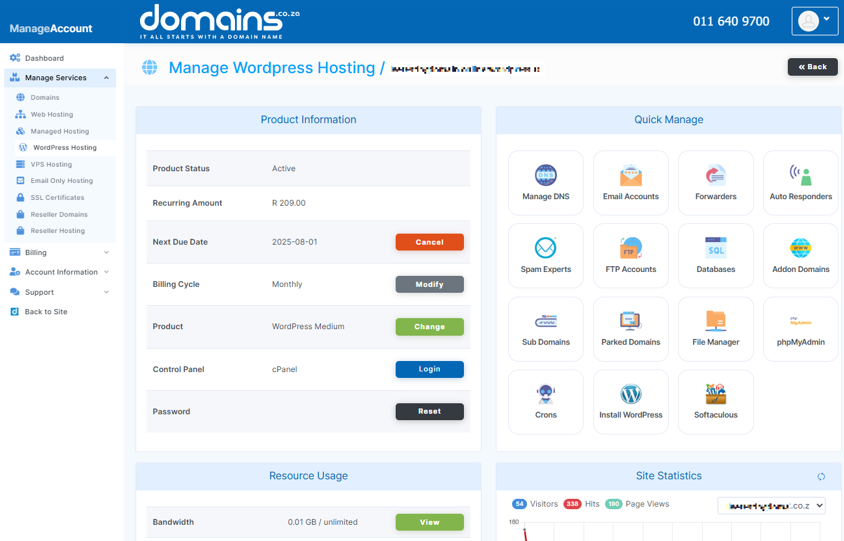
5. Navigate to Databases and click phpMyAdmin.
6. Locate and select the database associated with your WordPress installation.
7. If you are unsure which database belongs to your website, check the DB_NAME value within the wp-config.php file, or contact support.
8. Click Export, select the preferred export method, and download the SQL file.
9. Store the database backup together with your website files.
Method 3: Back Up WordPress Using Hosting Tools
Many hosting platforms provide built-in backup tools.
1. Login to the Domains.co.za Customer Portal using your account credentials.
2. Navigate to Manage Services from the dropdown menu.
3. Select your WordPress Hosting package and click Manage.
4. Click Login to cPanel to access your hosting control panel.
5. Navigate to Backup or Backup Wizard within cPanel.
6. Select either a Full Backup or Partial Backup.
7. For complete protection, a Full Backup is generally recommended.
8. Create the backup and download it to a secure storage location once processing has completed.
Method 4: Set Up Automatic WordPress Backups
Automatic backups provide ongoing protection with minimal effort.
1. Select a reputable backup plugin or hosting backup service.
2. Examples include:
- UpdraftPlus.
- BackWPup.
- Jetpack Backup.
- VaultPress.
3. Always verify plugin compatibility and update history before installation.
4. Choose a schedule based on how often your website changes.
5. Common schedules include:
- Daily.
- Weekly.
- Monthly.
6. Configure backups to be stored in a remote location rather than only on the web server.
Where to Store WordPress Backups
Backups should always be stored in multiple locations.
Popular cloud storage options include:
- Google Drive.
- Dropbox.
- Amazon S3.
- Microsoft OneDrive.
You may also store backups on:
- External hard drives.
- Network storage devices.
- Local computers.
Avoid relying on a single storage location.
How Often Should You Back Up a WordPress Site?
- Brochure or Small Business Websites: Weekly or monthly backups may be sufficient if changes are infrequent.
- Blogs & Content Websites: Create backups whenever new content is published and maintain scheduled backups.
- WooCommerce & High-Activity Websites: These websites should be backed up more frequently because customer data, orders, and inventory may change throughout the day.
Common Backup Mistakes to Avoid
Avoid these common backup errors:
- Not backing up regularly enough.
- Storing backups only on the same server.
- Forgetting to back up the database.
- Relying on a single backup copy.
- Failing to test backup restoration.
- Using outdated backup plugins.
- Performing major updates without creating a backup first.
Additional Information
- A complete WordPress backup should always include both website files and the database.
- FTP and SFTP backups only include files and do not automatically back up database content.
- Backup files can become very large on websites with extensive media libraries, so storage planning is important.
- Testing backups periodically helps confirm that restoration will work when required.
- Keeping multiple backup copies in separate locations improves protection against data loss.
- Creating a backup before WordPress theme or plugin updates is considered best practice.
- WooCommerce websites typically require more frequent backups because order and customer data change regularly.
- If you are unsure which backup method is best for your website, contact Domains.co.za Support or your web developer for assistance.
You’re All Set
Regular backups are one of the simplest and most effective ways to protect your WordPress website. Whether you choose manual backups, hosting-based backups, automatic backup plugins, or a combination of methods, maintaining recent backup copies can help reduce downtime and simplify recovery when problems occur.
By regularly creating backups, storing them securely, and testing them periodically, you can help ensure that your website remains protected against unexpected issues and data loss.
Login to Domains.co.za Account
1. Go to the Domains.co.za website Account Login page.

2. Enter your Email and Password and click the Sign In button.
3. You will see the Domains.co.za Dashboard, displaying the Manage Account menu on the left and your Account Information, Account Overview and Open Support Tickets on the right.


