






Fonts play a significant role in how visitors experience your WordPress website and its aesthetic. The right typography can improve readability, strengthen your brand identity, and make your content look more professional. If you’re running a small business website, an online shop, a blog, or a portfolio, updating your fonts can provide your website with a fresh new look without requiring a complete redesign.
WordPress offers several ways to change fonts, ranging from simple built-in settings to more advanced customisation methods. The best option depends on your theme, your technical experience, and whether you want to change fonts across the entire website or only on specific pages.
This guide explains how to change fonts in WordPress using both beginner-friendly and advanced methods.
TABLE OF CONTENTS
What Are Web Fonts?
Web fonts are fonts loaded by a web browser when someone visits a website. They ensure that text displays consistently across different devices and operating systems, even if the visitor does not have that particular font installed locally.
Common font categories include:
- Serif fonts, which have decorative strokes at the ends of letters and are often associated with traditional or professional brands.
- Sans-serif fonts that have a clean and modern appearance and are commonly used on websites.
- Script fonts, which resemble handwriting and are often used for decorative purposes.
- Monospace fonts, where each character takes up the same amount of space. These are commonly used for code.
- Display fonts which are designed for headings and branding rather than large blocks of text.
Before You Begin
Before changing fonts in WordPress, ensure you have:
- Access to your WordPress admin dashboard.
- An active WordPress theme.
- A backup of your website if you plan to edit theme files.
- A clear idea of which fonts you wish to use.
- An understanding that available font options depend on your active WordPress theme.
If you have not yet launched your website, consider choosing reliable WordPress hosting in South Africa and registering a domain name before building your site.
Choose the Best Method for Changing Your WordPress Font
WordPress provides several ways to customise typography:
| Method | Best For |
| Theme Customiser | Classic themes with built-in typography settings |
| Full Site Editing | Modern block themes |
| Block Editor | Individual pages, posts, and blocks |
| Font Plugins | No-code font management |
| Manual Custom Fonts | Advanced users comfortable with CSS |
| Full Site Editing Theme Files | Developers and advanced customisation |
For most users, the Theme Customiser or Full Site Editing provides the simplest solution.
Method 1: Change Fonts with the WordPress Theme Customiser
Many classic WordPress themes include built-in typography controls that allow you to change fonts without installing additional plugins.
Step 1: Login to Your WordPress Dashboard
Access your WordPress admin area using your administrator credentials.
1. Login to the Domains.co.za Customer Portal using your account credentials.

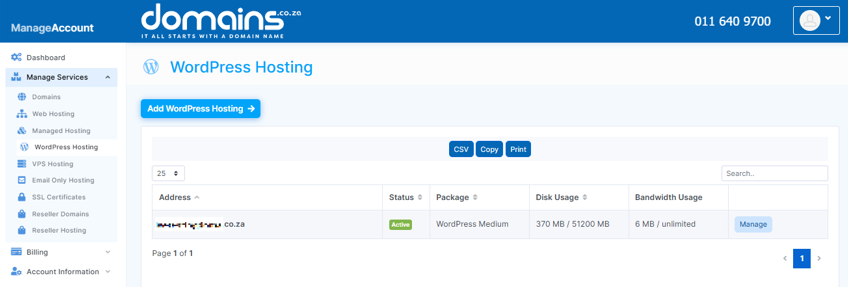
2. Navigate to Manage Services from the dropdown menu.
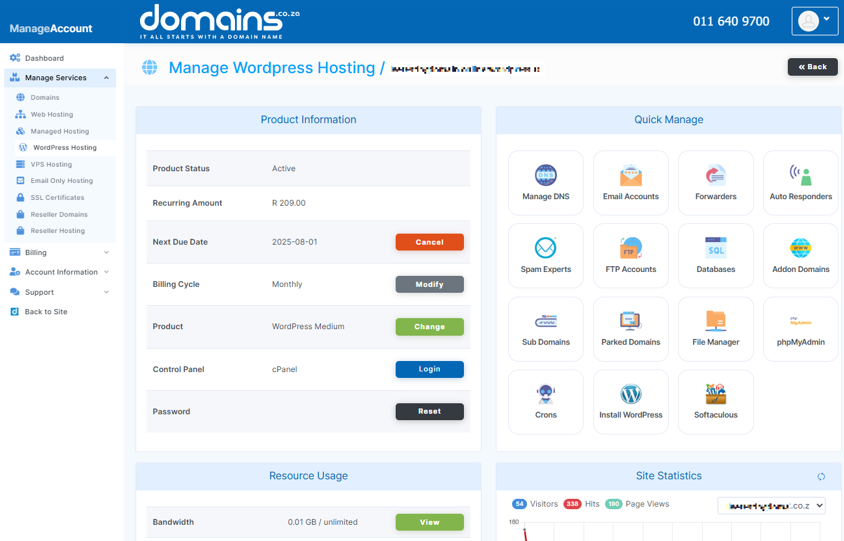
3. Select your WordPress Hosting package and click Manage.
4. Click Login to cPanel to access your hosting control panel.
5. In cPanel, locate and open WordPress Manager.

Step 2: Open Appearance > Customise
In the left-hand menu, navigate to Appearance and select Customise.
Depending on your theme, font settings may appear under:
- Typography.
- Fonts.
- Global Styles.
- Theme Options.
Step 3: Open Typography or Font Settings
Locate the typography settings and choose fonts for areas such as:
- Body text.
- Headings.
- Menus.
- Buttons.
- Widgets.
Available options vary depending on the theme you are using.
Step 4: Preview & Publish Your Changes
Use the live preview window to review your changes before making them public.
Once you are satisfied with the appearance of your website, click Publish to save the changes.
Method 2: Change Fonts with Full Site Editing
If you are using a block-based theme, WordPress includes Full Site Editing tools that allow global typography changes.
1. Login to the Domains.co.za Customer Portal using your account credentials.
2. Navigate to Manage Services from the dropdown menu.
3. Select your WordPress Hosting package and click Manage.
4. Click Login to cPanel to access your hosting control panel.
5. In cPanel, locate and open the WordPress Manager.
6. Navigate to Appearance > Editor.
7. Click Styles.
8. Select Typography.
9. Choose fonts for headings, body text, links, and other site elements.
10. Save your changes.
This method applies typography settings across your entire website, making it ideal for maintaining brand consistency.
Method 3: Change Fonts in the Block Editor
Sometimes you only want to change fonts on a specific page, post, or section rather than the entire website.
To customise typography for individual blocks:
1. Open a page or post in Block Editor.
2. Select the block you wish to edit.
3. Open block settings on the right-hand side.
4. Expand Typography.
5. Adjust font size, appearance, line height, and other available settings.
6. Save or update the page.
This method is useful when creating landing pages, promotional content, or highlighted sections.
Method 4: Use a WordPress Font Plugin
A font plugin can provide access to additional font libraries without requiring coding knowledge.
Popular font plugins often allow you to:
- Add Google Fonts.
- Apply fonts globally.
- Manage typography settings from a central dashboard.
- Preview changes before publishing.
When selecting a plugin, choose one that is:
- Reputable.
- Regularly updated.
- Compatible with your version of WordPress.
- Well-reviewed by the WordPress community.
Installing too many plugins can affect performance, so only use plugins that provide genuine value.
Method 5: Add Custom Fonts Manually
Advanced users can add custom fonts manually, using CSS and theme files.
This approach may involve:
- Uploading font files.
- Using CSS declarations.
- Editing theme stylesheets.
- Loading fonts from external services.
Before making any file changes:
- Create a complete backup.
- Use a child theme.
- Test changes on a staging site whenever possible.
Avoid editing live theme files directly, as updates can overwrite your customisations.
Method 6: Add Custom Fonts to a Full Site Editing Theme
Full Site Editing themes can support custom fonts through theme configuration files such as theme.json.
Advanced users and developers can:
- Register custom font families.
- Configure typography settings globally.
- Apply fonts to specific template parts.
- Maintain consistent branding across the entire site.
Because this method requires familiarity with theme development, it is generally recommended for experienced WordPress users.
Best Practices for WordPress Fonts
When choosing fonts for your website, keep the following best practices in mind:
- Prioritise readability over decorative design.
- Use fonts that align with your brand identity.
- Limit the number of font families used across your website.
- Avoid loading unnecessary font weights and styles.
- Ensure fonts remain easy to read on mobile devices.
- Consider accessibility requirements for all visitors.
- Test typography across multiple screen sizes and browsers.
- Maintain consistency throughout your website.
Using too many fonts or font variations can increase page load times and negatively affect user experience.
Troubleshooting Font Changes
If your font changes do not appear correctly, try the following solutions:
Theme Does Not Support Typography Settings
Some themes have limited font customisation options. Check the theme documentation or consider a theme with broader typography support.
Cached Files Are Displaying Old Fonts
Clear your:
- Browser cache.
- WordPress cache.
- CDN cache, if applicable.
Then, reload the website.
Temporarily disable font-related plugins to identify potential conflicts.
Review any custom CSS for syntax errors that may prevent fonts from loading correctly.
Check that:
- Font files are uploaded correctly.
- External font services are accessible.
- Font URLs are accurate.
- Security settings are not blocking resources.
You’re All Set
Changing fonts in WordPress is an effective way to improve your website’s appearance, readability, and brand identity. Whether you use the Theme Customiser, Full Site Editing, the Block Editor, a font plugin, or advanced custom font methods, WordPress offers flexibility for every skill level.
After making typography changes, always test your website on desktop computers, tablets, and smartphones to ensure fonts display correctly and remain easy to read on different screen sizes. If changes do not appear immediately, clear your cache and reload the website.
A well-chosen font can help create a more professional experience for visitors while supporting your business goals online.


