


This article “How to Delete WordPress Theme” is a supplement to our You Tube video linked below, WordPress theme deletion is a simple but crucial procedure that keeps your website efficient and well-maintained. You may collect multiple themes over time, particularly if you like to play around with various layouts.
However, storing unused themes might make your WordPress website cluttered and possibly even dangerous. In this post, we show you how to safely delete a WordPress theme, whether to clear out your WordPress installation, decrease potential vulnerabilities, or free up server space.
This article assumes that you are logged to your WordPress website Dashboard.
TABLE OF CONTENTS
How to Delete WordPress Theme
Step 1: Access the WordPress Dashboard
1. Navigate to yourwebsite.com/wp-admin and enter your Username and Password.
2. In the left-hand menu, hover over “Appearance” and click “Themes.”

Step 2: Select the Theme to Delete
3. Ensure you don’t delete the active Theme. It is labelled “Active” on the Themes page.
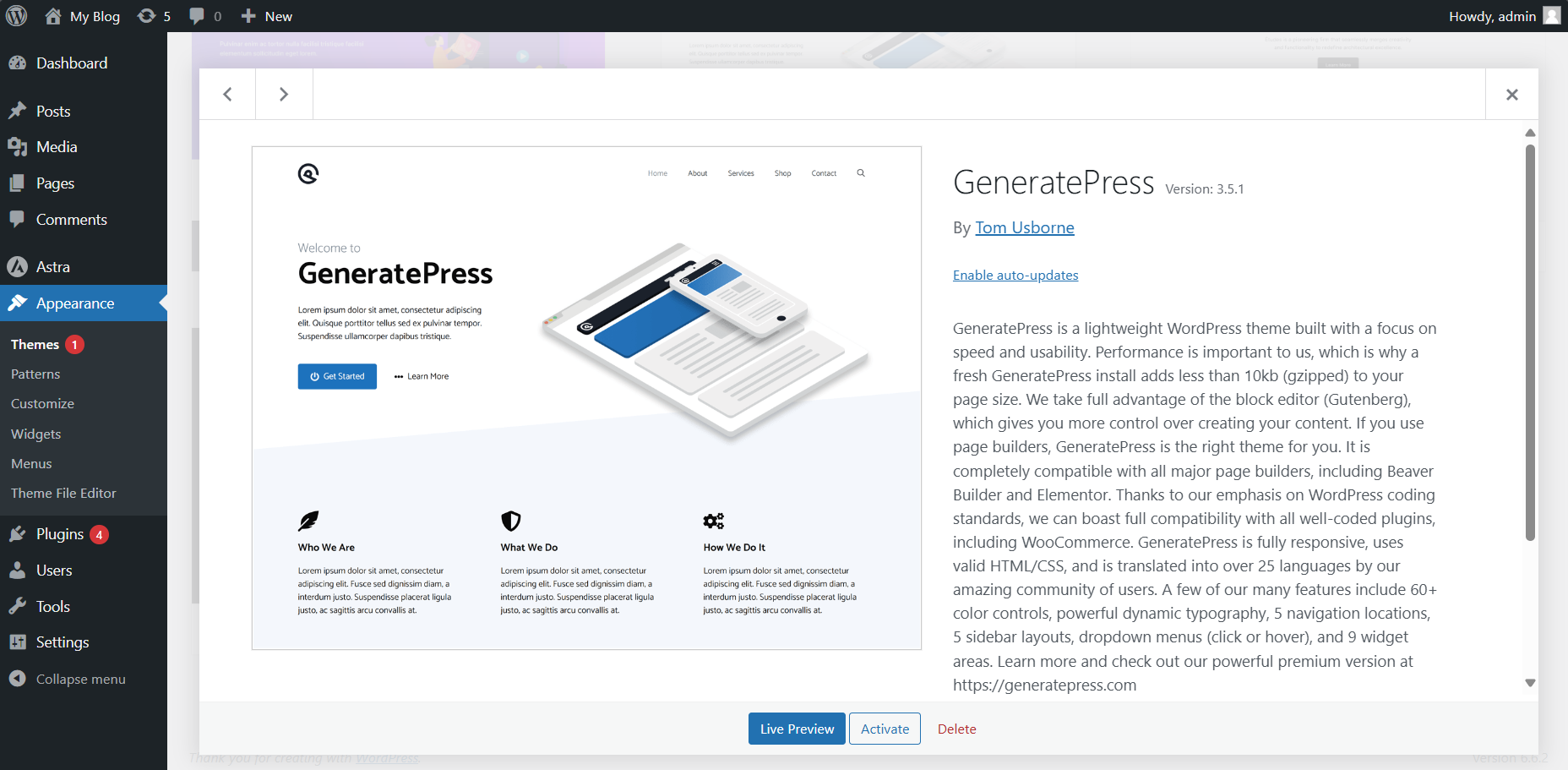
4. Hover over the Theme you wish to delete. A “Theme Details” button will appear. Click on it to open the Theme details.
Step 3: Delete the Theme
5. In the bottom-right corner of the “Theme details” window, you will see a “Delete” button. Click on it.
6. A confirmation will appear asking if you are sure you want to delete the Theme. Click “OK” to confirm.
Step 4: Verify the Deletion
7. After deleting the Theme, you will be redirected back to the Themes page. Ensure the Theme is no longer listed.
8. Visit your website to ensure everything functions correctly and the active Theme is still applied.
You Tube Video: Theme Clean Up: Delete Unused WordPress Themes with Ease
Additional Information
Back up Your Site – We recommend backing up your website before uninstalling any Themes. This way, if a problem arises, you can repair your website.
Remove Unused Themes – To keep your website tidy and lower security threats, periodically remove any Themes you don’t use.
Update Your Active Theme – To take advantage of the newest features and security updates, ensure your active Theme is updated.
Child Themes – If you use a child Theme, don’t delete the parent Theme unless you’re confident it’s no longer needed.
Look for Dependencies – Certain customisations or plugins may require a certain theme. Verify these features won’t be impacted if you remove a Theme.
Test After Deletion – After removing a Theme, ensure everything works properly and that no components or broken links remain on your website.
Document Changes – Document any modifications you make and the Themes you remove. This can be useful for troubleshooting and future reference.
Login to Domains.co.za Account
1. Go to the Domains.co.za website Account Login page.

2. Enter your Email and Password.
3. Then click the “Sign In” button.

Access WordPress from your Domains.co.za Dashboard
4. On the right of the Dashboard under the “Manage Account” menu, click “Manage Services” on the drop-down menu and select your Hosting plan, our example uses Web Hosting.

5. Scroll down to the “Quick Manage” section (below “Product Information”) and click on the WordPress icon. If you haven’t yet installed WordPress, it will ask you to first do so.
Access WordPress via cPanel from your Domains.co.za Account
6. On the right of the Dashboard under the “Manage Account” menu, click “Manage Services” on the drop-down menu and select your Hosting plan, our example uses Web Hosting. (refer image above).
7. Click “Manage” next to the website domain you wish to access in cPanel.

8. The Product Information section will display – click the “Login” button next to Control Panel.

9. On the cPanel Dashboard, in the menu on the right, select “WP Toolkit”, or if you haven’t yet installed WordPress “WordPress Management”.

10. There is also a WordPress icon under the “Popular Applications” section on the cPanel Dashboard.
WordPress can be Accessed Online via cPanel
1. Go to your cPanel URL or cPanel Login page.

2. Enter your “Email” and “Account Password” and click “Log In”
3. On the cPanel Dashboard, in the menu on the right, select “WP Toolkit”, or if you haven’t yet installed WordPress “WordPress Management”. There is also a WordPress icon under the “Popular Applications” section on the cPanel Dashboard.


