






This guide explains how to make a WordPress blog private.
WordPress Hosting allows website owners to control who can view their website and blog content. Making a WordPress blog private restricts access to authorised users only, helping protect confidential information, draft content, subscription material, or websites still under development.
You can make the entire website private or restrict access to individual posts and pages. This feature is particularly useful for membership sites, internal company blogs, personal journals, or websites under construction.
TABLE OF CONTENTS
How to Make a WordPress Blog Private
1. Login to the Domains.co.za Customer Portal using your account credentials.
2. Navigate to Manage Services from the dashboard menu.
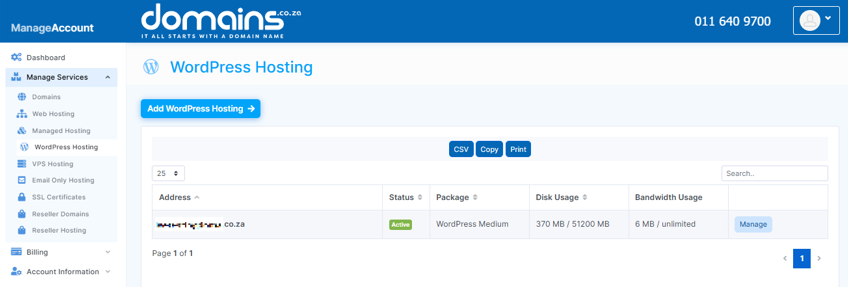
3. Select your WordPress Hosting package and click Manage.
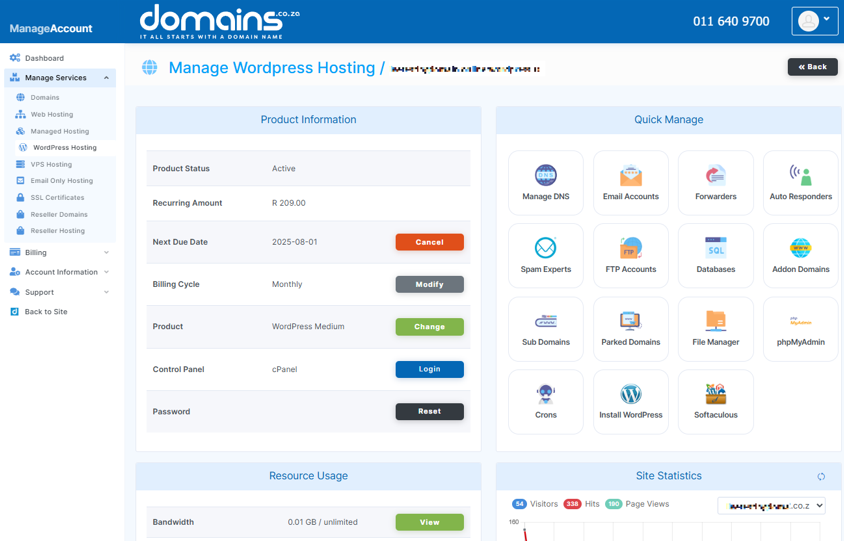
4. Click Login to cPanel to access your hosting control panel.
5. In cPanel, locate WordPress Manager.

6. Open the WordPress Dashboard for your website.
7. From the left-hand menu, click Settings and select General.
8. Locate the website privacy settings.
9. Select the Private visibility option.
10. Save the updated privacy settings.
11. Verify that only authorised users can access the website.
How to Make Individual Posts Private
1. Open the post you wish to restrict.
2. Locate Visibility within the post editor.
3. Change the visibility from Public to Private or Password Protected.
4. Save or update the post.
Additional Information
- Private websites are only accessible to authorised users.
- Password-protected posts allow selective access without making the entire site private.
- Private websites are useful during development and maintenance periods.
- Restricting access helps protect confidential or subscription-based content.
- Some WordPress plugins provide additional privacy and membership management features.
- Search engines may not index private content, depending on visibility settings.
- User management settings control who can access private content.
- Testing privacy settings after configuration is recommended to ensure proper restrictions are applied.
Login to Domains.co.za Account
1. Go to the Domains.co.za website Account Login page.

2. Enter your Email and Password and click the Sign In button.
3. You will see the Domains.co.za Dashboard, displaying the Manage Account menu on the left and your Account Information, Account Overview and Open Support Tickets on the right.


