


Few things are more stressful for a business owner than discovering that their WordPress Hosting website has suddenly stopped working. One moment everything is running smoothly, and the next, visitors are seeing error messages, elements are not loading, or the entire website is unavailable.
When something goes wrong after a plugin update, theme change, or code modification, every minute of downtime can have a real impact. Fortunately, WordPress includes a built-in feature called WordPress Recovery Mode that can help website owners regain access to their dashboard and identify the source of critical errors. Understanding how Recovery Mode works can help reduce downtime and get your website back online more quickly.
TABLE OF CONTENTS
What Is WordPress Recovery Mode?
WordPress Recovery Mode is a built-in troubleshooting feature introduced in WordPress 5.2. It is designed to help administrators regain access to the WordPress dashboard after a critical error occurs.
Some users refer to it as “WordPress safe mode“, but the official feature is called Recovery Mode.
When WordPress detects a fatal error caused by a plugin, theme, or custom code, it automatically generates a recovery email and sends it to the website’s administrator email address. This email contains a special recovery link that allows you to access the dashboard while isolating the problem.
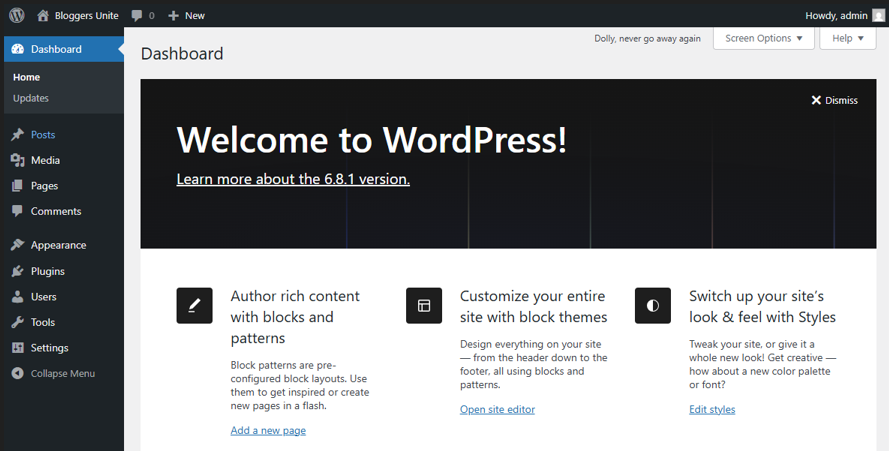
Rather than completely locking you out of your website, Recovery Mode provides an opportunity to identify and resolve the issue without affecting the rest of the site’s functionality.
Why a Broken WordPress Website Can Harm Your Business
Downtime affects more than just your website.
A broken website can lead to:
- Missed quote requests.
- Lost online sales.
- Failed booking submissions.
- Interrupted WhatsApp lead generation.
- Reduced customer confidence.
- Damage to your brand’s reputation.
- Lower search engine visibility if problems persist.
For small and medium-sized South African businesses, where many customers discover businesses online before making contact, website reliability is essential.
Even a few hours of downtime can mean missed opportunities and lost revenue.
Common Reasons WordPress Enters Recovery Mode
Recovery Mode is triggered when WordPress detects a critical error. Several common issues can cause this.
Plugins are one of the most common causes of WordPress errors.
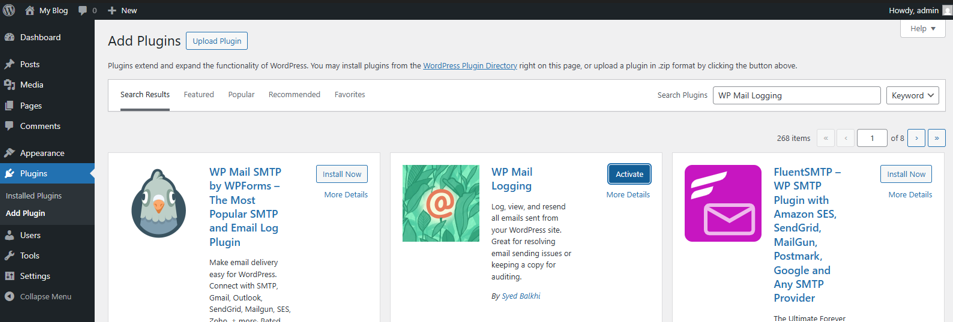
Problems can occur when:
- A plugin update introduces a bug.
- An abandoned plugin is no longer compatible with newer versions of WordPress.
- Multiple plugins perform similar functions and conflict with one another.
- A plugin is incompatible with your PHP version.
Because plugins interact directly with WordPress core functionality, even a single problematic plugin can bring down an entire website.
Themes can also trigger critical errors.
Common causes include:
- Outdated themes.
- Incompatible theme updates.
- Custom theme modifications.
- Themes that are not compatible with the current WordPress version.
Custom-built themes are particularly vulnerable if changes are made without proper testing.
Many website owners add code snippets to customise functionality.
Examples include:
- Edits to the functions.php file.
- Custom tracking scripts.
- Third-party integrations.
- Developer modifications.
Even a small syntax error can trigger a fatal error and activate Recovery Mode.
Although WordPress core updates are thoroughly tested, updates can sometimes expose compatibility issues with older plugins and themes.
In these situations, WordPress itself may not be the problem. Instead, the update highlights existing compatibility issues that need attention.
How WordPress Recovery Mode Helps You Regain Control
When a critical error occurs, WordPress attempts to send a recovery email to the site’s administrator email address.
This email typically includes:
- Information about the error.
- The plugin or theme responsible.
- A special recovery login link.
After clicking the link and logging in, WordPress places you into Recovery Mode.
From there, you can:
- Access the dashboard.
- Review the error details.
- Disable the affected plugin.
- Switch themes if necessary.
- Restore website functionality.
If you do not receive the email, you may also be able to access Recovery Mode manually by visiting:
This method may help if the recovery email wasn’t delivered, or the administrator mailbox is inaccessible.
What to Check Before You Start Troubleshooting
Before making changes to your website, take a few precautions.
Always create or verify a recent backup before troubleshooting. A backup should include both website files and the WordPress database.
Recovery Mode relies on the administrator email address configured in WordPress. If you cannot access that email account, receiving recovery notifications becomes much more difficult.
Consider whether any of the following occurred recently:
- Plugin installations or updates.
- Theme updates.
- WordPress core updates.
- Custom code modifications.
- Hosting configuration changes.
Recent changes often provide the strongest clue about the source of the problem.
If your website processes online orders, booking requests, customer enquiries, or payments, you may want to minimise troubleshooting time and contact support sooner.
Recovery Mode vs Manual Troubleshooting
Recovery Mode is often the quickest solution because WordPress identifies the source of the error automatically.
However, it does not always work.
If Recovery Mode is unavailable, manual troubleshooting may be necessary.
Common manual methods include:
- Using cPanel File Manager.
- Connecting through FTP.
- Renaming plugin folders.
- Reviewing server error logs.
- Temporarily switching themes.
- Restoring a backup.
Having access to hosting tools such as File Manager, FTP accounts, and error logs can make recovery significantly easier when dashboard access is unavailable.
Business Considerations
South African businesses face unique challenges when it comes to website reliability.
A website outage can affect:
- Online orders.
- Booking systems.
- WhatsApp lead generation.
- Contact form submissions.
- Customer support requests.
Businesses must also contend with occasional connectivity disruptions and operational interruptions that can make rapid website recovery even more important.
Choosing reliable hosting and maintaining a recovery plan helps improve business continuity when unexpected issues occur.
Security, Backups, & POPIA Considerations
If your website collects customer information, website maintenance is about more than convenience; it is also part of responsible data management.
Practical steps include:
- Keeping WordPress updated.
- Using SSL certificates.
- Limiting administrator access.
- Maintaining regular backups.
- Monitoring website security.
- Removing unnecessary plugins and themes.
South African businesses should also consider their obligations under POPIA when storing customer information online. While Recovery Mode can help restore website functionality, it is not a substitute for proper security practices.
How to Prevent Repeated Recovery Mode Issues
Recovery Mode should be treated as an emergency tool rather than a routine maintenance strategy.
To reduce future issues:
- Use reputable plugins and themes.
- Delete unused plugins.
- Keep WordPress regularly updated.
- Test updates on a staging environment where possible.
- Verify PHP compatibility before major updates.
- Maintain automated backups.
- Monitor website performance regularly.
- Limit direct code edits on live websites.
After fixing an issue, always test important website functions before exiting Recovery Mode, including forms, payment processes, booking systems, and contact options.
When to Contact Your Hosting Provider
There are situations where troubleshooting alone may not be the best option.
Consider contacting your hosting provider or developer if:
- You cannot access Recovery Mode.
- You do not know which component caused the error.
- The website remains unavailable after troubleshooting.
- Database errors are present.
- Multiple plugins or themes appear affected.
- You suspect malware or unauthorised access.
An experienced support team can often identify server-level issues and help restore service more quickly.
Recovery Mode Is a Safety Net, Not a Maintenance Plan
WordPress Recovery Mode is a valuable built-in feature that helps website owners regain control when critical errors occur. It can simplify troubleshooting, reduce downtime, and help identify problematic plugins, themes, or code.
However, Recovery Mode is only one part of a healthy WordPress maintenance strategy.
Long-term website stability depends on reliable hosting, regular updates, verified backups, trusted plugins and themes, ongoing monitoring, and access to expert support when needed.
Keep your WordPress website stable, secure, and easier to manage with Domains.co.za WordPress Hosting, built for businesses that need reliable performance and practical support.
Login to Domains.co.za Account
1. Go to the Domains.co.za website Account Login page.

2. Enter your Email and Password and click the Sign In button.
3. You will see the Domains.co.za Dashboard, displaying the Manage Account menu on the left and your Account Information, Account Overview and Open Support Tickets on the right.


