





This guide explains how to setup WordPress writing format in your Dashboard.
WordPress includes several built-in Writing Settings that control how content is formatted and published from the WordPress Dashboard. These settings help website owners manage default categories, post formats, emoticon conversion, email publishing options, and other writing-related preferences.
Configuring your writing settings correctly can improve content consistency across your website and make publishing more efficient. Whether you manage a blog, business website, or online portfolio, understanding these options can help streamline your content creation workflow.
TABLE OF CONTENTS
How to Setup WordPress Writing Format
1. Login to the Domains.co.za Customer Portal using your account credentials.
2. Navigate to Manage Services from the dropdown menu.
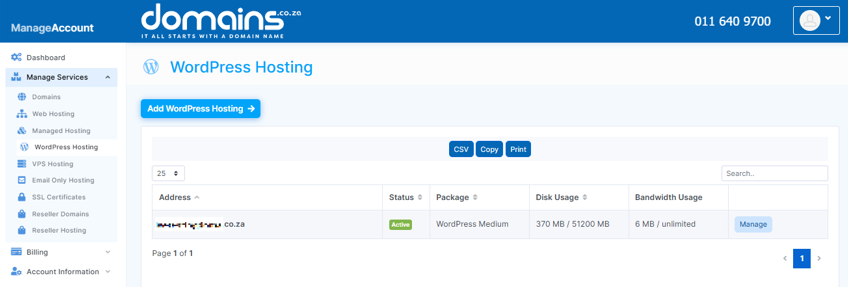
3. Select your WordPress Hosting package and click Manage.
4. Click Login to cPanel to access your hosting control panel.
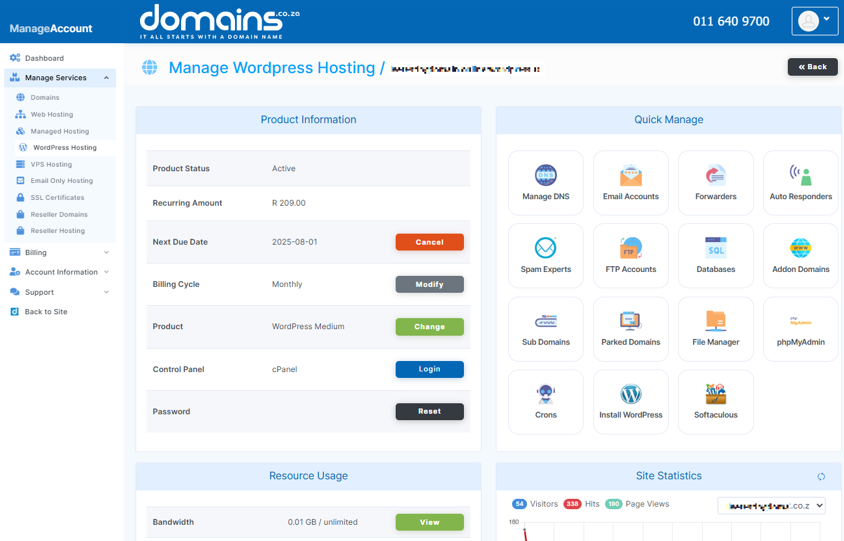
5. In cPanel, locate WordPress Manager and access your WordPress Dashboard.

6. Click Settings from the left-hand menu, then select Writing from the submenu.
7. Configure the Formatting options according to your preferences.
- Enable or disable the option to convert emoticons into graphical icons if required.
- Enable or disable the option to correct invalid nested XHTML automatically.
- Select a Default Post Category for new posts.
- Choose a Default Post Format if your Theme supports multiple post formats.
- Configure the Default Link Category if blogroll links are enabled.
- Review any available Custom Content Types settings for Testimonials or Portfolios if supported by your Theme.
8. Configure the Post by Email settings if you wish to publish content through email.
9. Click Save Changes to apply your settings.
Additional Information
- The Writing Settings area controls default publishing and formatting preferences for your WordPress website.
- Default categories help ensure posts are organised correctly, even when a category is not selected during publishing.
- Some Themes support multiple post formats, such as galleries, quotes, videos, and standard blog posts.
- The emoticon conversion setting automatically changes text emoticons into graphical smiley icons.
- Invalid XHTML correction can help reduce formatting issues caused by improperly nested HTML elements.
- The Post by Email feature allows users to publish blog content remotely through a configured email account.
- Custom content type settings may vary depending on the installed Theme or plugins.
- Regularly reviewing your writing settings can improve publishing consistency across your website.
Login to Domains.co.za Account
1. Go to the Domains.co.za website Account Login page.

2. Enter your Email and Password and click the Sign In button.
3. You will see the Domains.co.za Dashboard, displaying the Manage Account menu on the left and your Account Information, Account Overview and Open Support Tickets on the right.


