


WordPress Blocks Make Website Customisation Easier Without Being A Developer
WordPress blocks have changed the way you build pages and posts. Instead of one text box for everything, your content is split into separate pieces you can move, edit, and rearrange as you wish. That small shift gives you far more say over how a page looks.
This guide is ideal for South African site owners, bloggers, marketers, agencies, and anyone who runs a WordPress website. You learn about the main block types, how to add and arrange them, when patterns or plugins are worth it, and how to keep pages fast and easy to use on phones.
KEY TAKEAWAYS
- Blocks are the building pieces of every WordPress page and post.
- The visual Block Editor replaced the Classic Editor‘s single text box.
- Six block groups cover text, media, design, widgets, theme parts, and embeds.
- Patterns are ready-made layouts, and synced patterns update every copy at once.
- Global styles set your fonts and colours across the entire site.
- WordPress blocks allow you to update your own site without a developer for every change.
- Always check the mobile view before you publish.
- Install block plugins only when you have a genuine requirement.
- Clean content, light media, and reliable hosting keep pages fast.
TABLE OF CONTENTS
What Are WordPress Blocks?
WordPress blocks are the individual pieces that comprise a page or post. Each block holds one thing. A heading is a block. A paragraph is a block. An image, a button, a list, or a video is also a block.

You build a page by stacking these blocks and arranging them how you want. Because every piece is separate, you can change one without disturbing the rest. WordPress includes dozens of built-in blocks for text, media, layout, and more, so most pages can be built from what is already there.
Gutenberg vs Block Editor vs Full Site Editing
Three terms often get mixed up, so here’s the simple version:
For years, WordPress used the Classic Editor. It worked as a single text box, so text, images, and formatting all shared a space. It did the job, but you couldn’t see the real layout as you worked, and adding anything beyond text took effort.
The Block Editor replaced that approach. It’s the visual editor you now use to build pages and posts, one block at a time, with a live view of how things will display.
Gutenberg is the name of the project that built this editor. People still say Gutenberg blocks when they mean the standard WordPress blocks, so the two terms mean the same thing.
Full Site Editing goes a step further. Instead of single pages, it allows you to edit whole-site templates, headers, footers, and more, but only when your theme is a block theme built for it. Not every theme supports it, so check yours first.
NOTE:
Both the Block Editor and Full Site Editing include global styles, one place to set fonts and colours across your entire site.
Why Blocks Matter for Non-Developers
The real value of blocks is that WordPress site customisation no longer depends on a developer for every change. If you can write an email, you can edit a page.
Each block includes its own settings, so you style it right there, changing size, spacing, colour, or alignment without opening a single line of code. You can duplicate a block to repeat a design, group several blocks so they move as one, and save a section to reuse on another page later.
Because you see the layout as you build, you can spot problems early and publish faster. And when every page is made from the same set of blocks, your site remains consistent, so headings, buttons, and spacing look the same from one page to the next.
For a small team, that means less waiting, lower costs, and more control over your own website.
The Main Types of WordPress Blocks
WordPress sorts its built-in blocks into six groups. Once you know what each group is for, finding the correct block becomes second nature.
Text Blocks
Text blocks handle the words on your page. The Paragraph block covers most writing, while the Heading block breaks content into sections. You also get List, Quote, Table, and Code blocks, among others.
When you use these blocks strategically, they offer a page clear structure, making it easier to read and for search engines to follow.

Media Blocks
Media blocks add pictures, sound, and video. Image and Gallery blocks handle single photos and sets, Video and Audio blocks embed clips, and Cover block places text over a background image or video.
There’s also a File block for downloadable PDFs and documents, and a Media & Text block that places an image beside a paragraph. Remember, large image files slow pages down, so it’s worth learning how to optimise WordPress images before you upload.

Design Blocks
These blocks shape the layout instead of adding content.
- The Buttons block creates clickable calls to action.
- Columns, Row, Stack, and Grid arrange other blocks side by side or in a set pattern, while Group keeps related blocks together, so they move as one.
- Separator and Spacer add gaps between sections.
Two blocks are often mixed up: the More block hides the rest of a post behind a Read More link on your blog list, while the Page Break block splits one long post across several pages.

Widget Blocks
These blocks gather content that updates automatically or helps people navigate your site. The Latest Posts and Categories blocks surface recent or related content, the Search block adds a search bar, and Social Icons link to your profiles.
For anything custom, the Shortcode block runs features added by other plugins. Together they help visitors find their way and discover more.

Theme Blocks
Theme blocks control parts of your website template. They cover the Site Logo, Site Title, and Navigation menu, plus dynamic blocks such as Query Loop and Featured Image that automatically display your posts.
These are most useful in block themes and template editing, where they shape headers, footers, and post layouts. If you’re setting one up, our guides on how to edit the header in WordPress and how to install a WordPress theme explain the basics.

Embed Blocks
Embed blocks gather content from other platforms without any code. There are dedicated blocks for YouTube, Vimeo, Spotify, Instagram, and X. In most cases, you just paste the link, and WordPress turns it into a working video, track, or post directly on your page.

IMPORTANT:
To learn how to use these blocks, it’s a good idea to play around with them.
How to Add, Move, & Customise Blocks (Step by Step)
Building a page in the WordPress Block Editor is quick once you know the steps. Here’s the full process, from a blank page to a published one:
Open the page or post you wish to edit. Click the Block Inserter (+) button to add a block. You’ll find it in the top left of the screen and inside the content area. A menu opens with every block, grouped by type.
Next, choose the block you need and add your content. Choose Paragraph for text, Image for a photo, Heading for a title, and so on.
You can also rearrange your blocks to get the correct. Use the Drag handle to move a block anywhere, or the up and down arrows to nudge it one spot at a time.
To change how a block displays, select it, then use the Settings panel on the right to adjust size, alignment, colour, and spacing.

Open Document Overview → List View to manage the entire layout. It displays every block as a tidy list, which makes it easier to select, reorder, or find a block on a busy page.

You can also add a pattern to save time. Rather than build a section manually, you can drop in a ready-made layout and edit it, which we will discuss next. Once you’re done, click Preview to check the page on both mobile and desktop, then Publish when you’re happy. If you haven’t finished yet, save it as a draft and return later.

Block Patterns & Reusable Layouts
A pattern is a ready-made layout built from several blocks arranged together, for example a heading, an image, and a button set up as one section. WordPress block patterns save you from making common sections from scratch. You insert a pattern, then swap in your own text and images. There are two types of patterns, and the difference matters.
Non-Synced Patterns
Non-synced patterns are the default. When you insert one, it becomes an ordinary set of blocks on that page, and you can change it however you wish. Editing it here has no effect anywhere else. These suit you when you want a quick starting layout but expect each page to end up looking different.
Synced Patterns
Synced patterns stay connected. Save a section as a synced pattern, and every copy across your site links back to the same original. Update it once, and the change displays everywhere that pattern appears. That’s a genuine time-saver for sections you repeat, including calls to action, contact blocks, trust badges, service teasers, newsletter sign-ups, author boxes, and promotional banners.
However, consider the trade-off. Because every copy is linked, editing one synced pattern changes them all at the same time. If you only want to update a single page, detach that copy first, or use a non-synced version instead.
How to Create Your Own Pattern
Once you’ve built a section you are likely to use again, you can save it as a pattern in a few clicks. Here’s how, using a heading, an image, and a text block as the example:
- Add the three blocks to your page/post and set them up the way you want: a Heading block for the title, an Image block below it, and a Paragraph block for the text.
- Select all three. Click the first block, then drag your cursor over the others to highlight them. You can also shift-click each one in turn.
- In the block toolbar, click ⋮ → Create pattern.

- Give the pattern a clear name so it’s easy to find later and add a category if you wish.
- Choose whether it syncs. Turn the Synced toggle on to save it as a synced pattern, where every copy stays linked and one edit updates them all. Leave the toggle off to save a non-synced pattern, where each copy works on its own and can be edited without touching the others.
- Click Add. Your pattern is now saved.
- You will find it under the + button in the Patterns tab, in My patterns. However, if you have specified some category or categories, find your pattern under those category or categories.

Edit Single Copy of Synced Pattern
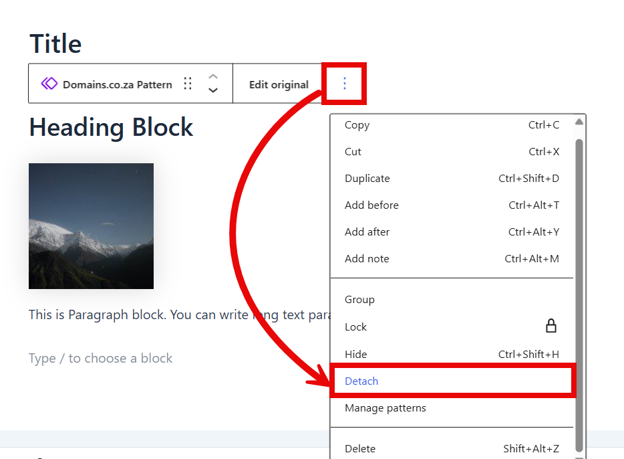
To edit a single copy of a synced pattern without changing the rest, select it, open the three-dot menu, and choose Detach. The blocks turn into normal, editable blocks only on that page, and your saved pattern stays as it was.
IMPORTANT:
Detach won’t be available if the pattern is locked.
Keep Your Brand Consistent
A consistent look builds trust, and blocks make it easier to hold one across every page. The key is global styles, a single panel where you set your fonts, colours, and heading sizes for the entire site at once. Change them there, and every block updates to match, so you’re not styling each page by hand.
Patterns also pull their weight. When you reuse the same saved section for calls to action or contact details, those parts stay identical wherever they appear. Between global styles for the overall theme and patterns for repeated sections, your brand stays steady. To fine-tune your typography, read our guide on how to change fonts in WordPress.
Make Blocks Work on Mobile
A layout that looks sharp on your laptop can fall apart on a phone, so always check the mobile view before you publish. In the editor, use the preview options to see how your page reshapes on a smaller screen.
A few things will need a closer look:
- Columns that sit side by side on desktop should stack neatly on mobile, not be squashed together.
- Large images need to scale down without blurring or pushing content off the screen.
- Spacing also matters, as gaps that look fine on a wide display can feel cramped on a narrow one.
- Lastly, ensure you make your buttons big enough to tap with a thumb, and leave room around them so people don’t tap the incorrect one.
Blocks for South African Businesses
For most small local businesses, the biggest win is independence. You can update your own prices, services, and opening hours in minutes, without hiring a developer for every small change. That keeps your site current and your running costs down.
Blocks also make it easy to add the calls to action that local customers expect. A Buttons block can hold a click-to-call link, a WhatsApp chat button, or a link to a quote form, booking page, or enquiry form. Put these where people can easily see them, and a passing visit can turn into a real lead.
Since most South African visitors reach your site on a phone, keep those buttons easy to tap and your pages quick to load.
Blocks won’t keep the lights on during load-shedding, but they do help you stay in touch when the power is out. In a couple of minutes, you can post a notice about changed hours, point customers to self-service options, or push a delivery update to the top of your homepage. When plans shift at short notice, editing your own site is a real advantage.
Blocks, SEO, & Performance
Blocks can support your SEO, but they won’t do the work for you. When you use them properly, they help you build a clear heading order, add internal links to related pages, place calls to action, and lay out tables or FAQs that visitors can scan fast.
What blocks cannot do is lift your rankings on their own. Content that matches what people are searching for still counts the most. The reverse holds true as well: a cluttered page, a jumbled heading order, or too much heavy media can drag your results down.
Performance works in much the same way. The blocks themselves are rarely what slows a site down. The usual culprits are oversized images, too many plugins, large galleries, auto-playing sliders, and layouts packed with more sections than a page requires.
Keep your media trimmed and your block count sensible and clear your cache after big changes so visitors see the latest version.
Handle Personal Information Responsibly (POPIA)
Some blocks gather or display personal details, and POPIA, South Africa’s data privacy law, sets out how you should treat that information. This isn’t legal advice, but a few sensible habits will keep you on the right track.
Monitor the blocks that handle personal data: contact and enquiry forms, comment sections, downloads that request an email address, and embeds or third-party widgets that can track visitors. When a block collects information, tell people what you will do with it, and link to a privacy page where they can read the details.
From there, only collect what you genuinely need, store it somewhere secure, and limit who on your team can view it. Treating personal details with care protects your visitors and builds trust in your business.
When Default Blocks Aren’t Enough: Block Plugins
The built-in blocks handle most of the everyday pages, so many sites never need more. However, when you want a feature that core blocks don’t offer, a block plugin can fill the gap. WordPress block plugins add extra blocks and design controls to the editor you already use. Look for one when you have a real requirement, not just to pile on options.
Here are three popular choices. Check each one’s current details on its plugin page before installing, since features and versions change.
1. Spectra adds design-focused blocks, page templates, and ready-made patterns, and works with most standard themes.
It now appears as two plugins in the directory:
- Spectra Legacy is still maintained for existing users.
- Spectra Blocks, a newer version, receives the latest features.
2. Getwid is a free plugin with a large set of extra blocks and templates. It matches your active theme’s styles on its own, so new sections blend in with little fuss.
3. Stackable leans on layout and consistency. Set your colours and fonts once, and its blocks follow them across your site. It also works well with block themes and WordPress Full Site Editing.
What to Check Before You Install a Plugin
A block plugin becomes part of how your site runs, so weigh it up first:
- Is it still maintained, with recent updates?
- Does it support your WordPress version and your theme?
- Do the reviews and support look solid?
- How does it affect your page speed?
- Will it lock your layouts into its own blocks?
- Is the free version enough for you?
- Can your content still work if you remove it later?
That final point matters most. Some plugins leave broken sections behind when you switch them off, so it pays to check before you commit.
Blocks vs Page Builders
The Block Editor is part of WordPress, so it’s ready the moment you install. However, Page builders (e.g., Elementor) are separate plugins you add on top of the site, each with its own drag-and-drop tools. Both build pages, so how do you choose?
Page Builders
Page builders often provide more design freedom out of the box, with fine control over spacing, effects, and layout. This includes trade-offs. They add extra code that can slow your site, and they take longer to learn. There’s lock-in, too: switch the builder off later, and pages built with it can break, leaving you to redo them.
Block Editor
The Block Editor is lighter, faster, and more similar to how WordPress works, though complex designs take a bit more effort.
Neither wins for everyone. For a simple site, blocks are often enough. For heavy custom design, a builder may be worth it.
How Different Websites Use Blocks
The same set of blocks bends to fit very different sites. Here’s how five common types put them to work:
- Small Business Websites: A local business can lay out service sections, an about area, and customer testimonials, then add a pricing summary and a clear contact section. Buttons and forms turn those pages into enquiries, so a visitor can reach you in a tap.
- Online Stores: Around your WooCommerce products, blocks handle supporting content: product highlights, promo banners, trust sections showing reviews or guarantees, and clear delivery information. A few helpful lines near the checkout can answer last-minute queries and settle any doubts.
- Blogs & Publishers: Writers have author boxes, related-post sections, and pull quotes that break up long reads. Tables display information at a glance, embeds add videos or social posts, and a newsletter sign-up block helps you grow a loyal audience.
- Agencies & Freelancers: Blocks and patterns really earn their keep here. You can build portfolios and case studies, save reusable sections for client sites, and put together already created landing pages fast. Saved patterns keep every project on brand while cutting the build time.
- Training Providers & Event Sites: Course pages can list modules and schedules, speaker cards introduce the people involved, and registration buttons drive sign-ups. When dates or details change, you update the page yourself in minutes.
Common Mistakes & Better Habits
WordPress blocks are forgiving, but a few common slip-ups can weaken your pages. Here’s what to avoid, and what to do instead:
Mistakes to Avoid
- Packing too many blocks onto one page.
- Putting headings out of order, so the structure gets muddled.
- Columns that look fine on desktop but break on mobile.
- Uploading oversized images that slow the page.
- Running several block plugins that do the same job.
- Leaning on one plugin so heavily that removing it breaks your pages.
- Piling on animations and sliders that distract more than they assist.
- Publishing without checking the mobile view.
- Editing a synced pattern by accident and changing it everywhere.
- Unclear button text that doesn’t explain what happens next.
- Ignoring page speed until visitors start leaving.
Best Practices
Good habits make the difference. Start every page with its goal in mind, then use headings in the correct order so the structure remains clear. Keep sections short and scannable and use buttons sparingly so the important one stands out.
Group related blocks to keep the layout tidy and save any section you repeat as a pattern. Before you publish, optimise your images, test the page on a phone, and keep your plugin count low. Last of all, mind accessibility: choose clear text, good colour contrast, and short image descriptions so everyone can use your site.
Fixing Block Problems & When to Call a Developer
Blocks usually behave, but layouts do break sometimes, often after an update or a new plugin. Before you change anything, back up your site so you can undo it when necessary.
Start simple. If a page looks incorrect, check that your theme supports the blocks you’re using, then open List View to find any blocks that are out of place or empty.
Also check the mobile view, since some issues only display on small screens. If trouble began after you added a block plugin, switch it off on a staging copy to test it, and watch for two plugins clashing over the same job.
Clearing your cache often fixes a page that looks outdated, and when a layout is badly broken, your browser console or the site’s error logs can show what’s wrong.
However, some jobs are better handed to a developer, for example, custom blocks, Full Site Editing templates, custom CSS, and full design systems. The same goes for stubborn theme conflicts, layouts you can’t trace, performance tuning, accessibility work, and WooCommerce product templates.
If you’re stuck, Domains.co.za support can point you in the right direction.
Final Thoughts
WordPress blocks put real control in your hands. They make building and editing pages far more approachable, so you’re not waiting on code for every change. As we’ve explained, the same blocks suit a corner shop, a busy blog, or a growing agency.
Still, blocks aren’t a shortcut to a great website. The best pages pair them with clear content, a logical structure, a mobile-friendly layout, and trimmed, optimised media. Reliable hosting holds it all together, keeping your pages fast and available when customers come looking.
If you’re ready to build on solid ground, WordPress hosting in South Africa provides your sites with a dependable home, backed by local support.
![Strip Banner Text - Daily backups, LiteSpeed speed, and local support in every WordPress Hosting plan. [Learn More]](/articles/wp-content/uploads/2026/10/wordpress-blocks-02.webp "Daily backups, LiteSpeed speed, and local support in every WordPress Hosting plan. [Learn More]")
Power Up Your Site: How to Install a WordPress Plugin
VIDEO: Power Up Your Site: How to Install a WordPress Plugin
FAQS
Can I still use the Classic Editor if I prefer it?
Yes. You can install the free Classic Editor plugin to return the old editing screen or drop a Classic block into a single post. Your older posts also won’t be lost. They open inside a Classic block that you can keep as is or turn into blocks whenever you’re ready.
Is there a faster way to add a block than clicking the plus button?
Yes. On an empty line, type a forward slash followed by the block’s name, for example /image or /button, then press Enter. This slash shortcut skips the block menu and is much quicker once you know a few block names.
Can I stop a block from being moved or edited by accident?
Yes. Select the block, open the three-dot menu, and choose Lock. You can stop it from being moved, removed, or both. This is useful on client sites, where it keeps important sections from being changed in error.
Can I copy blocks from one WordPress site to another?
Yes. Select a block or a group, copy it, then paste it into the editor on your other site, and the layout comes across with it. For sections you reuse a lot, you can also export a pattern as JSON and import it as JSON on the second site.
Will my content still work if I switch to a different theme?
Your core blocks and their content stay in place, so your pages won’t empty out. However, several theme-specific styles, patterns, and Full Site Editing templates are tied to the theme, so check your main pages after switching and tidy up anything that looks off.
Other Blogs of Interest
- Your WordPress Header Does More Than Sit At The Top Of The Page
- Deleting Unused WordPress Themes Keeps Your Website Cleaner, Safer, And Easier To Manage
- Disabling xmlrpc.php Can Reduce a Common WordPress Security Risk – If Your Site Does Not Need It
- The WordPress get_post_meta Function Helps You Turn Custom Fields Into Dynamic Content
- The wp_get_attachment_image Function Makes WordPress Image Output Cleaner & More Reliable

Rhett isn’t just a writer at Domains.co.za – he’s our resident WordPress content guru. With over 8 years of experience as a content writer, with a background in copywriting, journalism, research, and SEO, and a passion for websites.
Rhett authors informative blogs and articles that simplify the complexities of WordPress, website builders, domains, and cPanel hosting. Rhett’s clear explanations and practical tips provide valuable resources for anyone wanting to own and build a website. Just don’t ask him about coding before he’s had coffee.