


WordPress Multisite Can Simplify Multi-Website Management, But It’s Not For Every Project
Running one WordPress site is simple enough. However, running five, 10, or 20 is a different story. Every site needs its own updates, logins, backups, and security checks. That workload adds up fast, and it’s easy to fall behind.
WordPress multisite offers a way out. It allows you to run many websites from a single WordPress install and one dashboard. This sounds ideal, but it isn’t the right fit for every project.
This guide explains a full WordPress multisite setup in a practical way. You’ll learn what it is, when it helps, when it harms, and what your hosting needs to handle it. By the end, you’ll know whether a network suits your business or whether separate sites are the safer call.
KEY TAKEAWAYS
- WordPress multisite setup runs many sites from one install and one dashboard.
- Sites share core, themes, plugins, and resources, but keep separate content.
- It suits related sites best: franchises, schools, agencies, and publishers.
- Avoid it for unrelated, high-risk, or high-traffic sites.
- Your subdomain or subdirectory choice is permanent and affects SEO.
- A network needs stronger hosting than a single small site.
- Shared risk means one issue can affect every site at once.
- Good backups and steady maintenance keep the entire network safe.
Table of Contents
What Is WordPress Multisite?
WordPress multisite is a built-in WordPress feature. It turns one installation into a network of separate sites. Each site in the network is called a subsite. They all run on the same WordPress core, but visitors see them as individual websites.
Still confused? Consider it as one engine powering many cars. The engine, which is your WordPress files, themes, and plugins, is shared. The cars, which are your subsites, can each look and behave differently. One may be a franchise branch page. Another might be a campus site or a campaign microsite.
You manage the entire network from a single admin area called the Network Admin. From there, you add sites, control themes and plugins, and manage users. It’s the same WordPress you already know, with an extra layer of control on top.
How WordPress Multisite Setup Works
Under the hood, every subsite shares the same set of core WordPress files. They also share the same pool of themes and plugins, and the same server resources. That sharing is what makes a network efficient to run.
Each subsite also keeps its own space. It has its own content, settings, users, and appearance. A visitor on one subsite can’t see the dashboard or posts of another.
The sites also share one database. Inside it, WordPress creates separate tables for each subsite, so their content stays apart. Uploaded files are kept in separate folders too, one per site.
This shared-but-separate design is the heart of a WordPress network setup. It saves time, but it also means the sites are linked. A problem on the network can impact every site immediately. We’ll discuss that trade-off shortly, because it shapes the entire decision.
WordPress Multisite vs Separate WordPress Installs
The big question isn’t “Can I use Multisite?” It’s “Should I?“.
This table compares a network with the usual approach of separate WordPress installs.
| Factor | WordPress Multisite (one network) | Separate WordPress Installs |
| Management | Run everything from one dashboard | Each site is its own island, managed on its own |
| Updates | One update can cover every site | Update and secure each site separately |
| Update Risk | A bad plugin update can affect every subsite at once | The same bad update only breaks that one site |
| Hosting and Resources | Shares one hosting environment, so it’s cheaper and simpler | Each site can sit on its own hosting, with more room and stronger isolation |
| Access and Logins | One login and one Network Admin | Each site has its own dashboard and its own admins |
| Themes and Plugins | Kept consistent and controlled at network level | Each site can pick anything it wants, with full freedom |
Neither approach wins by default. The right choice depends on how related your sites are, and how much control each one needs.
Super Admin vs Site Admin: Who Controls What
Multisite adds a level of permissions that a single site doesn’t have. The most important new role is the Super Admin.
- Super Admin: This runs the entire network. It controls network settings and can create or delete sites. It decides which themes and plugins are available, manages updates, and holds access across every subsite. In short, it steers the entire network.
- Site Admin: Below this sits the Site Admin, which manages only one subsite. It handles that site’s pages, posts, media, and comments. It can manage the users on their own site, but only within the limits that Super Admin sets.
The key point is that a Site Admin can’t install new plugins or themes on its own. It can only use what the Super Admin has already made available. That keeps the network clean, but it also limits site-level freedom.
IMPORTANT:
Getting these roles right matters. Hand out Super Admin access carelessly, and one person could change or break every site in the network.
When WordPress Multisite Setup Makes Sense
Multisite shines when your sites are related and share a common purpose. If they belong to the same brand, team, or organisation, a network can save real time. Here are the cases where it fits well:
Franchises & Multi-Location Business
Say you run a franchise with branches in Johannesburg, Cape Town, Durban, and Pretoria. Each branch can have its own site or location page on the network.
These branches share one design and one set of tools, but each keeps its own address, hours, and local offers. Head office updates the network once, and every branch benefits.
Schools, Colleges, & Training Providers
Education groups often juggle many sections. A university may need separate sites for faculties, departments, or campuses. A training company might run one site per course. Multisite allows a central team to manage them all, while each section still controls its own content.
Agencies Managing Related Sites
Agencies can use a network for related microsites, campaign sites, or a controlled brand family. This works best when the sites are connected. It’s usually a poor fit for unrelated client websites, which we discuss below.
Publishers & Blog Networks
If you run several blogs or content brands under one roof, a network keeps them together. Each vertical can have its own writers and look, while sharing core tools and one login.
Internal Company Portals
Larger organisations sometimes need internal sites for teams, projects, or knowledge hubs. A network can host these department sites in a single place, with tight control over who sees what.
When WordPress Multisite Is the Wrong Choice
Having more than one website isn’t a reason to build a network. Multisite adds shared risk, and in some cases that risk outweighs the convenience. Here’s when to walk away:
- Unrelated Websites: If your sites serve different businesses or audiences with nothing in common, separate installs are safer. They offer each site full freedom and keep problems contained.
- Sites with Different Hosting Requirements: Some sites need heavy traffic handling, strict security, or their own compliance setup. When needs vary that much, separate hosting environments serve them better than one shared network.
- Projects That Need Plugin or Theme Freedom: Remember, plugins and themes are controlled at the network level. If a site needs to install its own tools freely, a network gets in the way. A standalone install removes that limit.
- High-Risk or High-Traffic Sites: A network shares resources, so one very busy site can slow the others down. Worse, if one site is hacked, the whole network is exposed. Sites that carry heavy load or extra risk are often better kept on their own, isolated from the rest.
The pattern is simple. The less your sites have in common, and the more independence they require, the weaker the case for Multisite.
Pros & Cons of WordPress Multisite
Before you decide, weigh the benefits against the trade-offs to make the right decision:
The main pros:
- Centralised management from one dashboard.
- Fewer separate installations to maintain.
- Faster, network-wide updates.
- Shared themes and plugins across sites.
- Role-based control for each site.
- Consistent branding and design.
- Easier governance across a group of sites.
The main cons and risks:
- Sites share server resources, so one can affect the rest.
- Backups are more complex across a shared network.
- Migrations are harder to plan and run.
- A single plugin or theme conflict can hit every site.
- A security breach can spread throughout a network.
- Your hosting must be strong enough to carry the load.
- Maintenance takes more technical skill.
- Performance can dip if resources run short.
Read those lists side by side. If the pros map neatly onto your situation and the cons feel manageable, a network is worth considering. If the risks make you nervous, that hesitation is telling you something.
Subdomains vs Subdirectories: Choose Your Network Structure
When you set up a network, WordPress asks how you want to structure your subsites. You can choose between subdomains and subdirectories. This choice shapes your URLs, and it’s difficult to change later, so choose carefully.
Subdomain Structure
A WordPress subdomain multisite gives each site its own prefix. For a franchise, the addresses would be:
- cape-town.example.co.za.
- durban.example.co.za.
This structure suits larger networks and clear location splits.
Subdomains require extra setup. You need a wildcard DNS record, written as *.example.co.za, that points every subdomain to your server.
For this to work, your hosting must support wildcard subdomains. If you plan to add branch domains later, it also helps to register a domain for your website network upfront.
Subdirectory Structure
A WordPress subdirectory multisite keeps each site in a folder instead. The same branches would read as:
- example.co.za/cape-town.
- example.co.za/durban.
There’s no wildcard DNS to configure, so it’s often simpler for smaller networks.
Newer WordPress installs usually allow you to choose either option. Older sites are often limited to subdomains, because folder-based sites can clash with links that already exist.
SEO Considerations
The structure you choose affects your SEO.
- Subdirectories tend to keep authority under one domain, which can help a smaller network build strength faster.
- Subdomains are often treated as more separate, which can suit distinct brands or regions.
Either way, plan your analytics, internal linking, and content early. Avoid thin location pages that repeat the same text with only a city name swapped.
So, which one to choose? Neither structure is better for everyone, so match it to your goals.
WordPress Multisite Hosting Requirements
A network asks more of your hosting than a single small site does. You’re running several sites from one location, so the entire setup needs more capacity. Weak hosting is where most WordPress multisite hosting problems begin.
Here’s what to look for.
- Server Resources: Your plan needs enough CPU, RAM, and PHP workers to serve every site simultaneously. It also needs solid storage, a fast database, and generous bandwidth. As your network grows, so do these demands. Larger networks often move to VPS hosting for larger WordPress networks for the extra power and control.
- DNS & Wildcard Subdomains: If you chose subdomains, your host must support wildcard DNS. Without it, new subdomains simply won’t resolve.
- SSL Across the Network: Every public site and mapped domain needs its own secure HTTPS coverage. A wildcard SSL certificate can cover your subdomains, while mapped custom domains each need their own. Ensure you sort out SSL certificates for WordPress sites early to keep every subsite trusted and secure.
- Backups & Restore Planning: Because all sites share one environment, backups are trickier than on a standalone site. You need a plan that can restore the entire network, or a single site, without losing data. To learn about website backup, see our guide on how to back up your WordPress site.
- Logs & Support: When something breaks across the network, you need fast solutions. Access to your WordPress error logs (add a link to ‘DOM Tut MV-010 – WordPress Error Logs Help You Find Problems Before They Become Bigger Website Issues’), server logs, and responsive support helps you find the cause fast.
How to Set Up WordPress Multisite (High-Level Steps)
This section is a high-level strategic overview rather than a step-by-step guide. Because setting up Multisite alters core system files, treat the deployment as a structured, planned process. Here is the end-to-end roadmap:
- Back Up Everything First: Save a full copy of your site and database before you change a thing.
- Deactivate Your Plugins: Turn them all off for a clean, conflict-free setup.
- Enable Multisite: Add the following line to your wp-config.php file: define(‘WP_ALLOW_MULTISITE’, true);
Don’t forget to save your changes.

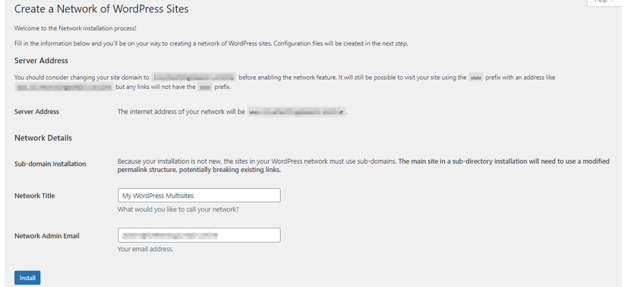
- Choose Your Structure: Under Tools in your WordPress dashboard, open Network Setup and choose subdomains or subdirectories. Also, provide the network title and network admin’s email address. Click Install.
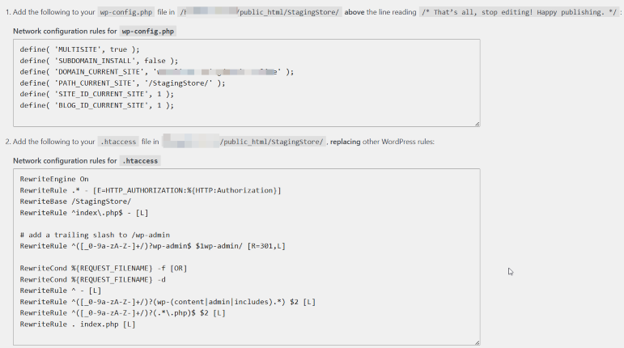
- Add Generated Code: WordPress provides snippets to paste into wp-config.php and your .htaccess file.
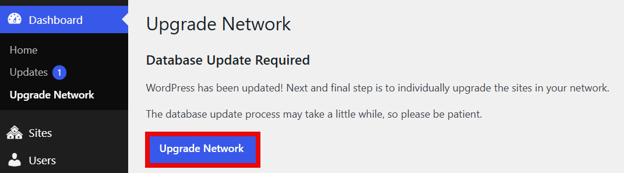
- Log Back In: You’ll be signed out, then straight back into your new network when you sign in again. Upgrade network if you see a notification about upgrading the network page.
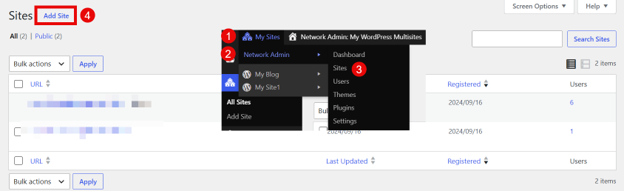
- Add Your Sites: Create each subsite from the Network Admin and give it an address.
- Configure Essentials: Set up your themes, plugins, users, DNS, and SSL for each site.
- Test Network: Check that every site loads, logs in, and works as expected before going live.
Take your time on each step. A rushed WordPress multisite setup is far harder to fix than a careful one.
Manage Themes, Plugins, & Users Across the Network
On a network, the Super Admin (a.k.a. Network Admin) decides which themes and plugins exist. Nothing reaches a subsite until it’s added at network level. This keeps the network consistent, but it puts control in one set of hands.
Plugins can be network-activated, which switches them on for every site immediately. That’s handy for tools you want everywhere, for example a security or SEO plugin. But use it with care. Every extra network-wide plugin adds load and another point of failure across all sites.
Themes work a little differently. The Super Admin enables themes for the network, then each site can choose from that approved list. So different branches or campuses can still look distinct, if their theme was made available.
Users are also flexible. One person can hold different roles on different sites. Someone may edit the Cape Town site while only reading the Durban one. That flexibility is useful, but it makes access control important. Review who is permitted to do what and keep high-level access to the few people who truly need it.
South African Realities: Uptime, Local Support, & POPIA
A network changes how much rides on your hosting. When many sites share one setup, uptime and recovery matter more than ever. That’s why the WordPress hosting South Africa relies on should be built for local conditions, not imported defaults.
Load-shedding & Reliability
Load-shedding can knock out power at your office, but it shouldn’t take your websites down with it. Dependable hosting is designed to stay up through outages, so your sites keep running even when your building loses power.
That way, online enquiries keep coming in while your physical branches sit dark. When several sites are on one network, reliable hosting protects all of them at once, not just one.
Local Support
When an issue hits a network, it can affect several public sites in one moment. Fast, local assistance makes a real difference when that happens. This is where reliable web hosting for business websites in South Africa provides your entire network with a stable home, close to the people who keep it running.
POPIA & Access
A network often means many users and many sites, and several of them may collect personal information through forms.
So, ensure you:
- Keep that data handled responsibly.
- Control user permissions.
- Limit who can see form data.
- Keep your logs and backups secure.
- Give access only to authorised people and review it regularly.
This isn’t legal advice, but these habits keep you on the right side of POPIA and protect your customers’ trust.
Common Mistakes & Troubleshooting
Most network issues are easily preventable. Avoiding a few common errors will save you from the biggest setup headaches.
Mistakes to avoid:
- Using Multisite for unrelated websites.
- Choosing subdomains without planning your DNS.
- Skipping a full backup before setup.
- Network-activating too many plugins.
- Ignoring SSL on your subsites.
- Underestimating the hosting resources you need.
- Not testing plugin compatibility first.
- Giving too many users high-level access.
- Failing to document network changes.
- Having no plan for restores or migrations.
When something does go wrong, the symptoms are usually familiar. For example:
- Subdomains that won’t resolve often point to missing DNS or wildcard setup.
- Both 404 errors and redirect loops usually trace to .htaccess or permalink issues, so refreshing your permalinks is a good first move.
- Plugin or theme conflicts can break the entire network, so deactivate the newest change and test again.
- Domain mapping troubles and user permission errors are also common, and both are usually settings you can correct.
- An SSL warning means a certificate is missing or expired on a site.
- Slow subsites or hard limits are a sign your resources are stretched, which points back to your hosting plan.
WordPress Multisite Maintenance Best Practices
A network runs well when you look after it. Build these habits into your routine, and small issues won’t grow into big ones:
- Run regular full-network backups, and test that they restore.
- Use a staging site to trial major updates before they go live.
- Update plugins and themes carefully, one change at a time.
- Choose tools that are known to be Multisite-compatible.
- Enforce strong passwords for every account.
- Turn on two-factor authentication where it’s available.
- Keep SSL active across all sites.
- Review user access on a regular schedule.
- Monitor your logs and uptime for early warning signs.
- Check performance now and then, and clear out what you don’t use.
- Document your admin processes so nothing remains in one person’s head.
None of this is complicated on its own. Done consistently, it’s what keeps a network stable, secure, and easy to hand over.
Should You Use WordPress Multisite Setup? A Quick Decision Framework
Still weighing it up? Run through these questions before you commit. If you answer “Yes” to most of them, a network is likely a good fit.
- Are your sites genuinely related?
- Can they comfortably share hosting resources?
- Can they share the same themes and plugins?
- Do you really need centralised control?
- Do you have the technical support to run a network?
- Can your hosting plan handle the whole network?
- Do you have a solid backup and restore plan?
Mostly “Yes” answers means Multisite could save you real time and effort. A run of “No” answers is a sign that separate installs will serve you better.
There’s no issue in choosing the simpler path. The best setup is the one that matches your requirements, not the one that sounds most advanced.
Final Thoughts
WordPress multisite is a powerful tool in the right hands. For a franchise, a school group, a publisher, or an agency with related sites, it can turn a messy workload into one clean dashboard. For unrelated or high-risk sites, separate installs are usually the wiser choice.
Whatever you decide, the fundamentals stay the same. A network needs careful planning, reliable hosting, strong backups, and steady maintenance to thrive.
Build and manage your WordPress network on a reliable hosting foundation with Domains.co.za, designed to support South African businesses with secure infrastructure, practical support, and room to grow. If you’re weighing your options, Domains.co.za support can help you plan a setup that suits.
![Strip Banner Text - Build your WordPress network on hosting that keeps up, with secure infrastructure and practical support from Domains.co.za. [Get Started]](/articles/wp-content/uploads/2026/08/wordpress-multisite-setup-02.webp "Build your WordPress network on hosting that keeps up, with secure infrastructure and practical support from Domains.co.za. [Get Started]")
Power Up Your Site: How to Install a WordPress Plugin
VIDEO: Power Up Your Site: How to Install a WordPress Plugin
FAQS
Can I turn my existing separate WordPress sites into one Multisite network?
Yes, but it isn’t automatic. You first set up the network, then move each site’s content across manually. That means exporting and importing posts and pages, copying media files, and recreating users and settings. Back up every site before you start and check first whether a network is really the correct home for them.
Can each site in the network use its own custom domain?
Yes. WordPress supports domain mapping. You point the new domain’s DNS to your server, then add it to that subsite’s settings in the Network Admin. Each mapped domain needs its own SSL certificate to load securely. This is how a franchise can give every branch its own address while still running on one network.
How many sites can one WordPress multisite network handle?
WordPress itself doesn’t set a hard limit. A network can run a handful of sites or many thousands. The real limit is your hosting, because CPU, RAM, database speed, and storage decide how many sites you can serve well. If your network keeps growing, stronger hosting matters far more than any software cap.
Can I switch from subdomains to subdirectories after setup?
It’s possible, but it’s a big, risky job. The structure is set deep in your configuration and database, so changing it means editing core settings and updating every site’s links. Most teams won’t attempt it on a live network. That’s why it pays to choose the correct structure before you build, not after.
Can I move a single subsite out of the network into its own install later?
Yes, and it’s a common requirement when one site outgrows the rest. You export that site’s content, move its media files, and import everything into a fresh WordPress install. Its users and some settings must be set up again, so keep good backups and test the new site before you take it live.
Other Blogs of Interest
- Why WordPress Recovery Mode Matters When Your Website Breaks
- WooCommerce Shortcodes Make It Easier To Build A Better Online Store
- Export WordPress Site Is The Smartest Ways To Protect Your Website
- The Right WordPress Font Can Make Your Website Feel More Professional
- A Reliable WordPress Backup Can Be The Difference Between A Quick Fix & A Costly Rebuild

Rhett isn’t just a writer at Domains.co.za – he’s our resident WordPress content guru. With over 8 years of experience as a content writer, with a background in copywriting, journalism, research, and SEO, and a passion for websites.
Rhett authors informative blogs and articles that simplify the complexities of WordPress, website builders, domains, and cPanel hosting. Rhett’s clear explanations and practical tips provide valuable resources for anyone wanting to own and build a website. Just don’t ask him about coding before he’s had coffee.