


The following steps explain how to access your hosting account, review WooCommerce resource usage and investigate common causes of high resource consumption on WooCommerce websites.
WooCommerce provides powerful ecommerce functionality for WordPress, but online stores can require more hosting resources than a basic informational website. Products, variations, customer accounts, orders, payment gateways, search functionality and automated processes can all contribute to resource usage.
As a WooCommerce store grows, increased traffic and database activity can place additional demands on CPU, memory, entry processes and storage. Resource usage can also increase when plugins perform intensive tasks such as product imports, scheduled jobs, database queries, backups or security scans.
Monitoring resource usage can help identify the cause of slow performance and determine whether the issue can be resolved through optimisation or whether additional hosting resources may be required.
High resource usage does not necessarily mean that WooCommerce itself is the problem. A poorly optimised plugin, inefficient database query, excessive automated requests or sudden traffic increase can all contribute to increased resource consumption.
The first step when troubleshooting is to identify which resources are being used and when the usage occurs. Resource usage that only increases during specific tasks may have a different cause from consistently high usage throughout the day.
TABLE OF CONTENTS
How to Check WooCommerce Resource Usage
1. Login to the Domains.co.za Customer Portal.
2. Open the Manage Services dropdown menu.
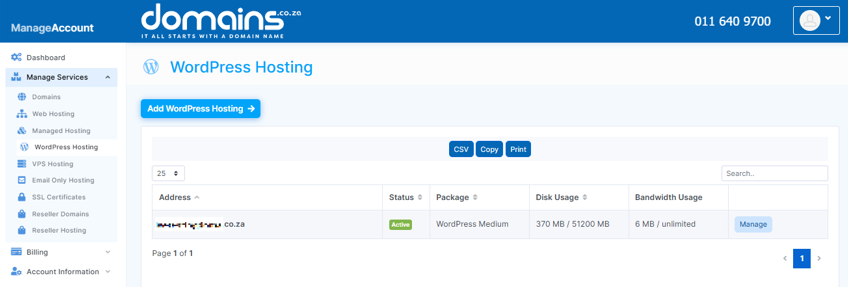
3. Choose Web Hosting or WordPress Hosting from the available options.
4. Click Manage next to the domain associated with your WordPress Hosting package.
5. Click Login next to Control Panel to access cPanel.
6. Locate the resource usage or resource monitoring section within cPanel.
7. Review CPU, memory, entry process and other available resource statistics.
8. Check whether resource limits are being reached repeatedly or only during specific periods.
9. Compare resource usage with periods of increased website traffic or WooCommerce activity.
10. Review recently installed or updated plugins and identify any plugins that perform intensive operations.
11. Temporarily disable non-essential plugins where appropriate and monitor whether resource usage improves.
12. Check WooCommerce scheduled actions for tasks that may be running frequently or becoming stuck.
13. Review the number of products, variations and orders stored in the WooCommerce database.
14. Check whether automated imports, exports, backups or security scans are running at the same time as resource spikes.
15. Review your website’s caching configuration and confirm that caching is working correctly.
16. Optimise large images and unnecessary website files where applicable.
17. Remove unused plugins, themes and other unnecessary website components.
18. Test the website again after making changes to determine whether resource usage has improved.
19. Consider upgrading your hosting package if your WooCommerce store consistently requires more resources than your current package provides.
20. Contact Domains.co.za Support if you need assistance investigating hosting-level resource usage.
Common Causes of High WooCommerce Resource Usage
- Large Product Catalogues: Stores with thousands of products or product variations may require additional database processing and memory.
- Plugins: Some plugins perform frequent database queries or background processes that can increase resource consumption.
- Scheduled Tasks: WooCommerce and WordPress use scheduled tasks for activities such as processing orders, sending emails and updating product information.
- Traffic Spikes: Large increases in visitors can result in higher CPU, memory and entry process usage.
- Automated Bots: Search engines, crawlers and malicious bots can generate large numbers of requests and increase resource consumption.
- Imports & Exports: Large product imports and exports can temporarily consume significant hosting resources.
Additional Information
- WooCommerce websites generally require more resources as their product catalogue, order volume and visitor numbers increase.
- High resource usage can be caused by plugins, themes, traffic or automated background processes rather than WooCommerce itself.
- Resource usage should be monitored over time instead of relying on a single usage spike.
- Large product catalogues and products with many variations can increase database activity and resource requirements.
- WooCommerce scheduled actions should be monitored because failed or repeatedly scheduled tasks can contribute to resource usage.
- Product imports and exports can temporarily increase CPU, memory and database usage.
- Security plugins and automated scans can also consume additional resources, particularly when they scan large websites.
- Caching can reduce the amount of processing required for frequently requested pages, although dynamic WooCommerce pages such as carts and checkouts generally require special consideration.
- Caching should be configured carefully on WooCommerce websites so that personalised or transactional content is not incorrectly cached.
- Automated bots can generate large numbers of requests, so unusual traffic patterns should be investigated when resource usage suddenly increases.
- Removing unused plugins and themes can reduce unnecessary processing and improve website security.
- Optimising images and reducing unnecessary website content can help improve overall website performance.
- If resource usage remains consistently high after optimisation, upgrading to a hosting package with additional resources may be appropriate.
- A staging environment can be used to test plugin changes and performance optimisations before applying them to the live WooCommerce website.
- You should create a current backup before making significant changes to a live WooCommerce website.
Login to Domains.co.za Account
1. Go to the Domains.co.za website Account Login page.

2. Enter your Email and Password and click the Sign In button.
3. You will see the Domains.co.za Dashboard, displaying the Manage Account menu on the left and your Account Information, Account Overview and Open Support Tickets on the right.


