


TL;DR: WordPress widgets allow you to add content and functionality to theme-defined areas such as sidebars, footers and headers. Depending on your WordPress theme, you can manage widgets through Appearance > Widgets, the Site Editor, or blocks provided by a plugin. Available widget areas and settings vary between themes.
Introduction
WordPress widgets provide an easy way to add useful content or features outside the main body of a page or post. They can be used for elements that you may wish to display across several areas of your website.
Modern WordPress has moved increasingly towards block-based editing, which means widgets and blocks now overlap in many areas. Classic WordPress themes may still provide a dedicated Appearance > Widgets screen, while block themes generally manage similar areas through the Site Editor.
Customers using WordPress Hosting can manage WordPress widgets from their WordPress Dashboard without having to write code for most common tasks.
Widgets are particularly useful when content should appear repeatedly outside the main page content, such as in a sidebar, footer or header. The locations available are determined by the active WordPress theme, so one website may offer several widget areas while another may offer very few.
Before making significant changes to important website areas, create a recent backup where possible.
TABLE OF CONTENTS
How to Access WordPress Widgets
1. Login to the Domains.co.za Customer Portal.
2. Open the Manage Services dropdown menu.
3. Select Web Hosting or WordPress Hosting.

4. Click Manage next to the relevant domain.
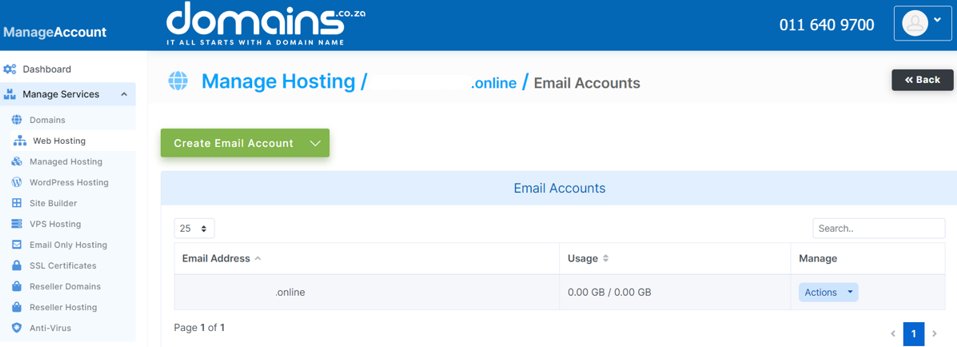
5. Click Login next to Control Panel to access cPanel.
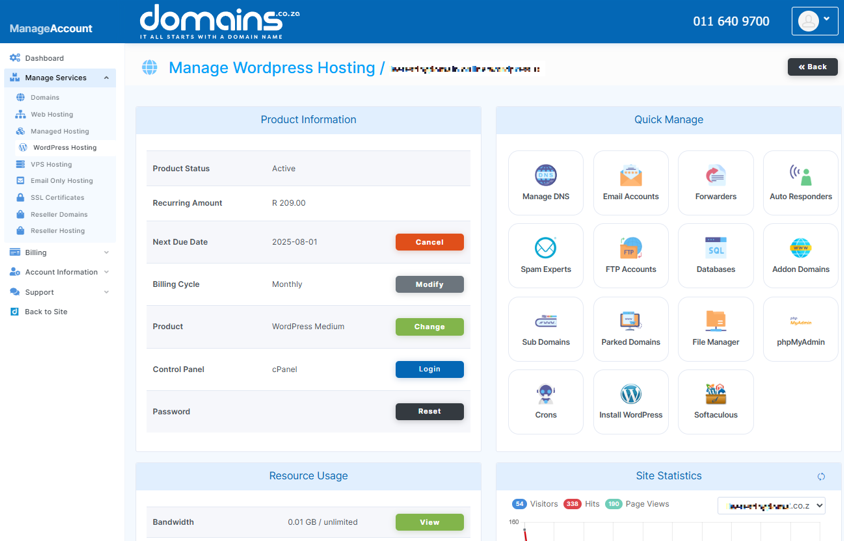
6. Open the available WordPress management tool in cPanel.
7. Login to the WordPress Dashboard for the website you wish to edit.
8. Open Appearance to check which widget or site-editing options are provided by your active theme.
What Are WordPress Widgets?
WordPress widgets are small content or functionality elements that can be placed in specific areas provided by your WordPress theme. Examples include a search box, a list of recent posts, navigation links, social icons, an image, a form or a call-to-action section. Widgets are commonly used when the same type of content needs to appear outside the main page body or across multiple pages.
What Are WordPress Widget Areas?
Widget areas are locations defined by your active WordPress theme where widgets or blocks can be displayed.
Common locations include:
- Sidebars.
- Footers.
- Headers.
- Homepage sections.
- Other theme-specific layout areas.
Not every WordPress theme provides the same widget areas, so the options on your website may differ from those shown in another theme.
What Is the Difference Between WordPress Widgets & Blocks?
Widgets and blocks now overlap in modern WordPress because many widget areas use the Block Editor interface. Traditional WordPress widgets were managed as separate items inside predefined theme areas. Modern WordPress allows blocks such as Search, Latest Posts, Social Icons and Navigation to be placed in many of these same locations.
How to Add Widgets in a Classic WordPress Theme
Classic themes commonly manage widget areas through Appearance > Widgets.
1. From the WordPress Dashboard, select Appearance.
2. Click Widgets.
3. Select the widget area you wish to edit, such as a sidebar or footer.
4. Click the + inserter to add a new widget or block.
5. Choose a block such as Search, Latest Posts, Categories, Social Icons or Custom HTML.
6. Configure the available settings for the selected widget.
7. Group related blocks where necessary to keep connected elements together.
8. Save your changes.
9. Open the website and confirm that the widget appears in the correct location.
Available areas and controls depend on your theme.
How to Add Widgets in a Block Theme
Block themes generally use the Site Editor instead of the traditional widgets interface.
1. From the WordPress Dashboard, open Appearance.
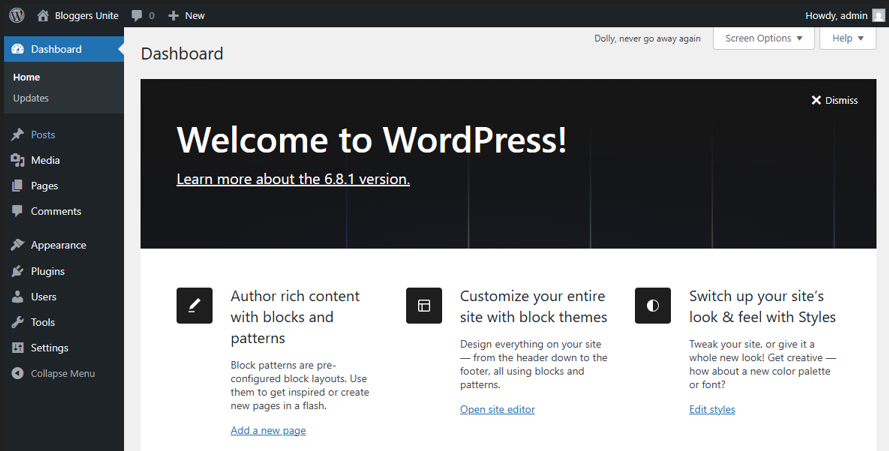
2. Select Editor.
3. Open the relevant template or template part.
4. Locate the area you wish to edit, such as the footer, header or sidebar.
5. Click the + block inserter.
6. Add the required block, such as Search, Navigation, Latest Posts, Social Icons or Buttons.
7. Use the available block settings to adjust the layout, typography, colours or spacing.
8. Save your changes.
9. Check several page types on the live site to make sure the updated template displays correctly.
Changes made through the Site Editor can affect multiple pages that use the same template, so review the website carefully before and after publishing significant changes.
When Should You Use a WordPress Widget Plugin?
A widget plugin can be useful when the functionality you require is not available through WordPress or your theme.
Plugins may add specialised widgets or blocks for features such as forms, recent posts, login areas, shopping functionality or other content.
Examples include:
- Recent Posts Widget With Thumbnails.
- Contact Form 7.
- WPForms.
- Login with Ajax.
- WooCommerce-related widgets.
Plugin compatibility, features and support can change, so check the current plugin information and compatibility with your WordPress version and theme before installation. Do not install several overlapping widget plugins unnecessarily.
How to Add a Widget Using a Plugin
1. Login to your WordPress Dashboard.
2. Open Plugins.
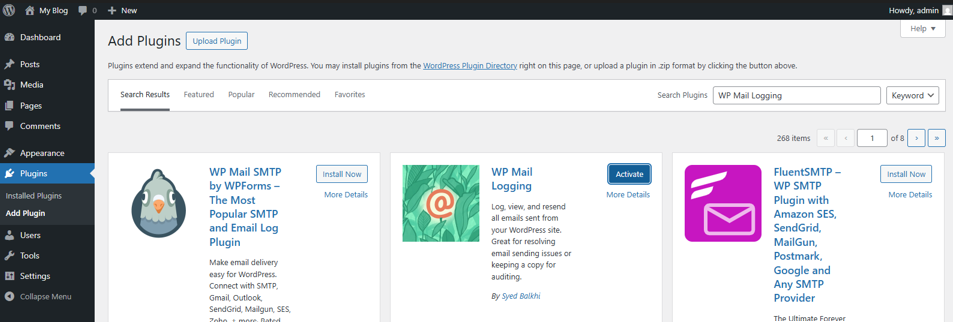
3. Select Add New Plugin.
4. Search for the required plugin.
5. Review its compatibility and current information before installation.
3. Install and activate the plugin.
4. Open Appearance > Widgets, the Site Editor, or the block inserter depending on your theme and plugin.
5. Locate the widget or block added by the plugin.
6. Add it to the required area.
3. Configure its display and functionality settings.
4. Save the changes and test the widget on the live website.
Some widget plugins may work differently, depending on whether the site uses a classic theme or a block theme.
How Can You Customise WordPress Widgets?
WordPress widgets can usually be customised through their individual settings, while more advanced styling may be possible using CSS.
Depending on the widget, you may be able to change:
- Titles.
- Display order.
- Number of posts shown.
- Links.
- Images and media.
- Alignment.
- Colours.
- Fonts.
- Spacing.
- Layout.
The available options vary according to the widget, theme and installed plugins.
Can You Customise Widgets with CSS?
Yes, advanced users can use CSS to customise widget styling where the active theme supports it.
You may be able to add a CSS class through the widget or block’s Advanced settings and then create custom styles using your theme’s supported CSS method.
For classic themes, this may include Appearance > Customise > Additional CSS where available. Block themes may provide styling through the Site Editor or theme-specific options.
Test custom CSS carefully on desktop and mobile, and consult your website developer if you are unsure how a change may affect the layout.
What Are the Most Common Types of WordPress Widgets?
Different widgets provide different types of functionality.
Search Widget
A Search widget provides visitors with a quick way to find content on the website.
Recent Posts & Recent Comments
These widgets can highlight newly published content or recent discussion and are particularly useful for blogs and content-heavy websites.
Media Widget
Media widgets or blocks can display images, videos, audio or other promotional media.
Call-to-Action Widget
This can encourage visitors to make an enquiry, book a service, download a resource, subscribe or make a purchase.
Navigation elements can display menus, categories, tags or other useful links to help visitors move around the website.
Social Media Widget
Social media widgets can provide links to your social profiles or, where supported by a plugin, display social content.
Shopping Cart Widget
eCommerce websites may use WooCommerce or another compatible solution to provide cart-related blocks or widgets.
Form Widget
Forms can be used for enquiries, newsletter subscriptions, surveys and quote requests. These commonly require a suitable forms plugin.
Login Widget
Login functionality can be useful for membership websites, forums, online stores and private customer areas.
Why Is My WordPress Widget Area Not Showing?
A widget area may not appear because the active WordPress theme does not provide that location.
Check the theme’s available widget areas or Site Editor options. If you recently changed themes, the new theme may organise its layout differently from the previous one.
Why Are My Widget Changes Not Appearing?
Caching may cause an older version of the website to remain visible after you make changes.
Clear the applicable website cache and test the page in a private browser window before making additional changes.
Why Did a Widget Disappear After Changing Themes?
Widgets can disappear from their previous location when the new theme does not provide the same widget areas.
Changing themes can alter sidebars, footers, headers and other theme-defined regions, so check these areas after activating a different theme.
Why Is a Plugin Widget Missing?
A plugin widget may not appear if the plugin has not been activated correctly, is incompatible with the current WordPress setup or does not support the editing system used by the active theme.
Check the plugin documentation and current compatibility information before troubleshooting further.
Why Does My Widget Layout Look Wrong on Mobile?
Widget layouts can change on smaller screens because available space is reduced and theme styles may stack or reposition elements.
Check important widgets on mobile as well as desktop, particularly navigation, forms, buttons and ecommerce elements.
Best Practices for Using WordPress Widgets
- Widgets should provide a clear benefit to visitors rather than simply filling empty space.
- Only use widgets that serve a clear purpose.
- Avoid overcrowding sidebars and footers with unnecessary content.
- Place important widgets where visitors are likely to expect them.
- Keep colours, typography and spacing visually consistent with the rest of the website.
- Check each widget on desktop, tablet and mobile devices.
- Keep plugins that provide widgets updated.
- Remove widgets that are no longer being used.
- Review website performance after installing plugins that add additional functionality.
- Avoid installing several plugins that provide the same or very similar widgets.
- Back up important websites before making significant layout changes.
Additional Information
- WordPress widget areas are controlled by the active theme, so different themes can provide different widget locations.
- Modern WordPress frequently uses blocks inside widget areas, which means widgets and blocks can overlap in how they are added and managed.
- Classic themes commonly provide Appearance > Widgets, while block themes may use Appearance > Editor instead.
- Not every widget or block will work the same way across all WordPress themes.
- Third-party widget plugins are optional and should only be installed when you require functionality that WordPress or your theme does not already provide.
- Additional widget plugins can increase the complexity of a WordPress website and may affect performance if too many are installed.
- Check widget layouts on mobile devices because sidebars, forms, menus and other elements may display differently on smaller screens.
- Custom CSS can provide additional styling control, but it should be tested carefully before being applied to a live website.
- Changing WordPress themes may change or remove existing widget areas, so review important parts of the website after a theme change.
- Widgets can improve navigation and user engagement when used appropriately, but adding widgets does not automatically improve search-engine rankings.
- Create a recent backup or use a staging site before making substantial changes to important layout areas.
- Contact Domains.co.za Support if an issue relates to the hosting environment, or chat to your website developer if the problem involves a theme, custom CSS, plugin conflict or website layout.
FAQS
What Is a WordPress Widget?
A WordPress widget is a small content or functionality element that can be placed in an area provided by your theme, such as a sidebar, footer or header.
Where Do I Find Widgets in WordPress?
Classic themes commonly provide widgets under Appearance > Widgets. Block themes may use Appearance > Editor instead to manage similar content within templates and template parts.
Does Every WordPress Theme Have the Same Widget Areas?
Classic themes commonly provide widgets under Appearance > Widgets. Block themes may use Appearance > Editor instead to manage similar content within templates and template parts.
Are WordPress Widgets the Same as Blocks?
Not exactly, but modern WordPress has brought the two concepts much closer together. Many traditional widget functions can now be added using blocks inside widget areas or the Site Editor.
Do I Need a Plugin to Add WordPress Widgets?
No. WordPress and many themes include built-in widget and block options. Install a plugin only when you require additional functionality that is not already available.
Can Widgets Slow Down My WordPress Website?
They can contribute to slower performance if they load heavy media, external content or additional plugin code. Use widgets with a clear purpose and review website performance after adding more complex functionality.
Login to Domains.co.za Account
1. Go to the Domains.co.za website Account Login page.

2. Enter your Email and Password and click the Sign In button.
3. You will see the Domains.co.za Dashboard, displaying the Manage Account menu on the left and your Account Information, Account Overview and Open Support Tickets on the right.


