


This guide explains the most common causes of the WordPress Missing Theme Error and provides practical steps to resolve it. It also covers additional troubleshooting methods, including checking Theme compatibility, plugin conflicts, and using a WordPress staging environment to safely test changes before applying them to your live website.
When uploading a WordPress Theme through your WordPress Dashboard, the installation process should normally complete without any issues and allow you to activate the Theme immediately. However, there are situations where WordPress may display a “Missing Theme” error, preventing the Theme from being installed correctly.
This issue is commonly caused by missing files, incorrect folder structures, compatibility issues, or uploading the incorrect file type. In most cases, the error message will mention that the style.css stylesheet is missing. Since the stylesheet controls the Theme’s layout and appearance, WordPress cannot activate the Theme without it.
TABLE OF CONTENTS
How to Fix a WordPress Missing Theme Error
The Package Could Not Be Installed
This error usually appears when the Theme upload does not contain the correct WordPress Theme files.
To resolve this issue:
1. Login to the Domains.co.za Customer Portal using your account credentials.
2. Navigate to Manage Services from the dropdown menu.
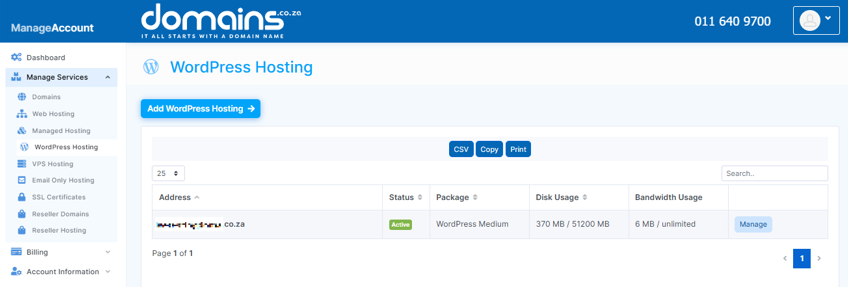
3. Select your WordPress Hosting package and click Manage.
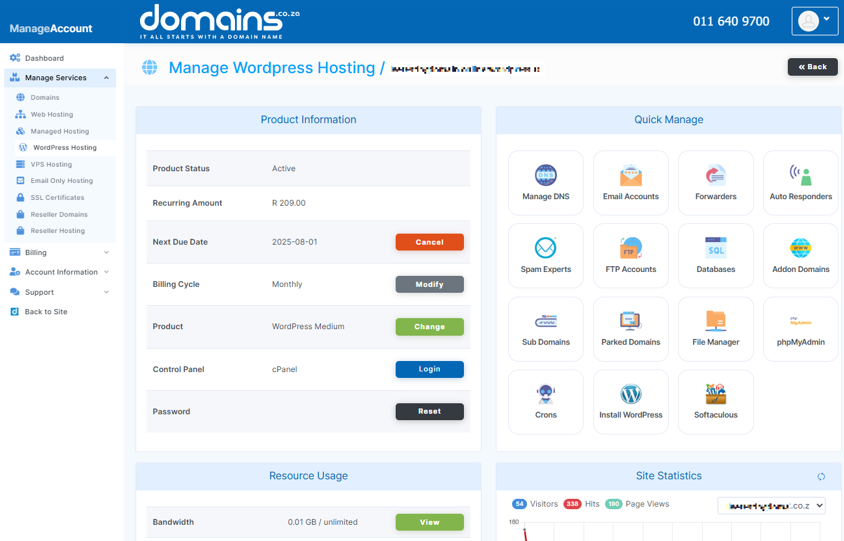
4. Click Login to cPanel to access your hosting control panel.
5. In cPanel, locate WordPress Manager.

6. In the WordPress Dashboard, hover over Appearance and click Themes.
7. Click Add New at the top of the page.
8. Click Upload Theme.
9. Ensure that all the Theme files are compressed into a single .zip file before uploading.
10. Select the correct .zip file from your computer.
11. Click Install Now to begin the installation process.
12. Once the installation is complete, click Activate.
The WordPress Theme Is Missing the style.css Stylesheet
The style.css file is a required component of every WordPress Theme. If this file is missing, corrupted, or placed in the incorrect location, WordPress will not install the Theme.
Check if the File Is Missing
1. Download the Theme file to your computer if it has not already been downloaded.
2. Extract the contents of the Theme .zip file.
3. Open the extracted folder and check whether the style.css file is present.
4. If the file is missing, download the Theme again from the original source.
Verify the Theme Folder Structure
1. Open the extracted Theme folder on your computer.
2. Confirm that the style.css file is located inside the main Theme directory.
3. Remove any additional folders or documentation files that may be wrapping the actual Theme folder.
4. Compress only the Theme folder into a new .zip file.
5. Upload the corrected .zip file through WordPress.
Check for Plugin Conflicts
1. Open your WordPress Dashboard.
2. Click Plugins from the left-hand menu.
3. Select all active plugins.
4. Choose Deactivate from the bulk actions menu and apply the changes.
5. Attempt to install or activate the Theme again.
6. If the Theme works correctly, reactivate the plugins one at a time to identify the conflicting plugin.
Verify Theme Compatibility
1. Open your WordPress Dashboard.
2. Click Dashboard followed by Updates to check your WordPress version.
3. Compare your WordPress version with the Theme’s compatibility requirements provided by the Theme developer.
4. Update WordPress or download a compatible Theme version if necessary.
Additional Information
- The style.css file is required, because it contains important Theme information and styling instructions used by WordPress.
- Some Theme marketplaces include documentation, licences, and plugins inside the download package, so ensure you upload only the actual Theme folder.
- A missing Theme issue can sometimes result in a White Screen Error on your website.
- Using nulled or unofficial Themes may increase the risk of corrupted files, malware, and compatibility problems.
- It is recommended to test new Themes in a staging environment before applying them to your live website.
- Keeping WordPress, plugins, and Themes updated can help prevent compatibility-related Theme errors.
- If your customised Theme stops working after edits, restoring a backup can help recover the original files.
- Plugin conflicts are a common cause of Theme display issues, particularly with optimisation and caching plugins.
Login to Domains.co.za Account
1. Go to the Domains.co.za website Account Login page.

2. Enter your Email and Password and click the Sign In button.
3. You will see the Domains.co.za Dashboard, displaying the Manage Account menu on the left and your Account Information, Account Overview and Open Support Tickets on the right.


