


This guide explains how to detect and remove Malware from a WordPress Website and identify common signs of a malware infection, safely investigate your website, remove malicious content, and reduce the risk of future compromises.
A malware infection can be one of the most serious issues a WordPress website owner faces. Malware is malicious software or code that is added to a website without permission. It can be used to steal information, redirect visitors to fraudulent websites, inject spam content, create unauthorised administrator accounts, or disrupt your website’s normal operation.
When properly maintained, WordPress itself is a secure platform. However, outdated plugins and themes, weak passwords, compromised user accounts, insecure file permissions, and vulnerable third-party software can all create opportunities for attackers to gain access to a website.
If you suspect your website has been compromised, it is important to act quickly but carefully. Removing malware incorrectly can cause further damage, result in data loss, or leave hidden backdoors that allow attackers to regain access to WordPress later.
TABLE OF CONTENTS
Common Signs That a WordPress Site Has Malware
You may notice one or more of the following warning signs:
- Unexpected Redirects or Pop-Ups: Visitors are redirected to unrelated websites or encounter suspicious pop-up messages
- Unfamiliar Pages, Links, or Search Results: Spam pages, hidden links, or unusual search engine results may appear without your knowledge.
- Slow Performance or Frequent Errors: Malicious scripts can consume server resources, causing slow loading times, errors, or website downtime.
- Unknown Administrator Accounts: Attackers often create additional administrator accounts to maintain access after the initial compromise.
- Browser or Search Engine Warnings: Google and web browsers may display warnings indicating that your website could be unsafe.
- Unauthorised File Changes: Recently modified files, unfamiliar PHP files, or unexpected changes to WordPress core files may indicate a security breach.
Before You Begin
- Before attempting malware removal, ensure you have access to:
- WordPress administrator credentials.
- Your Domains.co.za hosting account.
- File Manager, FTP, SFTP, or SSH access.
- Database access through phpMyAdmin.
- Google Search Console, if available.
- A secure and malware-free device.
- Any recent website backups.
- Records of recent website changes, plugin installations, or user activity.
Important Safety Warning
Malware removal can involve editing files, deleting malicious content, changing passwords, and modifying database records. If your website handles customer information, online payments, or critical business operations, consider contacting Domains.co.za Support or a qualified website security specialist before making significant changes.
Step 1: Access Your Hosting Control Panel
1. Login to the Domains.co.za Customer Portal using your account credentials.
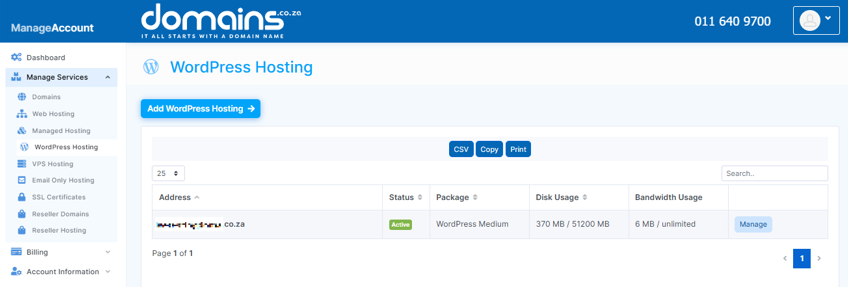
2. Navigate to Manage Services from the drop-down menu.
3. Select your WordPress Hosting package and click Manage.
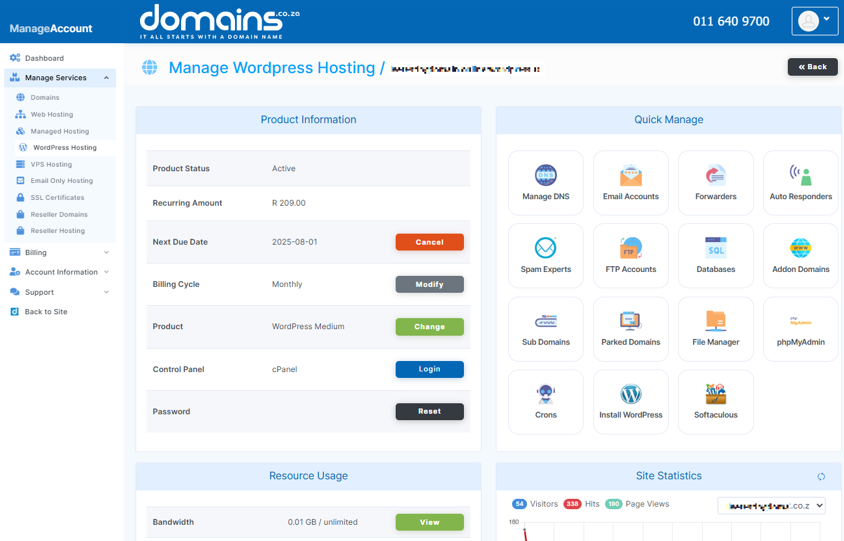
4. Click Login to cPanel to access your hosting control panel.
Step 2: Restrict Access to the Website
Temporarily placing the website into maintenance mode can help protect visitors while the infection is being investigated and removed.
Avoid applying server restrictions that you do not fully understand, as incorrect configurations may prevent legitimate access or create additional problems.
Step 3: Create a Quarantine Backup
Before making any changes, create a complete backup of the infected website.
1. Open File Manager in cPanel.
2. Download a copy of all website files.
3. Open phpMyAdmin and export a copy of the database.
4. Clearly label the backup as an infected or quarantine backup.
This backup should not be treated as a clean restore point, but may be useful for investigation and recovery purposes.
Step 4: Review Recent Activity
Check for unusual activity that may indicate how the compromise occurred.
1. Review recent plugin, theme, and WordPress updates.
2. Check website logs for unusual login attempts.
3. Look for recently modified files.
4. Review administrator accounts for unfamiliar users.
Step 5: Change All Passwords
Reset all credentials associated with the website.
1. Change WordPress administrator passwords.
2. Update your Domains.co.za hosting account password.
3. Reset FTP and SFTP credentials.
4. Change database passwords if applicable.
5. Update any email accounts used for password recovery.
Where available, enable two-factor authentication for additional security.
Step 6: Reset WordPress Security Salts
WordPress security salts help protect user sessions.
1. Locate the wp-config.php file using File Manager.
2. Generate new security salts using the official WordPress security key generator.
3. Replace the existing values within wp-config.php.
4. Save the changes.
This action forces all users to log in again and helps remove unauthorised active sessions.
Step 7: Scan the Website for Malware
Use multiple methods to identify malicious content.
1. Run any malware scanning tools available within your hosting environment.
2. Use a reputable WordPress security plugin to perform a website scan.
3. Review scan results carefully.
4. Investigate flagged files before deleting them.
Remember that no single scan can guarantee that a website is completely clean.
Step 8: Reinstall Clean WordPress Core Files
Replacing WordPress core files can remove unauthorised modifications.
1. Download a fresh copy of WordPress from the official website.
2. Replace the wp-admin and wp-includes directories.
3. Replace WordPress root files where appropriate.
Do not overwrite wp-content or wp-config.php without understanding their purpose.
These directories contain website content, themes, plugins, and important configuration settings.
Step 9: Inspect Themes & Plugins
Compromised plugins and themes are common entry points for malware.
1. Remove unused plugins and themes.
2. Delete software obtained from untrusted or unofficial sources.
3. Reinstall active plugins and themes from their official providers.
3. Update all remaining software to the latest stable version.
Step 10: Review the Uploads Directory
Attackers often place malicious files inside media upload folders.
1. Open File Manager.
2. Navigate to the wp-content/uploads directory.
3.Look for suspicious executable files or recently added PHP files.
4. Investigate unfamiliar files before removing them.
Do not automatically delete every PHP file, as some legitimate tools may create files that appear unusual.
Step 11: Check for Hidden Backdoors
Backdoors allow attackers to regain access after visible malware has been removed.
1. Search for unfamiliar files and scripts.
2. Review recently modified files.
3. Check for unusual scheduled tasks.
4. Investigate unfamiliar code carefully.
Functions such as eval() or base64_decode() may be suspicious, but these are not always proof of malware on their own.
Step 12: Inspect the Database
Malware can be stored within database content.
1. Open phpMyAdmin from cPanel.
2. Review posts, pages, widgets, and comments.
3. Search for suspicious scripts, hidden links, or unfamiliar content.
4. Review WordPress options and scheduled tasks.
Some infections can recreate deleted files if database-based persistence mechanisms remain active.
Step 13: Review Users & Permissions
1. Remove unknown user accounts.
2. Verify administrator privileges.
3. Assign the lowest appropriate role to each user.
4. Review file and folder permissions.
If you are unsure about permission settings, contact Domains.co.za Support for guidance.
Step 14: Update Everything
Before returning the website to normal operation:
1. Update WordPress to the latest version.
2. Update all plugins and themes.
3. Update PHP version if a newer supported one is available.
4. Remove any unsupported software.
Step 15: Test the Website
Verify that the website functions correctly.
Check that:
- The homepage loads correctly.
- Internal pages are accessible.
- Contact forms work properly.
- User login functions correctly.
- Online stores process transactions correctly.
- No redirects appear.
- No unknown users remain.
- Malware scans return clean results.
Step 16: Request a Google Security Review
If Google has flagged your website:
1. Login to Google Search Console.
2. Open Security Issues.
3. Confirm that the website has been cleaned.
4. Submit a review request.
Please note that review and recovery times may vary.
Step 17: Remove Temporary Restrictions
Once testing is complete and the website is confirmed clean:
1. Disable maintenance mode.
2. Remove temporary access restrictions.
3. Monitor logs and security tools closely for several days.
How to Prevent Malware from Returning
The best defence against malware is proactive website maintenance.
- Keep WordPress, themes, and plugins regularly updated.
- Use strong, unique passwords.
- Enable two-factor authentication.
- Limit administrator accounts.
- Install software only from trusted sources.
- Perform regular malware scans.
- Maintain off-site backups.
- Review website logs regularly.
- Test updates in a staging environment where possible.
- Regularly audit user accounts and permissions.
Additional Information
- A clean backup is a backup created before the infection occurred and after the original vulnerability has been resolved.
- An infected quarantine backup should be stored separately and never used as a routine restore point.
- Reinstalling WordPress core files alone does not remove malware hidden in plugins, themes, uploads, or the database.
- Malware can remain active through hidden administrator accounts, scheduled tasks, or malicious database entries even after infected files are removed.
- Search engines may continue to display spam URLs after a website has been cleaned. This requires additional review and removal actions.
- SSL certificates encrypt data transmitted between visitors and your website, but they do not prevent malware infections.
- Regular monitoring is essential because attackers may attempt to regain access using previously compromised credentials.
- If your website stores customer information, processes payments, or experiences repeated reinfections, professional security assistance is strongly recommended.
Login to Domains.co.za Account
1. Go to the Domains.co.za website Account Login page.

2. Enter your Email and Password and click the Sign In button.
3. You will see the Domains.co.za Dashboard, displaying the Manage Account menu on the left and your Account Information, Account Overview and Open Support Tickets on the right.


