


WordPress Error Logs Help You Find Problems Before They Become Bigger Website Issues
Most WordPress problems don’t start with a crash. They start quietly, as a small warning tucked away in the background, long before your site shows any visible sign of trouble. By the time a visitor sees a broken page or a blank screen, the real issue has often been sitting there for days.
This is where WordPress error logs come in. They record these early warnings, giving you a way to catch a problem before it grows into something bigger. This guide explains error logs, why they matter, and how to read one without feeling lost.
KEY TAKEAWAYS
- Error logs record technical issues from WordPress, plugins, themes, PHP, and the server.
- Debug mode must be enabled for WordPress to write to the log.
- Logging errors is safer than displaying them on a live site.
- Timestamps, fatal errors, and file paths are the fastest clues to check first.
- Some issues require more than a log, such as malware scans or database repair.
CTA: Get Dependable WordPress Hosting in South Africa
TABLE OF CONTENTS
What Are WordPress Error Logs?
A WordPress error log is a simple text file that records technical problems as they occur. Whenever WordPress, a plugin, a theme, or the server encounters an issue, it writes a line to this file.
That line usually includes what went wrong and where. This file is often called the WordPress debug log, and it sits quietly in the background until you need it. You won’t see it unless you look for it, but it’s there, keeping track of every hiccup your site runs into.
Why Error Logs Matter for WordPress Website Health
Without a log, troubleshooting turns into guesswork. You may reload the page a few times, deactivate a random plugin, or hope the issue will fix itself. None of that tells you what caused the problem.
An error log skips all that guessing. It points you directly to the plugin, theme, or file behind the issue, so you know exactly where to look. That’s the difference between fixing a problem quickly and spending hours chasing the wrong lead.
What WordPress Error Logs Can Help Diagnose
Error logs cover more ground than most people expect. They can point to plugin conflicts, theme issues, PHP errors, database problems, server and file permission issues, or even the white screen of death.
Plugin Conflicts
Plugins are a common source of trouble. When one stops working properly, the log usually shows a PHP error, a deprecated function, or a fatal error tied directly to that plugin’s file. This tells you exactly where to start looking.
Theme Issues
Themes can cause problems, too. A log entry may point to a broken template, a missing function, or old code that no longer works with a newer version of WordPress. These clues help you find the correct file to fix.
PHP Errors & Memory Limits
WordPress PHP errors often display as warnings, fatal errors, or memory exhaustion messages. A timeout error can also appear here. These entries usually mean your site needs more memory or a fix to a specific line of code.
Database Problems
Sometimes the trouble sits in the database. Logs can reveal a failed connection, a broken query, or a plugin that isn’t working well with your database. Spotting this early prevents a small issue from becoming lost data.
Server & File Permission Issues
A log can also flag missing files, incorrect file paths, or permission errors on the server. These issues often stop WordPress from loading properly, and the log tells you exactly which file or folder needs attention.
White Screen, 500 Errors, & Broken Functionality
Some errors are hard to miss, such as the white screen of death or a 500 Internal Server Error. The log usually holds the reason behind them. If you’re dealing with this now, our guide on how to fix the WordPress 500 Internal Server Error explains the fix step by step.
WordPress Debug Mode Explained
WordPress debug mode is the switch that tells your site to start writing to the log. When it’s off, WordPress stays quiet even if something goes wrong behind the scenes.
Turn it on, and WordPress begins recording every warning, error, or notice it comes across. This is what makes the WordPress debug log start filling up in the first place. Without the switch flipped on, there’s nothing for the log to catch.
Debugging on a Live Website vs Development Website
Enabling debug mode is essential, but where you turn it on also matters. On a live website, showing errors directly on the screen isn’t a good idea. Visitors may see broken code, and anyone with bad intentions could then find clues about your site’s setup.
A development site doesn’t carry that risk, so it’s a safer place to display errors while you build or test. On a live site, the safer approach is to log errors quietly in the background rather than display them.
How to Enable WordPress Error Logs
There are two ways to enable logging. You don’t need to be a developer to do this; choose the option that suits you.
Enable Logs with wp-config.php
This method gives you more control, but it means editing a core WordPress file, so take care with it.
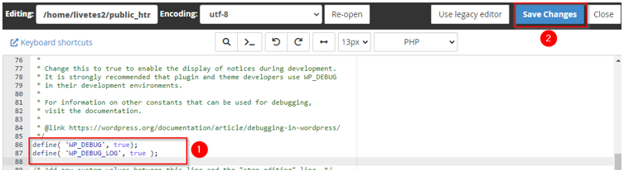
- Open your wp-config.php file through your hosting file manager or an FTP client.
- Find the line that says define(‘WP_DEBUG’, false);.
- Change false to true. This is the wp-config.php debug setting that enables logging.
- Add a new line below it: define(‘WP_DEBUG_LOG’, true);. This tells WordPress to save any errors, warnings, or notices it finds into a debug.log file instead of just holding them in memory or showing them on screen.
- Save the file.
IMPORTANT:
Back up your wp-config.php file before making any changes.
Enable Logs with a Debugging Plugin
If you aren’t comfortable editing files, a plugin does the same job with less risk of a typo breaking your site. Here’s how to enable the WordPress error log using the WP Debugging plugin.
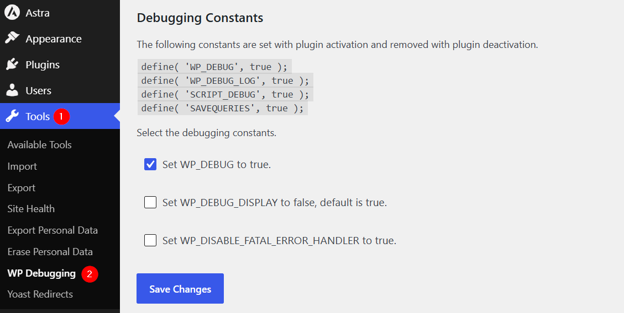
- Go to WordPress Dashboard → Plugins → Add Plugin.
- Search for WP Debugging and install it.
- Activate the plugin. It automatically turns on WP_DEBUG and WP_DEBUG_LOG for you.
- Head to Tools → WP Debugging to adjust settings as required for your situation and project requirements. Don’t forget to save changes.
Expert Tip:
Not every debugging plugin is well-maintained, so choose one with regular updates and good reviews before you install it.
What the Main Debug Settings Mean
Three settings do most of the work here:
- WP_DEBUG turns logging on or off.
- WP_DEBUG_LOG tells WordPress to save errors into the debug log file instead of just holding them in memory.
- WP_DEBUG_DISPLAY controls whether those errors appear on the screen, and it’s best left off on a live site.
There are two additional settings for advanced use. SCRIPT_DEBUG loads unminified scripts for testing, and SAVEQUERIES logs database queries. Most site owners won’t need these two, but developers often do.
Where to Find WordPress Error Logs
Once logging is enabled, WordPress usually saves the logs into the /wp-content/debug.log file. You can open it through your hosting file manager or an FTP client. Some hosting control panels also keep their own error logs, separate from this file, which can be useful if you can’t access debug.log directly or want a second source to check against.
How to Read a WordPress Debug Log Without Getting Overwhelmed
A debug log can appear as a wall of text at first. Here’s how to work through it without feeling lost:
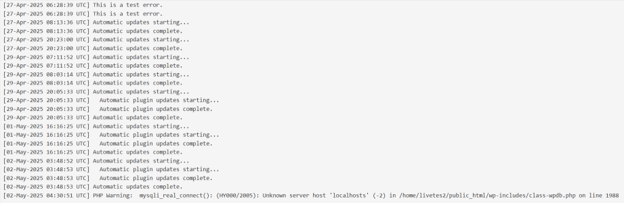
Start with the Time of the Problem
Match the timestamp in the log to when the issue happened on your site. Remember, these timestamps are often in UTC, so you’ll need to convert them to South African time first.
Look for Fatal Errors First
Scan for the words Fatal Error before anything else. These break parts of your site outright, so they need your attention before other minor warnings.
Check the File Path
Each entry usually names a file path. This tells you whether the problem sits inside a plugin, a theme, or WordPress core, which narrows down where to look next.
Identify Repeated Patterns
If the same warning keeps appearing, that’s not a one-off glitch; it means the issue is still there, and it needs a proper fix, not another reload.
Common Mistakes When Using WordPress Error Logs
A few habits can turn a useful log into a risk. Watch out for these:
- Leaving Debug Mode on Permanently: This fills up your log file and can slow your site down over time.
- Displaying Errors Publicly: Visitors and attackers can both view information that should remain private.
- Ignoring Growing Log Files: A large debug.log file uses your storage space and makes it harder to search.
- Making Changes Without a Backup: It’s risky to edit a plugin or theme file based on a log entry without first making a backup.
- Misreading Warnings as Critical Errors: Not every entry needs urgent action; some are just notices.
- Skipping Timestamp Checks: Without matching the time, you may work on the wrong item.
- Not Sharing Log Details When Asking for Support: This slows down whoever is trying to assist you.
WordPress Error Logs & Business Continuity
Error logs aren’t only a technical detail; they protect the parts of your business that rely on your website working properly. Faster WordPress troubleshooting means less downtime, fewer missed enquiries, and fewer customers hitting a broken checkout page. When a plugin conflict or server issue is caught early, you can fix it before it costs you leads or sales, not after the damage is done.
South African Website Context: Why Faster Troubleshooting Matters
For most South African SMEs, the website isn’t just a brochure; it’s where quote requests, WhatsApp clicks, bookings, and orders arrive. Load-shedding and remote work have made that channel even more important, since customers often reach out online when they can’t call or visit in person.
Many enquiries land after hours too, so a broken contact form can quietly cost you leads before anyone on your team notices. This is exactly where reliable WordPress hosting in South Africa makes it much easier to catch these issues early.

POPIA, Security, & Error Logs
POPIA is South Africa’s law on the protection of personal information, and it also applies here. Error logs can reveal file paths, plugin names, and other technical details about your site.
Support tickets can carry even more data, sometimes including a customer’s name, email, or order details. That’s why access to logs and tickets should stay limited to people who need it; not the entire team. This isn’t legal advice, just a practical habit worth building into your day-to-day log handling.
How Error Logs Support Developers, Agencies, & Hosting Support
A vague message like “My site is broken” doesn’t get you far with a support team. A log entry does the job better, providing the exact error, the file path, the timestamp, and whether it’s a one-off or a recurring issue.
This is especially useful for developers and agencies managing several sites simultaneously. If your team needs more control over server settings to dig deeper, VPS hosting for developers provides that access.

When Error Logs Are Not Enough
Sometimes a log points you in the right direction but doesn’t solve the problem on its own. A server-level fault, a malware infection, or a corrupted database often requires more than a quick edit.
In these cases, WordPress Recovery Mode is a useful next step, or you may need direct assistance from your plugin’s developer or hosting provider.
Best Practices for Using WordPress Error Logs Safely
A few habits keep your troubleshooting safe and your site stable:
- Back Up First: Always back up your WordPress site before editing any file based on a log entry.
- Log Errors, Don’t Display Them: Keep WP_DEBUG_DISPLAY off on a live site.
- Turn Debug Mode Off Once You’re Done: Leaving it on serves no purpose after the issue is sorted.
- Manage Your Log File Size: Delete or rotate it once it gets too large.
- Share Only What’s Relevant: When you contact support, send the specific error entry, not the entire log file. It’s faster for them to work with and keeps the rest of your log private.
- Keep Everything Regularly Updated: Old plugins and themes are a common cause of errors, often more than they fix. Regular updates keep that risk low.
- Test Big Changes on Staging First: A staging site lets you try updates or fixes without putting your live site at risk.
When to Contact Your Hosting Provider
Some problems go beyond what a log file can tell you. If you’re seeing any of the following, it’s best to call your hosting provider to assist, rather than trying to fix them alone:
- Repeated fatal errors that keep breaking the same feature.
- A 500 Internal Server Error that won’t clear on its own.
- Database connection failures.
- Memory limit errors that return even after you’ve raised the limit.
- Permission errors you can’t resolve from your file manager.
- Server timeouts.
- No access to your WordPress dashboard.
- A broken checkout, especially if your store is live.
- Suspected malware.
- A log entry you cannot interpret, even after checking the timestamp and file path.
Domains.co.za support can check server-level details your dashboard doesn’t reveal. This usually gets the issue sorted faster than working through it on your own.
Final Thoughts: Error Logs Turn WordPress Troubleshooting from Guesswork into Evidence
An error log can’t fix your site, but it tells you where the real problem lies. Whether you’re a business owner, a developer, or an agency managing several sites, that clarity means faster decisions and fewer hours lost to trial and error.
If you’re ready to build on a stronger foundation, reliable web hosting for your business website from Domains.co.za provides the infrastructure and support you need to troubleshoot with confidence.
![Strip Banner Text - See how Domains.co.za WordPress Hosting supports faster fixes and fewer surprises. [Learn More]](/articles/wp-content/uploads/2026/08/wordpress-error-logs-02.webp "See how Domains.co.za WordPress Hosting supports faster fixes and fewer surprises. [Learn More]")
Power Up Your Site: How to Install a WordPress Plugin
VIDEO: Power Up Your Site: How to Install a WordPress Plugin
FAQS
Do I need coding knowledge to read a WordPress error log?
Not really. You can spot the basics, like timestamps and fatal errors, without being a developer. Fixing the actual issue may need technical assistance, but reading the log doesn’t.
Will turning on debug mode slow down my site?
It can, especially if you leave it on for a long time. Logging adds a small amount of extra work for your server, so it’s best used only while you’re actively troubleshooting.
Can I delete my debug.log file?
Yes. It’s safe to delete once you’ve reviewed it. WordPress creates a new one automatically the next time an error occurs if logging is still switched on.
Why can’t I find a debug.log file on my site?
This usually means debug mode isn’t enabled yet, or that no errors have occurred since you enabled it. Check your wp-config.php settings or your debugging plugin to confirm.
What’s the difference between a warning and a fatal error in the log?
A warning flags something minor that WordPress can usually work around. A fatal error stops a process completely, so it needs your attention first.
Should I show error messages on my site while I’m building it?
On a development or staging site, this is fine and can even help you catch issues faster. On a live site, keep errors hidden from view and rely on the log instead.
How often should I check my error log?
Checking after a plugin update, theme change, or whenever something feels off is a good habit. You don’t need to check daily if your site is running smoothly.
Can error logs help with slow page speed?
Sometimes. A log won’t measure speed directly, but repeated timeouts or memory limit warnings can point to what’s slowing your site down.
What should I send to my hosting provider if I need assistance with an error?
Share the exact error message, the timestamp, and the file path from the log. This provides support with a clear starting point instead of a vague description of the problem.
Other Blogs of Interest
- How To Reinstall WordPress Without Losing Your Website Content
- Why WordPress Recovery Mode Matters When Your Website Breaks
- WooCommerce Shortcodes Make It Easier To Build A Better Online Store
- Export WordPress Site Is The Smartest Ways To Protect Your Website
- The Right WordPress Font Can Make Your Website Feel More Professional

Rhett isn’t just a writer at Domains.co.za – he’s our resident WordPress content guru. With over 8 years of experience as a content writer, with a background in copywriting, journalism, research, and SEO, and a passion for websites.
Rhett authors informative blogs and articles that simplify the complexities of WordPress, website builders, domains, and cPanel hosting. Rhett’s clear explanations and practical tips provide valuable resources for anyone wanting to own and build a website. Just don’t ask him about coding before he’s had coffee.