


TL;DR: Fix WordPress when it become stuck in maintenance mode when a core, plugin or theme update is interrupted before WordPress removes its temporary .maintenance file. Wait a few minutes first; if the message remains, access the WordPress root directory, locate and delete only the .maintenance file, then clear any relevant caches and check whether the interrupted update completed successfully.
TABLE OF CONTENTS
Overview
If your website is hosted using WordPress Hosting, you may occasionally see the message Briefly unavailable for scheduled maintenance. Check back in a minute while WordPress is installing an update. This is normally temporary and should disappear automatically once the update is complete.
During an update, WordPress creates a temporary .maintenance file that tells visitors the website is undergoing maintenance. When the update completes successfully, WordPress should remove this file automatically. If the update is interrupted by a timeout, lost connection, browser interruption, plugin or theme compatibility problem, or other failure, the file may remain and the website can continue displaying the maintenance message.
In most cases, the maintenance message can be removed by deleting the remaining .maintenance file. However, deleting this file only removes maintenance mode; it does not fix the update that originally failed. You should therefore check the website and WordPress Dashboard afterwards to determine whether any updates need further attention.
IMPORTANT:
Before making changes to your WordPress files, create a recent backup wherever possible. Only delete the .maintenance file described in this guide. Do not delete WordPress core folders or other update files. If you are unsure which file to remove, contact Domains.co.za Support or your website developer before proceeding.
How to Fix WordPress Stuck in Maintenance Mode
Step 1: Wait a Few Minutes
Normal WordPress maintenance mode should disappear automatically when an update finishes.
Wait several minutes before making any changes. If the message continues to appear after the update should have completed, proceed with the troubleshooting steps below.
Step 2: Access Your WordPress Website Files
The easiest way for most Domains.co.za customers to access the website files is through cPanel File Manager.
1. Login to the Domains.co.za Customer Portal.
2. Open the Manage Services dropdown menu.
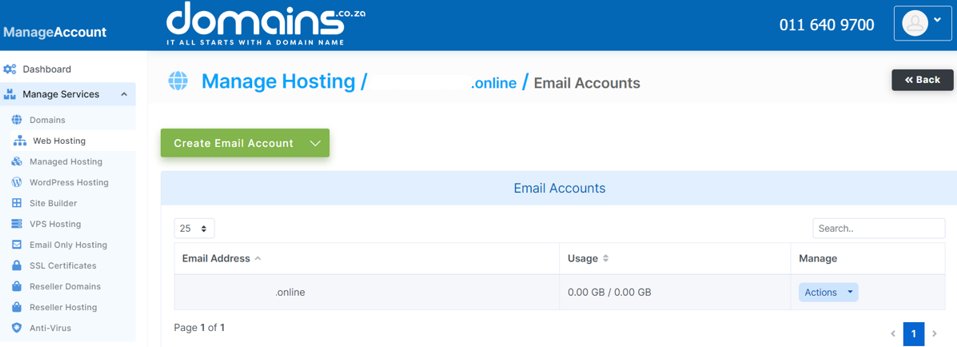
3. Select Web Hosting.

4. Click Manage next to the relevant domain.
5. Click Login next to Control Panel to access cPanel.
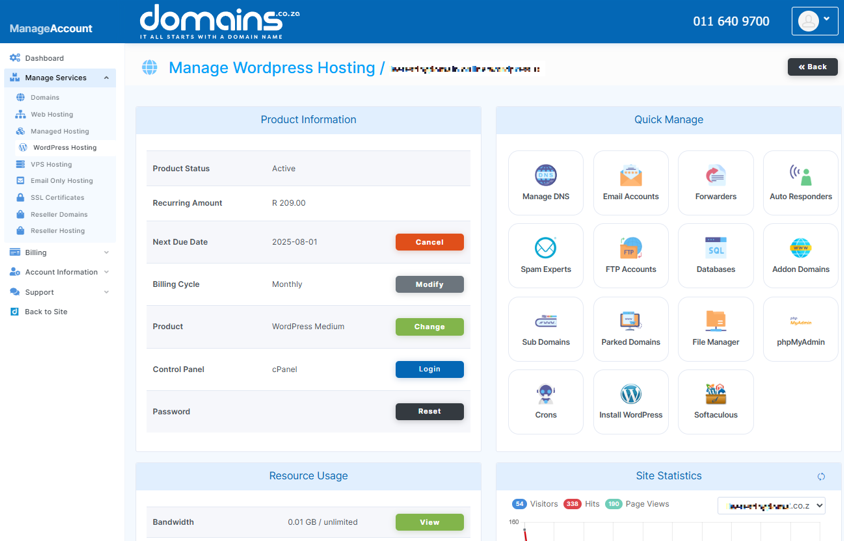
6. Open File Manager from the cPanel dashboard.

7. Navigate to the directory containing your WordPress installation.
You can also access the website using FTP or SFTP if you are familiar with file transfer applications such as FileZilla or WinSCP.
Step 3: Open the WordPress Root Directory
The WordPress root directory contains the main WordPress files and folders.
Look for items such as:
- wp-admin
- wp-content
- wp-includes
- wp-config.php.
The root directory is commonly public_html for a primary website, but the location can differ depending on how the hosting account and domain have been configured.
Step 4: Find the .maintenance File
The .maintenance file is normally created temporarily while WordPress performs an update.
1. Look for a file called .maintenance in the WordPress root directory.
2. If it isn’t visible, open the File Manager settings.
3. Enable the option to display hidden files.
4. Return to the WordPress root directory and locate .maintenance.
Files beginning with a full stop are hidden files, so the file may not appear until hidden files are enabled.
Step 5: Delete the .maintenance File
Deleting the remaining .maintenance file should remove WordPress from maintenance mode.
1. Select the .maintenance file.
2. Confirm you have selected the correct file.
3. Delete only the .maintenance file.
4. Do not delete the wp-admin, wp-content or wp-includes folders, or any other WordPress files.
Deleting .maintenance removes the maintenance message, but it does not repair an update that failed while the website was in maintenance mode.
Step 6: Check Your Website
After deleting the file, confirm that the website is accessible once more.
1. Open the website homepage.
2. Check several important pages.
3. Login to the WordPress Dashboard.
4. Confirm that the maintenance message no longer appears.
If the website still displays the old maintenance message, caching may be involved.
Step 7: Clear the Website & Browser Cache
A cached copy of the maintenance page may continue to display after the .maintenance file has been removed.
If your website uses a WordPress caching plugin, use the plugin’s normal Clear, Purge or Flush Cache option.
If your hosting configuration uses another caching layer, clear the relevant cache where available.
You can also open the website in a private or incognito browser window to check whether your local browser cache is displaying an older version of the page.
Step 8: Check Whether the WordPress Update Completed
Removing maintenance mode does not confirm that the original update was successful.
1. Login to the WordPress Dashboard and check:
2. WordPress core update status.
3. Plugin updates.
4. Theme updates.
5. Any update that was running when the problem occurred.
If an update failed, investigate it before attempting the update again.
Step 9: Re-Run the Failed Update Carefully
If an update did not complete, retry it carefully rather than updating several components simultaneously.
Update one plugin, theme or component at a time. This reduces the load placed on the website and makes it easier to identify which update causes a problem if the error happens again.
Why Does WordPress Get Stuck in Maintenance Mode?
WordPress usually gets stuck in maintenance mode because an update did not complete normally and the temporary .maintenance file was left behind.
What Happens If an Update Is Interrupted?
Closing the browser, losing connectivity or experiencing a server timeout can interrupt the update before WordPress removes the maintenance file.
Allow an update to finish before navigating away from the page where possible.
Can Updating Multiple Plugins Cause Maintenance Mode Problems?
Updating several plugins or themes at the same time can increase the load on the website and make troubleshooting more difficult if one update fails.
Where practical, update important components individually or in smaller batches.
Can a Plugin or Theme Cause an Update to Fail?
Yes. An outdated or incompatible plugin or theme can cause an update process to fail.
If the maintenance problem began while a specific plugin or theme was updating, that component should be one of the first things you investigate.
Can Hosting Resources Affect WordPress Updates?
Limited resources, long-running processes or server timeouts can interrupt an update.
If maintenance mode issues occur repeatedly, the underlying cause may need further investigation rather than repeatedly deleting the .maintenance file.
What Should You Do If Deleting .maintenance Does Not Work?
If the website remains unavailable after the .maintenance file has been removed, the interrupted update may have caused another WordPress error.
Check for Plugin or Theme Problems
Investigate the plugin or theme that was being updated when the problem started. If necessary, ask your website developer to check for a compatibility issue before making further changes to the live website.
Check WordPress Error Logs
WordPress Debug Mode and error logs can help identify PHP errors or other problems caused by the failed update. Where possible, perform more advanced troubleshooting on a staging website rather than experimenting on a live site.
Restore a Backup If Necessary
If the failed update has caused wider website problems, restoring a known working backup may be necessary. Always confirm that you have the correct backup and understand what data may be replaced before performing a restoration.
Contact Support or Your Website Developer
Contact Domains.co.za Support if you cannot access the hosting files, are unsure which file should be removed or suspect a hosting-related issue. If the issue relates to WordPress plugins, themes, website code or application functionality, you may also need assistance from your website developer.
How Can You Prevent WordPress Getting Stuck in Maintenance Mode?
You can reduce the risk of update problems by taking a cautious approach to WordPress maintenance.
Back Up Before Updating
Create a full website backup before major WordPress core, plugin or theme updates so that you have a recovery point if something goes wrong.
Update Plugins & Themes Carefully
Updating components individually or in smaller batches can make failures easier to identify than running many updates at once.
Check Compatibility Before Updating
Check that important themes and plugins support your current or intended WordPress version before installing updates.
Use a Staging Website for Important Sites
For ecommerce, lead-generation and other business-critical websites, test significant updates in a staging environment before applying them to the live site.
Allow Updates to Finish
Do not deliberately close the browser or navigate away while an update is still running. Give WordPress time to complete the process and remove maintenance mode normally.
Additional Information
- WordPress maintenance mode is normally temporary and should disappear automatically when an update completes successfully.
- The .maintenance file is created temporarily during updates and should normally be removed by WordPress without manual intervention.
- Only delete the .maintenance file when following this troubleshooting process, and do not remove WordPress core folders or unrelated update files.
- Clearing the .maintenance file removes the maintenance message but does not repair a plugin, theme or WordPress core update that failed.
- Hidden files may need to be enabled in File Manager before the .maintenance file is visible.
- Website, server or browser caching may continue displaying the maintenance message after the underlying issue has been resolved.
- Update plugins and themes carefully rather than running a large number of updates simultaneously.
- Create a full backup before major WordPress updates and use a staging website for important or ecommerce websites where possible.
- Repeated maintenance-mode problems can indicate compatibility issues, resource limitations, timeouts or another underlying WordPress problem.
- Check WordPress error logs or Debug Mode if the maintenance message has been removed but the website continues to display errors.
- Prolonged website downtime can affect visitors and may eventually affect search-engine crawling and website traffic, so investigate recurring update failures promptly.
- Contact Domains.co.za Support or your website developer if the website remains inaccessible or you are unsure about making changes to the website files.
Login to Domains.co.za Account
1. Go to the Domains.co.za website Account Login page.

2. Enter your Email and Password and click the Sign In button.
3. You will see the Domains.co.za Dashboard, displaying the Manage Account menu on the left and your Account Information, Account Overview and Open Support Tickets on the right.


