


TL;DR: The WordPress Admin Dashboard, also called WP Admin, is the main control centre for managing a WordPress website. From WP Admin, you can create pages and posts, upload media, manage themes and plugins, add users, change website settings, install updates and monitor your site’s general health.
TABLE OF CONTENTS
Overview
The WordPress Admin Dashboard provides the tools you need to manage the day-to-day operation of your WordPress website. Whether you need to publish a blog post, change a page, upload an image, install a plugin or add another user, most WordPress website management begins in WP Admin.
For new WordPress users, the number of menus and settings can initially seem extensive. However, each area has a specific purpose, and understanding the main sections makes it much easier to manage your website confidently.
Customers using WordPress Hosting can access WP Admin to manage their WordPress website’s content, design, users and functionality.
The WordPress Admin Dashboard is separate from your Domains.co.za Customer Portal and cPanel. The Customer Portal and cPanel provide access to your hosting services and hosting environment, while WP Admin is where you manage the WordPress website itself.
IMPORTANT:
Create a full website and database backup before making major changes to an established website. Be especially careful when changing themes, plugins, users or important WordPress settings. If you are unsure about a website-level change, consult your website developer before proceeding.
If you already have your WordPress administrator credentials, you can also access the WordPress login page directly.
How Do You Access WP Admin Directly?
Most WordPress websites can be accessed by adding /wp-admin to the website address.
For example:
https://www.yourdomain.co.za/wp-adminYou can also use:
https://www.yourdomain.co.za/wp-login.phpEnter your WordPress username or email address and password, then select Log In.
Some security plugins can change the standard WordPress login URL. If /wp-admin or /wp-login.php does not take you to the expected login screen, check your website setup documentation or contact the website administrator or developer.
How Do You Reset Your WordPress Password?
You can normally reset your WordPress password by selecting Lost your password? on the login screen.
Enter the username or email address associated with your WordPress account and follow the instructions sent to that email address.
If you cannot access the associated email account or the password reset does not work, further troubleshooting may be required.
What Do You See on the WordPress Dashboard?
The main Dashboard provides an overview of your WordPress website through several dashboard widgets.
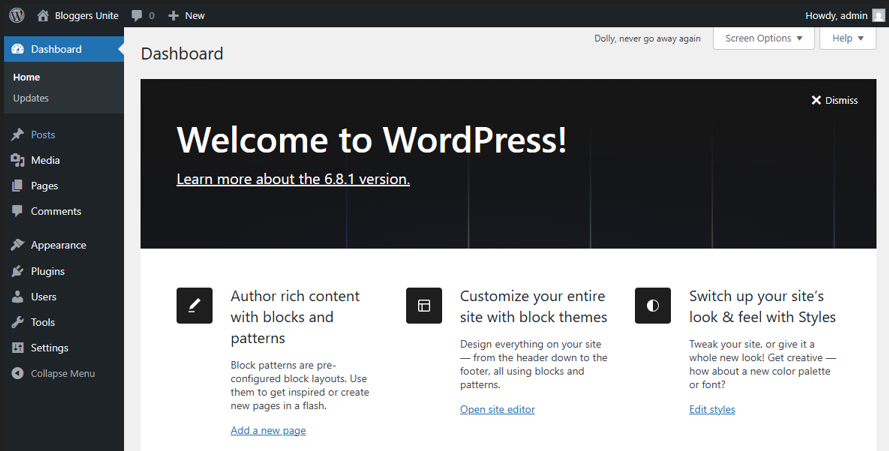
The exact widgets displayed can vary depending on your WordPress plugins, configuration and user permissions.
At a Glance
At a Glance provides a quick summary of website content and configuration, which can include posts, pages, comments, your WordPress version and the active theme.
Activity
Activity provides an overview of recent publishing and comment activity.
Quick Draft
Quick Draft allows you to quickly record a new post title and draft content without opening the full post editor.
Site Health Status
Site Health Status highlights information and recommendations relating to the website’s configuration, performance and security.
WordPress Events & News
WordPress Events and News provides information about WordPress community events and related news.
How Can You Customise the WordPress Dashboard?
You can organise the Dashboard by moving, collapsing or hiding available dashboard widgets.
Use Screen Options at the top of the screen, where available, to choose which elements are displayed. Keeping the Dashboard organised can make frequently used information easier to find.
What Does the WordPress Admin Sidebar Do?
The left-hand sidebar is the main navigation menu for WP Admin.
Depending on your permissions, theme and installed plugins, it can include Posts, Media, Pages, Comments, Appearance, Plugins, Users, Tools and Settings. Plugins and themes may also add their own menu items.
How Do You Manage Posts in WP Admin?
WordPress posts are commonly used for blogs, news articles and other date-based content.
Open Posts > Add New Post to create a post. You can add headings, text, images, categories and tags before saving the post as a draft, previewing it or publishing it.
Use Posts > All Posts to find and manage existing posts.
How Do You Manage Pages in WP Admin?
WordPress pages are generally used for more permanent website content such as About, Contact, Services and landing pages.
Open Pages > Add New Page to create a page, or Pages > All Pages to view and edit existing pages.
What Is the WordPress Media Library?
The Media Library stores images, documents, videos and other files uploaded to WordPress.
From Media, you can view uploaded files and manage information such as titles, captions and alternative text. WordPress also provides basic image-editing options for supported media, such as cropping and rotating images.
How Do You Manage the Appearance of a WordPress Website?
WordPress design controls are generally found under Appearance, but the available options depend on the active theme.
Themes
Open Appearance > Themes to view installed WordPress themes and, where appropriate, install, preview or activate a different theme.
Changing the active theme can significantly alter the website’s appearance and functionality, so create a backup and test important websites carefully before changing themes.
Widgets can add content or functionality to areas such as sidebars, headers and footers, while menus help visitors navigate between important parts of the website.
The exact controls available depend on whether your website uses a classic or block theme.
Header, Logo & Colours
Depending on the theme, options for changing the header, logo, colours and other design elements may appear under Appearance > Customise, the Site Editor, or theme-specific settings.
Not every WordPress website uses the same Customiser or Site Editor interface.
How Do You Manage WordPress Plugins?
Plugins add additional functionality to WordPress without requiring you to build the functionality from scratch.
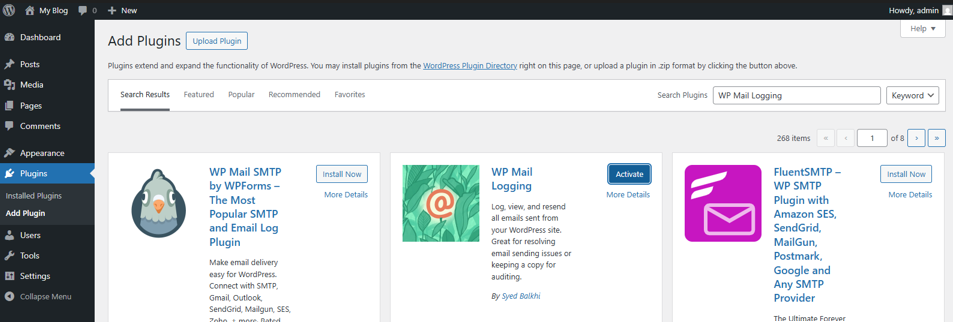
To install a plugin, open Plugins > Add New Plugin, find the required plugin, install it and then activate it.
Existing plugins can be managed from Plugins > Installed Plugins, where you can activate, deactivate, update or delete plugins where appropriate.
Only install plugins from sources you trust and confirm that a plugin is appropriate for your WordPress setup before activating it on an important live website.
How Do You Manage WordPress Users?
WordPress allows multiple users to have individual accounts with different levels of access.
Common WordPress roles include:
- Administrator: Has access to the website’s administration features and should only be assigned where this level of control is required.
- Editor: Can manage and publish content, including content created by other users.
- Author: May create, manage and publish their own posts.
- Contributor: Can create and manage their own posts, but has more limited publishing permissions.
- Subscriber: Has limited account and profile access.
- Super Admin: Applies to WordPress Multisite and provides network-level administration capabilities.
Use Users > Add New User to create an account, Users > All Users to manage existing accounts and Users > Profile to manage your own profile.
Avoid giving users Administrator access unless they genuinely need administrative control of the website.
What WordPress Settings Can You Manage?
The Settings area contains configuration options that affect how WordPress operates.
General Settings
Settings > General can include the site title, tagline, administration email address, site URLs, timezone, date format and time format.
Writing Settings
Settings > Writing controls options related to content creation, including certain default publishing settings.
Reading Settings
Settings > Reading includes options for your homepage and blog display, as well as the search-engine visibility setting.
Discussion Settings
Settings > Discussion controls comments, notifications, moderation and related discussion options.
Media Settings
Settings > Media contains default image-size settings used by WordPress.
Permalink Settings
Settings > Permalinks controls the URL structure WordPress uses for website content. Because changing permalink settings on an established website can affect existing URLs and result in broken links or 404 errors, create a full backup and consult your website developer before changing the permalink structure.
What Tools Are Available in WP Admin?
The Tools menu provides utilities for managing certain WordPress data and website functions.
Depending on your WordPress installation, this can include Import, Export and Site Health, along with additional tools provided by installed plugins.
What Is the WordPress Toolbar?
The WordPress Toolbar appears at the top of the screen when you are logged in and provides shortcuts to commonly used functions.
Depending on your permissions and configuration, it can provide shortcuts for visiting the website, managing comments, creating new content and accessing options added by plugins.
To hide the toolbar while viewing the front end of your website, open Users > Profile and untick Show Toolbar when viewing site.
Why Can’t You Access WP Admin?
WP Admin access problems can be caused by incorrect credentials, changed login URLs, plugins, themes, caching, permissions or website configuration problems.
What If You Have Forgotten Your Password?
Use Lost your password? on the WordPress login page and follow the reset password instructions sent to your registered email address.
What If /wp-admin Shows a 404 Error?
First confirm that the website address is correct. A security plugin may also have changed the standard login URL, or a wider WordPress configuration issue may be preventing the page from loading.
What If You See a 403 Forbidden Error?
A 403 error indicates that access to the requested resource is denied. Permissions, security rules or other website or hosting configuration may require investigation.
What If a Plugin or Theme Is Causing the Problem?
A plugin or theme conflict can interfere with WP Admin. Advanced troubleshooting should be performed carefully, preferably after creating a backup or on a staging environment.
What If WP Admin Is Slow?
A slow Dashboard can have several causes, including plugins, themes, database issues, updates, external requests and hosting resource usage. Avoid assuming that hosting is the cause until the wider website has been investigated.
Additional Information
- The WordPress Admin Dashboard is the central management area for your WordPress website’s content, users, plugins, themes and settings.
- The standard /wp-admin and /wp-login.php addresses work for many WordPress websites, but security configurations can change the login URL.
- WordPress Dashboard options can differ according to the logged-in user’s permissions, installed plugins and active theme.
- Classic themes and block themes may provide different options under Appearance, particularly for customisation, widgets and site editing.
- Administrator access should only be given to users who genuinely require full administrative control of the website.
- Create a recent website and database backup before making significant changes to themes, plugins or important website settings.
- Keep WordPress core, plugins and themes regularly updated to help maintain website security and compatibility.
- Only install themes and plugins from sources you trust and remove unused software where appropriate.
- Changing WordPress permalink settings can affect existing URLs, so this should not be treated as a routine configuration change on an established website.
- A slow WordPress Dashboard does not automatically indicate a hosting problem, as plugins, themes, database activity and external services can also affect performance.
- If you cannot access WP Admin, check the login URL, credentials and password-reset options before moving on to more advanced troubleshooting.
- Contact Domains.co.za Support for hosting-related access or server issues or consult your website developer for website-level plugin, theme, code or configuration problems.
FAQS
What Is the WordPress Admin Dashboard?
The WordPress Admin Dashboard, or WP Admin, is the control centre used to manage a WordPress website. It provides access to content, media, themes, plugins, users, settings, updates and other website-management tools.
What Is the Default WordPress Admin URL?
Most WordPress websites use /wp-admin or /wp-login.php after the domain name. A security plugin or custom website configuration may change the standard login address.
Can I Reset My WordPress Admin Password?
Yes. Select Lost your password? on the WordPress login page and follow the instructions sent to the email address associated with your account.
Can More Than One Person Use WP Admin?
Yes. WordPress supports multiple user accounts with different roles and permissions. Each person should have their own account instead of sharing administrator credentials.
Why Does My WordPress Dashboard Look Different?
The WP Admin interface can vary according to your WordPress version, user role, active theme and installed plugins. Plugins can also add their own menu items and dashboard tools.
Should I Back Up WordPress Before Making Changes in WP Admin?
A backup is strongly recommended before major changes such as changing themes, installing or updating important plugins, modifying critical settings or carrying out significant website work. For routine content editing, you don’t necessarily need to create a new backup before every small change.
Login to Domains.co.za Account
1. Go to the Domains.co.za website Account Login page.

2. Enter your Email and Password and click the Sign In button.
3. You will see the Domains.co.za Dashboard, displaying the Manage Account menu on the left and your Account Information, Account Overview and Open Support Tickets on the right.


