


The WordPress wp_get_attachment_image() function provides developers with a convenient way to display images stored in the WordPress Media Library. Instead of manually building an HTML element and finding the correct image URL, developers can provide an image attachment ID and let WordPress generate the image markup.
This makes the function particularly useful when developing custom WordPress themes, plugins, templates and reusable website components. It can also help WordPress handle registered image sizes and responsive image attributes such as srcset and sizes.
For developers working with dynamic content, using attachment IDs rather than hardcoded image URLs can make a website easier to maintain. For example, a custom field can store an image attachment ID, which can then be passed to wp_get_attachment_image() whenever the image needs to be displayed.
This guide explains how the wp_get_attachment_image function works, how its parameters are used, and how to safely display images from the WordPress Media Library.
wp_get_attachment_image() is a built-in WordPress function that returns an HTML element for an image attachment. It accepts an attachment ID, an image size, an optional icon setting and an array of HTML attributes. WordPress can then generate the appropriate image URL and responsive image attributes for the selected image.
The function is useful when you want WordPress to handle image markup rather than manually constructing the element yourself.
TABLE OF CONTENTS
What Is wp_get_attachment_image?
The wp_get_attachment_image() function retrieves an image from the WordPress Media Library using its attachment ID and returns a ready-to-use HTML tag.
The basic syntax is:
wp_get_attachment_image( $attachment_id, $size, $icon, $attr );The function returns the generated image HTML or an empty string if the requested image cannot be found.

When Should You Use wp_get_attachment_image?
You can use the function when displaying images in:
- Custom theme templates.
- Custom plugins.
- Image galleries.
- Featured image layouts.
- Custom fields.
- Reusable content blocks.
- Custom post types.
- Dynamically generated website sections.
It is particularly useful when the image is identified by an attachment ID and you wish WordPress to generate the appropriate image markup.
Before You Begin
Before adding the function to a website, ensure you have:
- WordPress administrator access.
- Access to a child theme, custom plugin or reputable code snippet tool.
- A recent website backup.
- A staging website where possible.
- The image attachment ID.
- Basic PHP knowledge.
- An understanding of where the image should appear.
Important Safety Note Before Editing WordPress Files
Avoid editing parent theme files directly, because theme updates can overwrite your changes.
Instead, use a child theme, site-specific plugin or reputable code snippet tool. When possible, test PHP changes on a staging website before applying them to a live website.
If a PHP change causes an error, check the WordPress error logs and use WordPress Debug Mode in a suitable development or staging environment.
wp_get_attachment_image Syntax Explained
The function uses the following syntax:
wp_get_attachment_image( $attachment_id, $size, $icon, $attr );
$attachment_id
This is the required ID of the image attachment stored in the WordPress Media Library. It is important to use an attachment ID, rather than simply providing the ID of a normal post or page.
$size
This determines which registered image size WordPress should use. Common values include:
- Thumbnail
- medium
- large
- full
You can also use custom image sizes registered by your theme or plugin.
$icon
This determines whether WordPress should use an attachment icon instead of the image. It is rarely required for normal image output.
$attr
This is an array of HTML attributes that can be added to the generated element. These can include attributes such as class, alt, title, loading, decoding, srcset and sizes.
Basic Example: Display an Image by Attachment ID
The simplest example is:
echo wp_get_attachment_image( 282, 'medium' );In this example, 282 is the image attachment ID and medium tells WordPress to use the medium image size.
Replace 282 with the actual attachment ID of the image you want to display.
How to Find an Image Attachment ID in WordPress
You can usually find the attachment ID from the WordPress Media Library.
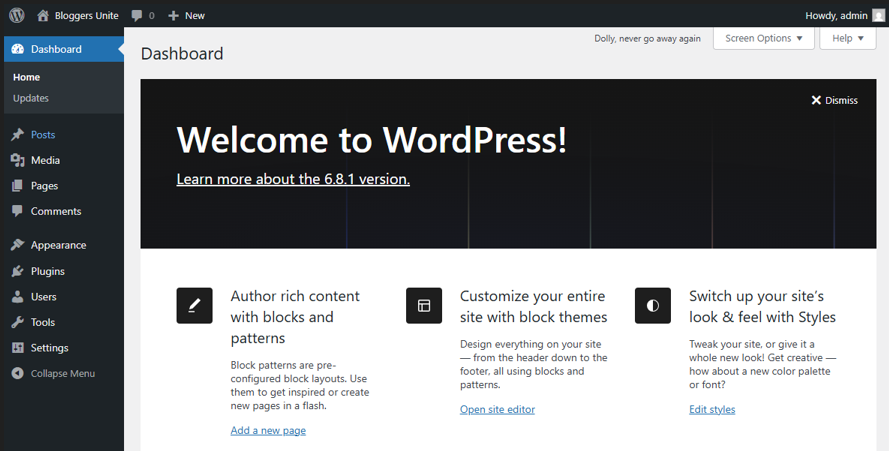
1. Login to your WordPress Dashboard.
2. Open Media and select Library.
3. Open the image that you wish to use.
4. Check the browser URL or attachment details for the relevant ID.
5. Look for a value such as item=60 or post=60, depending on the WordPress interface and version.
6. Use the identified attachment ID in your PHP code.
The value should correspond to the image’s Media Library attachment record.
How to Display a Featured Image with wp_get_attachment_image
You can combine has_post_thumbnail(), get_post_thumbnail_id() and wp_get_attachment_image() to display a post’s featured image.
if ( has_post_thumbnail() ) {

           $thumbnail_id = get_post_thumbnail_id();

    echo wp_get_attachment_image( $thumbnail_id, 'large' );
}
get_post_thumbnail_id() retrieves the attachment ID of the current post’s featured image.
How to Display Images Attached to a Post
If you need to retrieve images attached to a particular WordPress post, you can use get_attached_media().
$images = get_attached_media( 'image', get_the_ID() );foreach ( $images as $image ) { echo wp_get_attachment_image( $image->ID, 'medium' );}This retrieves image attachments associated with the specified post and then passes each attachment ID to wp_get_attachment_image().
Remember that an image does not need to be attached to the current post for wp_get_attachment_image() to work. The function only needs a valid image attachment ID.
How to Display an Image from a Custom Field
If a custom field stores an image attachment ID, that value can be passed directly to the function.
$image_id = get_post_meta( get_the_ID(), 'custom_image', true );if ( $image_id ) { echo wp_get_attachment_image( $image_id, 'medium' );}If the custom field stores an image URL instead of an attachment ID, attachment_url_to_postid() can be used to attempt to find the corresponding attachment ID.
$image_url = get_post_meta( get_the_ID(), 'custom_image_url', true );$image_id = attachment_url_to_postid( $image_url );if ( $image_id ) { echo wp_get_attachment_image( $image_id, 'medium' );}The exact approach can vary depending on how the custom field or plugin stores its image data.
How to Add Custom Classes, Alt Text & Title Attributes
You can use the $attr parameter to add attributes to the generated image:
$attr = array( 'class' => 'custom-image-class', 'alt' => 'Descriptive image alt text', 'title' => 'Image title');echo wp_get_attachment_image( $attachment_id, 'medium', false, $attr );This allows developers to add styling classes and relevant image attributes without manually constructing the entire element.
Why Alt Text & Image Attributes Matter
Alternative text helps users who rely on screen readers understand the purpose or content of an image. It can also be displayed when an image cannot be loaded.
Alt text should describe the image appropriately for its context. Avoid filling alt text with keywords simply for SEO purposes.
Other attributes can also provide useful information. For example, a CSS class can control the image’s appearance, while WordPress can generate responsive attributes to help browsers select an appropriate image resource.
When to Use wp_get_attachment_image_src Instead
wp_get_attachment_image_src() is useful when you need the image URL, width and height rather than a complete HTML element.
For example:
$image = wp_get_attachment_image_src( $attachment_id, 'large' );This function returns image information in an array, which can then be used when you need to construct custom markup yourself.
It should not automatically be considered a better alternative to wp_get_attachment_image(). If you simply need a standard WordPress image element, wp_get_attachment_image() is generally more convenient.
Common Mistakes to Avoid
Common mistakes include:
- Using the wrong attachment ID.
- Passing a normal post ID instead of an image attachment ID.
- Using the full-size image unnecessarily.
- Hardcoding complete image URLs when an attachment ID is available.
- Omitting meaningful alt text.
- Directly editing parent theme files.
- Assuming every image is attached to the current post.
- Assuming a custom field always stores an attachment ID.
- Using a custom field URL when an attachment ID would be more appropriate.
- Manually constructing image HTML without appropriately escaping values.
Troubleshooting wp_get_attachment_image Not Showing an Image
If the image doesn’t appear, check the following:
- Confirm that the attachment ID is correct.
- Ensure the image still exists in the Media Library.
- Check whether the custom field contains an attachment ID or a URL.
- Confirm that the correct template file was edited.
- Ensure the code is running in the expected context.
- Check whether the image is attached to the relevant post when using get_attached_media().
- Clear applicable WordPress and hosting caches.
- Check for PHP errors in the WordPress error logs.
- Use WordPress Debug Mode in a suitable development or staging environment when troubleshooting code.
- Confirm that the selected image size exists and is available for the image.
Additional Information
- wp_get_attachment_image() returns a complete HTML
element for an image stored in the WordPress Media Library.
- The function requires a valid image attachment ID rather than simply the ID of any WordPress post or page.
- Common registered image sizes include thumbnail, medium, large and full, although themes and plugins can register additional sizes.
- WordPress can generate responsive image attributes such as srcset and sizes when generating image markup.
- You can use the $attr parameter to provide attributes such as CSS classes, alt text and titles.
- A meaningful alt attribute can improve accessibility and should describe the image appropriately rather than being filled with search keywords.
- You should use a child theme, custom plugin or reputable code snippet tool instead of directly editing parent theme files.
- A recent backup and staging environment are recommended before making PHP or template changes to a live website.
- get_post_thumbnail_id() can be used to retrieve the attachment ID of a post’s featured image.
- get_attached_media() can retrieve media attachments associated with a specific post.
- If an image is stored as a URL in a custom field, attachment_url_to_postid() can be used to attempt to identify its corresponding attachment ID.
- wp_get_attachment_image_src() is more appropriate when you need image data such as the URL, width and height to construct custom markup.
- An image doesn’t have to be attached to the current post for wp_get_attachment_image() to work, because the function operates using the supplied attachment ID.
- If an image is not displayed, check the attachment ID, custom field data, template location, caching and PHP error logs before troubleshooting more complex issues.
Login to Domains.co.za Account
1. Go to the Domains.co.za website Account Login page.

2. Enter your Email and Password and click the Sign In button.
3. You will see the Domains.co.za Dashboard, displaying the Manage Account menu on the left and your Account Information, Account Overview and Open Support Tickets on the right.


