


301 Redirects Help WordPress Websites Move URLs Without Losing Visitors
Changing a URL on your website is normal. You may rename a page, clean up your links, or move to a new domain. But visitors and search engines still look for the old address. Without a redirect, they hit a 404 error page, which means lost traffic, a frustrating visitor experience, and a real risk to your search rankings.
That’s what a 301 redirect in WordPress prevents. This guide is for site owners, developers, agencies, and anyone managing URL changes.
You will learn:
- What redirects are.
- When to use them.
- How to set them up with plugins, the .htaccess file, or PHP.
KEY TAKEAWAYS
- A 301 permanently forwards visitors and search engines from an old URL to a new one.
- Use it for URL, permalink, domain, and HTTP-to-HTTPS changes, as well as merged content, broken links, and duplicates.
- Choose a 302 for temporary moves, and a 404 or 410 when there’s no good replacement.
- Set redirects up with a redirect plugin, an SEO plugin, .htaccess, or PHP.
- Redirection and Rank Math handle 301s free; Yoast’sredirect manager needs Premium.
- Back up before editing .htaccess, and only on Apache or LiteSpeed servers.
- Test the status code, the final page, and the www, non-www, and HTTPS versions.
- Avoid chains and loops, update internal links, and refresh your sitemap after changes.
TABLE OF CONTENTS
What a Redirect Is, & What a 301 Does
A redirect is an instruction that sends visitors and search engines from one URL to another. When someone opens the old address, the redirect quietly forwards them to the page you wish them to see.
You need redirects because URLs break. When a page is renamed, moved, or deleted, the old link stops working and shows a 404 error, the page not found message. That’s a dead end for visitors and a weak signal to search engines.
A 301 redirect is the permanent version. It informs browsers and search engines that a page has moved for good, so they should use the new URL going forward. Because the move is permanent, most of the old page’s ranking value passes to the new one.
301 vs 302, 303, 307, 308 & Meta Refresh
The 301 isn’t the only type of redirect. Here is how the main types differ, and where each one fits:
- 301 (permanent): The move is final, and signals from the old URL pass to the new one. You will use this one most.
- 302 (temporary): The original URL is returning, so search engines keep it indexed. Good for short-term changes.
- 303 (see other): Sends visitors to a different page after an action, often once they submit a form. This isn’t cached.
- 307 (temporary): The same as a 302, but it keeps the request method, so a POST remains a POST. Useful for forms and apps.
- 308 (permanent): The same as a 301, but it also keeps the request method intact.
- Meta Refresh: A page-level redirect that runs in the browser, usually after a short delay. It’s slower and weaker for SEO, so avoid it for anything important.
For a permanent move, the 301 is almost always the correct choice.
Why 301 Redirects Matter for WordPress Sites
So why does this matter for your WordPress site? A good redirect protects three things simultaneously:
- Your visitors.
- Your search rankings.
- The links pointing to you.
For visitors, it means no dead ends. Instead of a frustrating error, they reach the content they were after. For search engines, WordPress SEO redirects keep your rankings steady during a move, because crawlers follow the 301 to the new page and update their records.
And when other sites link to a URL you’ve changed, the redirect carries that link value across, so the backlinks you’ve earned aren’t wasted.
When to Use a 301 Redirect in WordPress
Go for a 301 whenever a URL changes for good and you want people and search engines to follow. Use it when you:
Change a Page or Post URL
When you edit the slug of a single page or post, the old address will stop working immediately. Anyone who bookmarked it, or any site linking to it, will now hit a dead end. In this case, adding WordPress URL redirects from the old slugs to the new ones keeps that traffic and those links pointing to the correct place.
Change Your Permalink Structure
Sometimes you change the format of every URL simultaneously, for example, switching from a dated structure to a clean post-name one. Because this affects your entire site, you need to map the old URLs to the new ones carefully.
Move to a New Domain
If you’re rebranding or moving your site to a new domain, redirects hold everything together. The goal is to send each old page to its matching page on the new domain, one-to-one, not dump everything onto the home page. For the full process, see our guide on how to redirect a domain.
Switch from HTTP to HTTPS
Once you secure your website with SSL, your site works on both HTTP and HTTPS, which counts as two versions of every page. A 301 redirect from each HTTP URL to its HTTPS version fixes that, so visitors and search engines use only the secure address.
Delete or Merge Content
When you remove an old page, don’t leave a 404 behind if a good alternative exists. Instead, redirect it to the closest relevant page. The same applies to merging two thin posts into one stronger article. A 301 redirect will redirect everyone to the combined page and carries both pages’ value with it.
Fixing Broken Links
Over time, pages are moved or deleted, and the links to them quietly break. If those old URLs still have backlinks or internal links pointing to them, a 301 redirect preserves that traffic by routing it to a working page. This is a simple way to clean up WordPress broken links without chasing down every link manually.
Consolidate Duplicate URLs
Sometimes the same content appears at multiple URLs, which confuses search engines about which version to rank. Choose the one you want as the main URL, then 301 the duplicates to it. This points all the signals to a single page and clears up the mixed message.
When Not to Use a 301 Redirect
A 301 isn’t always the correct tool and using it in the incorrect place can cause problems.
For instance, if a change is only temporary, use a 302 instead. A seasonal sale page or a short campaign will return, so you don’t want search engines to treat the move as permanent. For a page you’ve deleted with nothing similar to offer, it’s often better to let it return a 404, or a 410 to say it’s gone for good, rather than force a redirect.
Never send unrelated pages to your home page just to avoid an error. It frustrates visitors who wanted something specific and signals to search engines that the old page had no real replacement. And where you can, update your internal links to point directly to the new URL.
4 Ways to Create a 301 Redirect in WordPress
There are multiple ways to create a 301 redirect in WordPress, and the correct one depends on your comfort with code and how many redirects you’re managing.
There are four main options:
- A Dedicated Redirect Plugin: The easiest choice for most people, with everything handled from your dashboard.
- An SEO Plugin’s Built-in Tool: Handy if you already run one, so you skip adding another plugin.
- The .htaccess File: A server-level method that’s fast but requires care and the correct hosting.
- A PHP Script: An advanced option for specific cases. Not recommended for everyday use.
We explain each one below.
Method 1: Use a Redirection Plugin
A plugin is the simplest way to manage redirects, especially if you’d rather not interact with code. The most popular WordPress redirect plugin is Redirection, a free tool used on over two million sites. It allows you to create 301s, track 404 errors, and manage everything from a single screen.
Here’s how to set up a redirect with it:
- Install the Redirection plugin. For step-by-step instructions, see our guide on installing a WordPress plugin.
- Once installed and activated, navigate to Tools → Redirection. The first time, a short setup wizard runs. You can choose to monitor permalink changes, log 404 errors and store IP information for redirects and 404s, then let it check your REST API and finish.
- After that, open Tools → Redirection → Add redirect. In Source URL, enter the old address (e.g., /old-page). In Target URL, enter the new one (e.g., /new-post).

- Next, click gear to open advanced options, then set the type to 301 – Moved Permanently. Click Add Redirect to save.

Now, test it by opening the old URL in your browser. It should send you directly to the new page. That’s it. Your redirect is live, and you can repeat these steps for any other URLs you need to move.
Method 2: Using an SEO Plugin’s Redirect Manager
If your site already runs an SEO plugin, you may not need a separate one. Rank Math includes a redirect tool in its free version, so it’s a good example to follow.
- Install and activate Rank Math, then run its setup wizard.
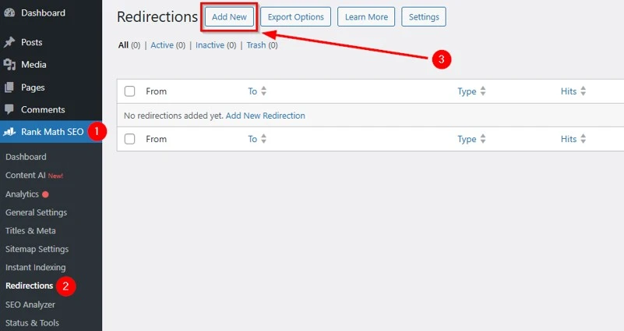
- Go to Rank Math SEO → Dashboard and toggle on Redirections.
- Then, navigate to Rank Math SEO → Redirections and click Add New.
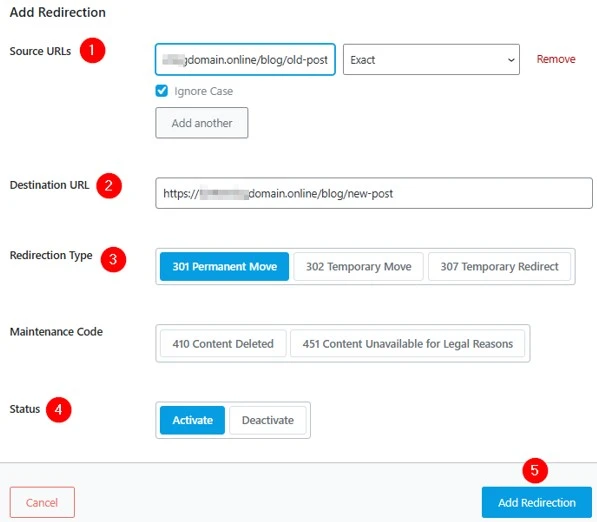
- Type the old URL path in the Source URLs field, set the dropdown to Exact, and ensure the Ignore Case box remains checked.
- Enter the Destination URL, the full web address where users should be redirected.
- Choose 301 Permanent Move redirection type and set the status to Activate.
- Click Add Redirection, then test the old URL in your browser.
IMPORTANT:
Not every SEO plugin offers this for free. Yoast SEO’s redirect manager, for instance, is part of Yoast SEO Premium, so the free version won’t include it. Always confirm the feature is available before you rely on it.
Method 3: Edit .htaccess File
If you prefer not to use a plugin, you can add a WordPress 301 redirect htaccess rule manually. The .htaccess file is a settings file for your web server, and it controls how your site behaves. Adding a few lines to it creates permanent redirects at the server level.
IMPORTANT:
A small error here can take your whole site offline. So, ensure you back up your WordPress site, and ideally the .htaccess file itself, before you change anything.
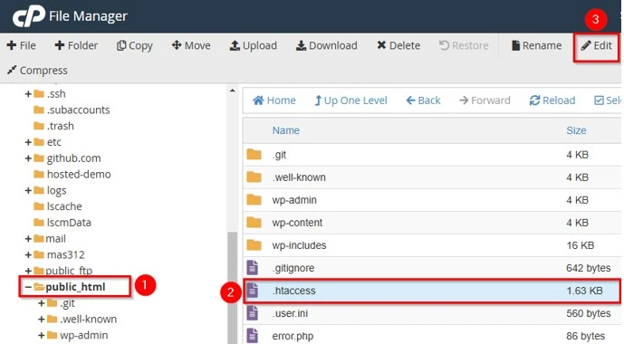
You will usually find .htaccess in the public_html folder, which you can reach through your hosting File Manager or an FTP client like FileZilla. It’s a hidden file, so you may need to turn on Show Hidden Files (dotfiles) to view it.
Note that the .htaccess only works on Apache and LiteSpeed servers. If your host runs Nginx, this file will be ignored, and you will need to try a different method.
Open the .htaccess file to add your own rules. However, place them above the # BEGIN WordPress line. WordPress manages the block between its own markers and can overwrite anything inside it.
Redirect a Single URL
To send one page to another, add this line:
Redirect 301 /old-page https://www.yoursite.co.za/new-pageThis tells the server that the old page has moved permanently. Swap in your real paths and remember that the source is the part after your domain.
Redirect Multiple URLs
For several redirects, add one line per URL:
Redirect 301 /old-page-1 https://www.yoursite.co.za/new-page-1
Redirect 301 /old-page-2 https://www.yoursite.co.za/new-page-2
Redirect 301 /old-page-3 https://www.yoursite.co.za/new-page-3
Once you’re handling more than a handful, keep a redirect map. This is a simple list pairing each old URL with its new one, so nothing is missed.
Redirect a Whole Domain
Moving to a new domain? This sends every old address to its match on the new one:
RewriteEngine On
RewriteCond %{HTTP_HOST} ^olddomain\.co\.za [NC,OR]
RewriteCond %{HTTP_HOST} ^www\.olddomain\.co\.za [NC]
RewriteRule ^(.*)$ https://newdomain.co.za/$1 [L,R=301]
This keeps the path intact, so /about on the old domain lands on /about on the new one. Try to map pages one-to-one rather than dumping everything on the home page, or you will lose the value each page held.
Method 4: Using a PHP Redirect (Advanced)
PHP redirects are the most technical option, and they are best left for specific cases rather than day-to-day use. You would usually only reach for this if you’re a developer handling something a plugin cannot.
The core code sends a 301 header and then stops the page from loading anything else.
Here’s how you can do it:
- Open the public_html folder (WordPress installation directory).
- Create a new .php file, such as permanent_redirects.php.
- Write the following code snippet and click Save Changes.
<?php
header("HTTP/1.1 301 Moved Permanently");
header("Location: https://www.yoursite.co.za/new-page/");
exit;
?>
The exit; line matters. Without it, the rest of the page can still run, and search engines may ignore your redirect.

How to Test a 301 Redirect in WordPress
Setting up a redirect is only half the job; you also need to check it works the way you mean it to. Opening the old URL in your browser is a good start, but it doesn’t tell the full story.
The most important check is the status code. A real 301 returns a 301 response. If you see a 302, the redirect is set as temporary by mistake, and search engines will treat it that way.
A free HTTP status checker tool confirms the code and shows the end point in a single view. While you are there, check a few more things:
- Ensure the redirect lands on the correct page, not one that is close, but incorrect.
- Confirm it takes a single hop rather than bouncing through several URLs.
- Then test the variants people actually use: mobile and desktop, HTTP and HTTPS, and both the www and non-www versions of your address. A redirect that works on one but fails on another will still leave visitors stranded.
Redirect Chains & Redirect Loops
Two problems trip up even careful redirects, and both harm your site.
- Redirect Chain: A redirect chain is when one URL points to another, which then points to a third, before reaching the final page. Every extra hop slows the load, wastes crawl budget, and provides search engines with more chances to lose the trail. The fix is simple: point the original URL directly at the end point, which skips the middle steps.
- Redirect Loop: A redirect loop is worse. It occurs when two URLs send visitors back and forth to each other, so the page never loads at all. The browser gives up and displays an error. Loops usually result from conflicting rules, often a mix of plugin redirects and .htaccess rules working against each other. If a page continuously reloads, check for two rules fighting over the same URL.
301 Redirects & SEO (What They Can & Can’t Do)
Redirects and SEO are closely linked, but it’s important to know what a 301 can and cannot do.
Here’s what it does well. A 301 tells search engines that a page has moved permanently, so they update their records to the new URL. It also passes most of the old page’s ranking value forward, which helps you hold your position through a change. And when you merge pages, it points the combined signals to one strong URL.
Now the honest limits. A 301 does not guarantee the new page will rank exactly as the old one did. Relevance still matters, so sending a page to an unrelated destination won’t preserve its rankings.
Too many needless redirects will slow visitors down and eat into crawl budget. And a redirect is only part of the picture. Pair it with updated internal links and a refreshed XML sitemap, so search engines find the new URLs immediately instead of leaning on the redirect forever.
Redirects During a Website Migration
A site migration is where redirects matter most, because you are moving many URLs simultaneously. To do this effectively, get the plan right so that visitors don’t notice anything. However, if you rush it, you can lose years of hard-won traffic in a day.
Start by crawling your old site to capture every important URL. Export that list, then map each old address to the closest matching page on the new site. Where two rules would compete, one-for-one is the goal.
You can’t always redirect everything, so set priorities. Focus first on pages that earn traffic, hold rankings, drive conversions, or carry valuable backlinks. These are the ones you cannot afford to break. Lower-value pages can wait or point to a sensible parent page.
Before you go live, test your redirects on a staging site, so you catch errors safely. Then launch the redirects at the same moment the new site goes live. Once it’s live, keep watching. Monitor for new 404 errors and track your rankings over the following weeks, so you can fix any gaps fast.
Redirects for eCommerce Stores
Online shops face redirect decisions more often than most sites, because products and categories change all the time. When you handle them well, redirects keep buyers moving towards a sale instead of towards a dead end.
When you rename a product or change its URL, redirect the old address to the new listing. For a discontinued product, send buyers to the closest alternative or its parent category so they can still find something to purchase. The same goes for merged or renamed categories: point the old URL to the new one.
Seasonal pages need a lighter touch. It’s better to pause festive or sale pages that return each year than permanently redirect them, as you will want them back. Also leave your cart and checkout pages alone, as redirecting those can break the purchasing process.
What South African Businesses Should Keep in Mind
For South African businesses, a few local habits make redirects even more crucial. Many small businesses redesign or relocate their sites without a proper redirect plan, only to wonder why enquiries suddenly dry up.
The risk is bigger than it looks. Local service pages often do the real selling, carrying quote forms, WhatsApp chat links, click-to-call buttons, and online booking tools. When one of those pages ranks well and then breaks in a redesign, you don’t just lose a URL; you lose the enquiries that page brought in.
If you run an agency, keep a redirect map for every client project. It provides something to check off before launch and to hand over for sign-off afterwards. And if you’re on solid WordPress hosting in South Africa with easy file and backup access, making and testing these changes is far less stressful.

Redirects & Digital Continuity During Load-shedding
Load-shedding is a fact of business life here in South Africa, and it makes your website work even more difficult. When the power is out at your premises, customers immediately turn to your online channels to find answers, place orders, or contact you.
Redirects won’t keep the lights on, and they cannot fix an outage. What they can do is ensure nobody hits a broken link at the worst moment. When someone’s checking your support page, product range, or contact form during a blackout, a working redirect quietly sends them to the correct place instead of an error.
POPIA & Redirect Planning
Redirects are mostly about URLs, so they rarely touch personal information on their own. But the work around them sometimes does, and that’s where POPIA is worth considering.
Consider what changes hands during a migration. Analytics exports, server logs, migration files, and the pages behind your forms can all hold business or customer data. If you’re sharing these with a developer, an agency, or a support team, share only what’s necessary, and through safe channels.
This isn’t legal advice, and your situation may differ. The simplest habit is to treat migration files and data exports with the same care you would give any customer records, and to limit who can access them.
Common Mistakes & Best Practices
Most redirect problems come down to a handful of habits. Keep this quick checklist nearby whenever you’re making changes.
Common mistakes to avoid:
- Choosing a 302 when the change is permanent.
- Sending unrelated pages to your home page instead of a relevant match.
- Building chains or loops that slow visitors and confuse crawlers.
- Editing .htaccess without saving a backup first.
- Covering only one address and forgetting the www, non-www, or HTTPS versions.
- Letting old plugin redirects pile up with nobody reviewing them.
- Overlooking retired URLs that still carry backlinks.
Best practices to follow:
- Keep a redirect map for every batch of changes.
- Point each old URL to its closest, most useful match.
- Use a 301 redirect in WordPress for anything that’s moving for good.
- Check the status code after saving each redirect.
- Refresh your internal links and XML sitemap to match.
- Watch for new 404 errors in the weeks after a launch.
- Consult a developer for large migrations or tricky rules.
Troubleshoot Redirects That Aren’t Working
If a redirect won’t behave, work through the likely causes one at a time. Start with the plugin: check it’s still active and that the rule is saved and switched on. Next, clear your caches, including your site cache, browser, and any CDN, since an old, cached version can hide a redirect that’s working fine.
If you edited .htaccess, reread it for typos, as a single stray character can break the file. Remember that redirects can be found in more than one place. Your hosting setup, CDN, or firewall may add rules of their own that clash with yours, so a quick status check will show the real response a URL returns.
When the cause still isn’t clear, dig deeper. Turn on WordPress debug mode and review your WordPress error logs to surface the exact conflict. On a staging site, switch off competing rules until the redirect works, then confirm the destination page exists.
When to Contact a Developer or Domains.co.za Support
Some jobs are worth handing over to an expert. Call for assistance with a full domain migration, a large redirect map, or server-level rules you’re unsure about. The same applies to canonical issues across www, non-www, and HTTPS versions, or redirects on a busy online store.
Reach out sooner rather than later if a change triggers a 500 internal server error, if you’re stuck in a redirect loop, or if you can’t reach your files in cPanel or File Manager. Domains.co.za support can help you sort server-side redirect settings before a small issue becomes a bigger one.
Final Thoughts
A 301 redirect in WordPress is a small rule with big consequences. When you set it up properly, it protects your visitors, your rankings, and the links you’ve earned through a URL change. However, if you skip it or rush it, you risk broken journeys and lost search visibility.
The takeaway is simple:
- Plan your redirects before you make changes.
- Always point people to a relevant page.
- Test every rule and keep watching for problems after launch.
When you’re ready to handle redirects, migrations, and URL changes with confidence, reliable WordPress Hosting from Domains.co.za offers secure infrastructure, practical local support, and hosting designed for growing South African websites.
![Strip Banner Text - Handle redirects, migrations, & URL changes with confidence on fast, secure WordPress Hosting. [Get Started]](/articles/wp-content/uploads/2026/10/301-redirect-in-wordpress-02.webp "Handle redirects, migrations, & URL changes with confidence on fast, secure WordPress Hosting. [Get Started]")
Power Up Your Site: How to Install a WordPress Plugin
VIDEO: Power Up Your Site: How to Install a WordPress Plugin
FAQS
How long should I keep a 301 redirect in place?
Treat it as permanent. Keep it for at least a year, and ideally for good. Old links and bookmarks can send you traffic long after a change, and removing a redirect too soon returns the broken link you have just fixed.
Does changing a permalink in WordPress create a redirect automatically?
Not on its own. Core WordPress doesn’t add a redirect when you edit a slug, so the old URL breaks immediately. However, sSme tools handle it for you. Rank Math’s auto-redirect feature and a few redirect plugins create a 301 the moment a URL changes.
What’s the difference between a 301 redirect and a canonical tag?
They solve different problems. A 301 redirect in WordPress moves visitors and crawlers to a new URL, and the old one stops loading. A canonical tag leaves both pages reachable but tells search engines which version to treat as the main one. Use a 301 when a page has completely moved, and a canonical for near-duplicate pages you wish to keep live.
Can I redirect a URL to a page on another website?
Yes. A 301 can point to any address, including one on a different domain. Just remember: the ranking value flows to that external page, so use off-site redirects sparingly and only when they genuinely help the visitor.
Does a single 301 redirect slow down my website?
Barely. One direct redirect adds a tiny delay that visitors won’t notice. The real slowdown comes from chains, where a URL passes through several hops before it reaches the final page. Keep each redirect pointing directly at its destination, and your speed will stay fine.
Other Blogs of Interest
- WordPress Stuck In Maintenance Mode? Here’s What It Means & How To Prevent It
- WordPress Blocks Make Website Customisation Easier Without Being Into A Developer
- WordPress Widgets Help You Add Useful Features Without Rebuilding Your Website
- The WordPress Admin Dashboard Is Where Website Management Really Begins
- WordPress Taxonomies Give Your Content Structure, Context, & Better Navigation

Rhett isn’t just a writer at Domains.co.za – he’s our resident WordPress content guru. With over 8 years of experience as a content writer, with a background in copywriting, journalism, research, and SEO, and a passion for websites.
Rhett authors informative blogs and articles that simplify the complexities of WordPress, website builders, domains, and cPanel hosting. Rhett’s clear explanations and practical tips provide valuable resources for anyone wanting to own and build a website. Just don’t ask him about coding before he’s had coffee.